
4.4. Logging Scenarios
In case of issues, connector logs can be enabled to help with the troubleshooting process. The configuration is located in the root of DW installation folder/settings folder in log_settings.json.
For more information about Serilog configuration options, visit https://github.com/serilog/serilog-settings-configuration.
4.4.1. Production Configuration (Default)
Locate the “Connector Unity” section.
By default log level is set to Warning.
Figure 1: log_settings.json
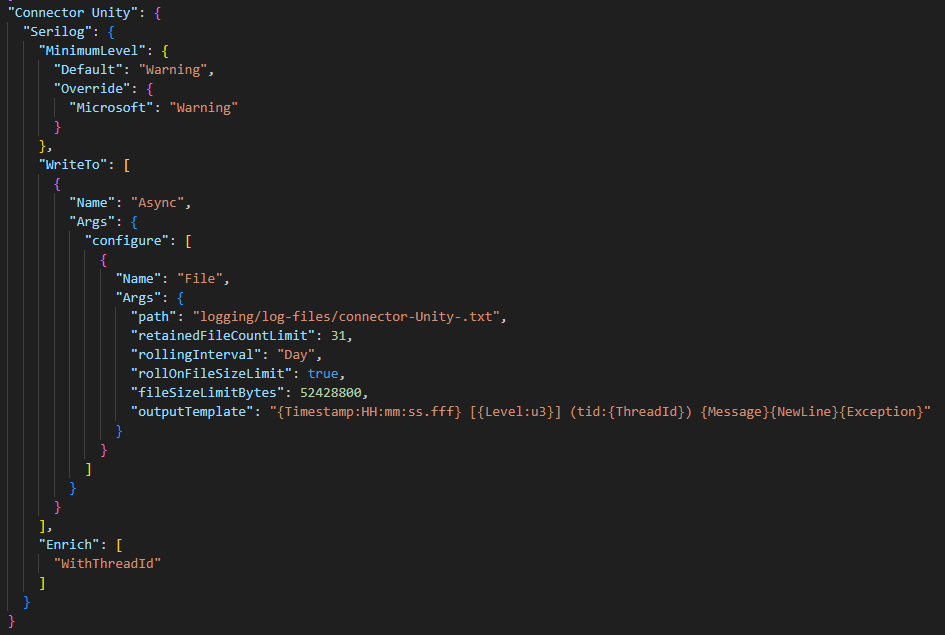
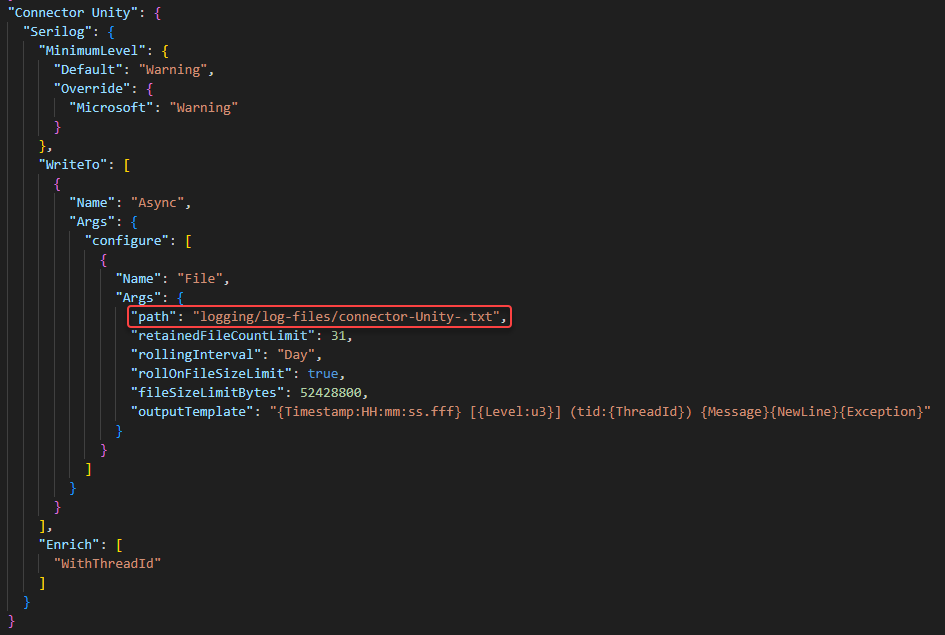
In the “path” field, a path to a log files can be changed
4.4.2. Debug Configuration
Locate the “Connector Unity” section.
To enable collection of debug logs, not including duration logs:
Change MinimumLevel in the Logging section of log_settings.json to Debug.
Figure 2: log_settings.json
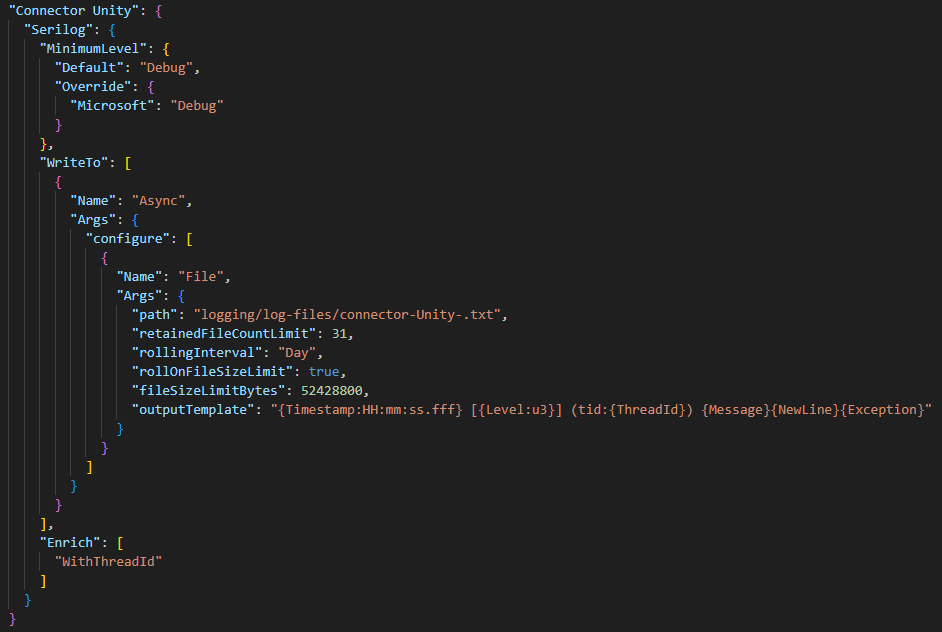
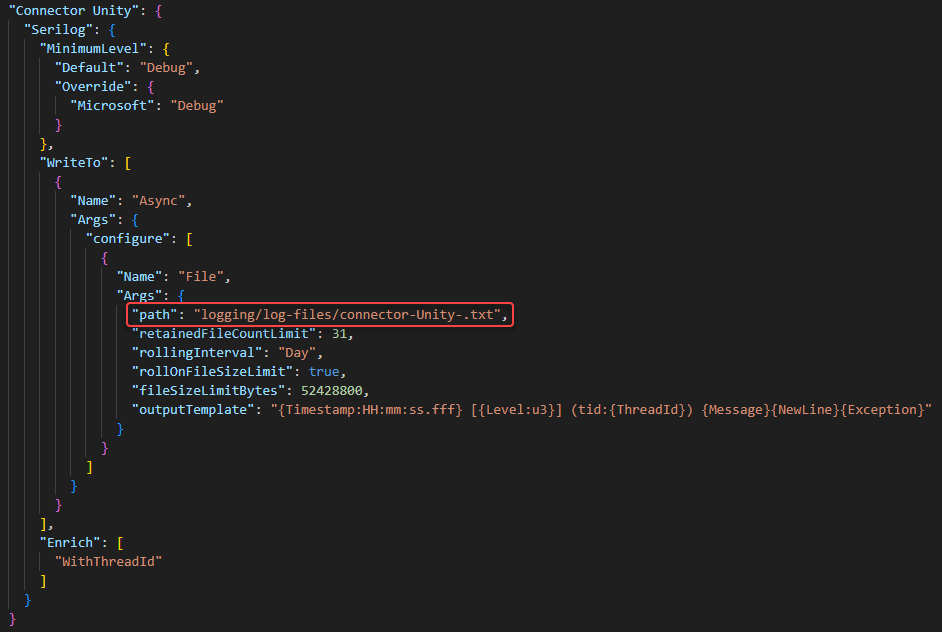
In the “path” field, a path to a log files can be changed
4.4.3. Logs in DW administration
DW log files are accessible also via the DW administration application. For the connector’s logs to be visible there as well, the path in the log_settings.json must be set to [DW_DEPLOY_PATH]/logging/log-files/[file-name].txt
For more information about Logs in DW Administration Application, please see the Chapter 5 Logging in the DW administration application guide.