
Logging In
Every new application user is assigned a user name and a temporary password. Once the user logs in for the first time using the temporary password, a real password must be created that is used for all subsequent logins.
Figure 1: User name screen
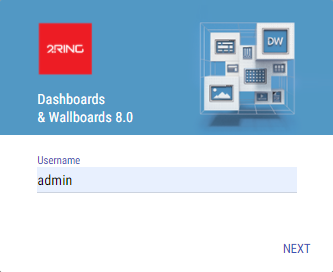
Figure 2: Password screen
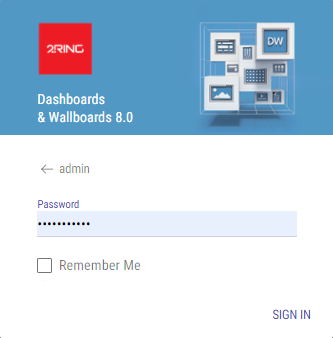
By checking the Remember Me checkbox the user is automatically logged in during any subsequent visit to the application within next 30 days after last successful login.
Resetting password
In case of a forgotten password, an administrator can reset user’s password by creating a temporary password. User have to log in with the temporary password and create a unique one within the temporary password expiration time set by an administrator. For more information about resetting password, see Users chapter.
Changing password
After logging in, user can change his password by clicking Change Password option in application menu. Administrator can disable user ability to change his password.
Embedding DW in iFrame
Running the DW in iFrame gives user opportunity to embed the DW within any web page. In order to do that:
Navigate to web.config, located in the root of the DW web application deploy folder.
Search for following string under the
<location path="idp">section:frame-ancestors 'self';
And add the domain, from which the DW will be loaded:
frame-ancestors 'self' https://domain-from-which-dw-will-be-loaded.com;
Save the file.