Installation Process
A 2Ring Power Tool installer is provided as an executable file. For proper installation of the Power Tool, please follow these steps.
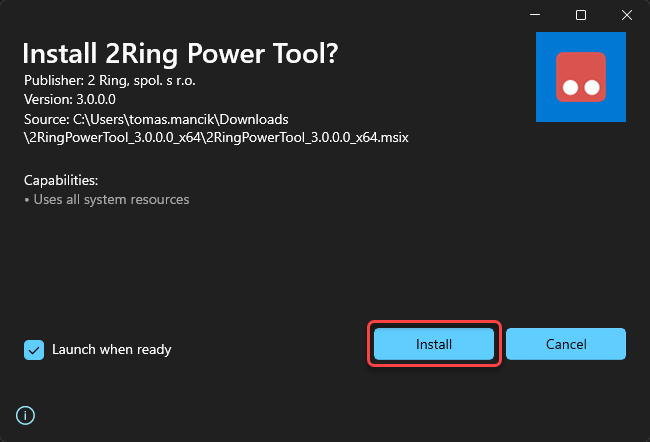
Locate and open the installation file on your computer. A pre-installation confirmation dialog will appear showing the installer details and capabilities. Click Install to proceed with the setup wizard.
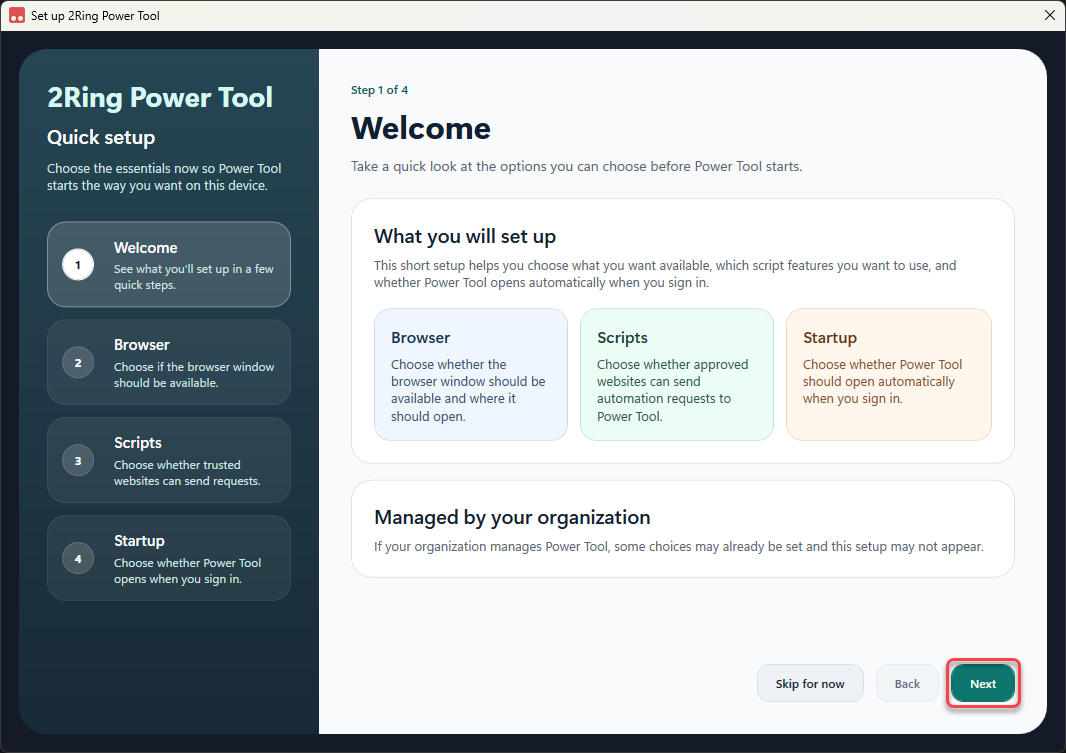
On the welcome screen, review the information about what will be set up. The quick setup wizard will help you choose essential options for how Power Tool starts on your device. Click Next to continue.
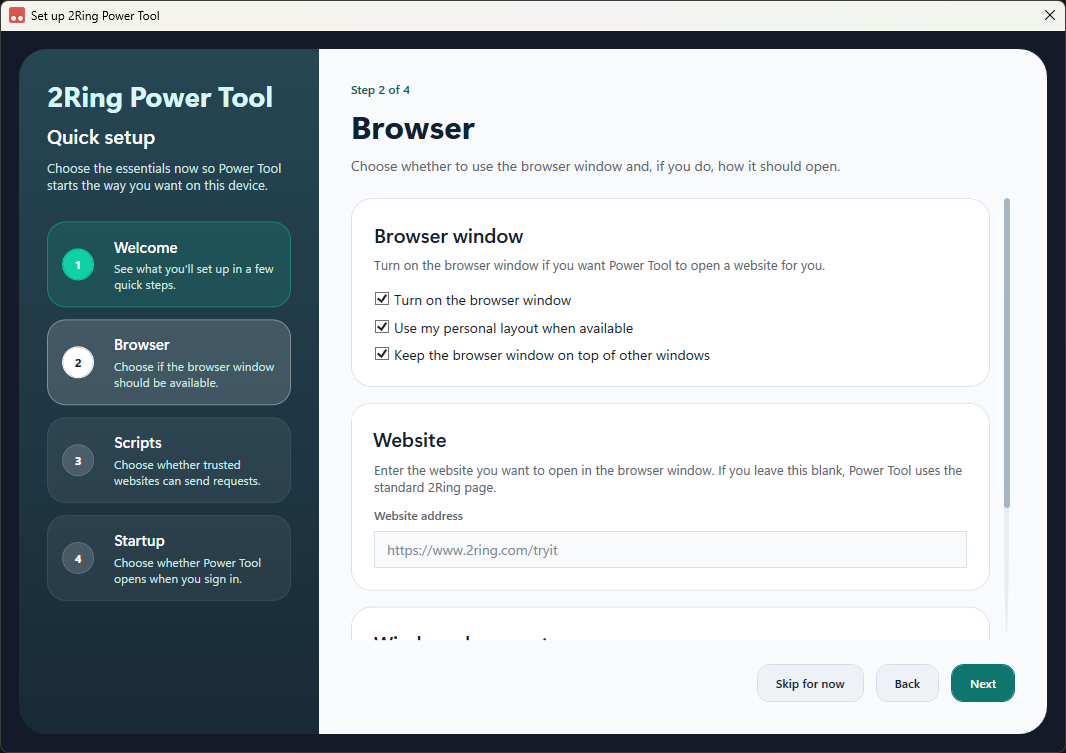
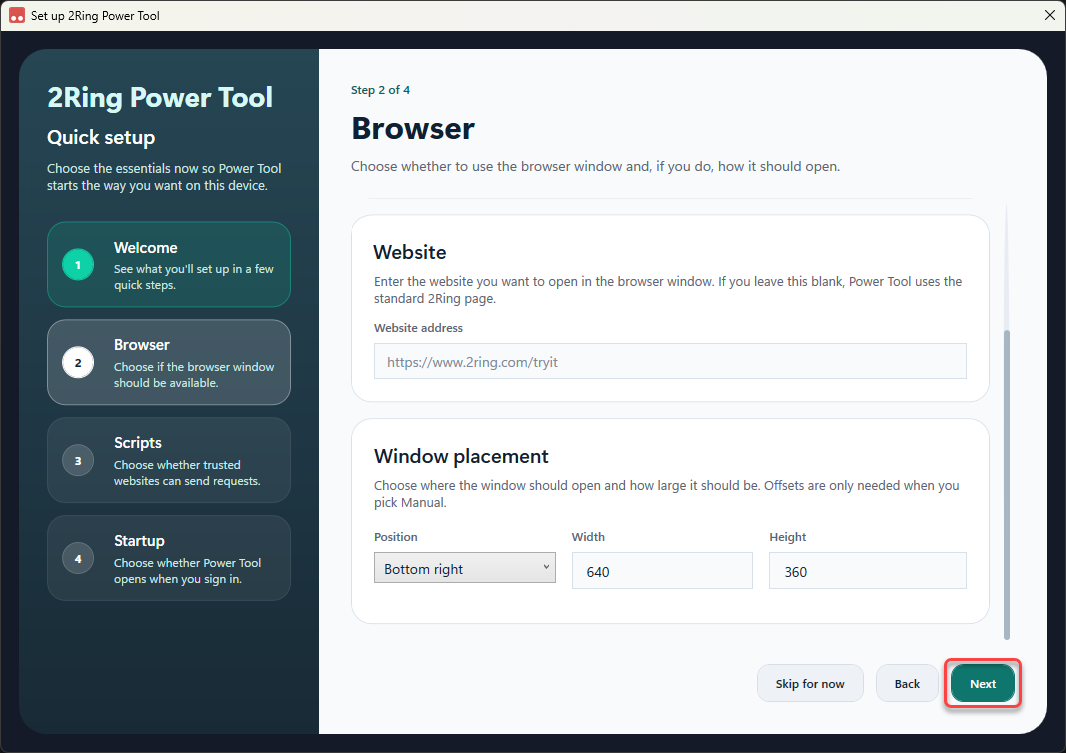
On the Browser screen, decide whether to enable the browser and configure its settings. Make your selections and click Next to continue:
Turn on the browser window - whether the browser should be enabled after installation.
Use my personal layout when available - check, if you want to use a personal layout.
Keep the browser window on top of other windows - check, to keep the 2Ring Power Tool always on top.
Website - enter the website you want to open in the browser window. If you leave this blank, Power Tool uses the standard 2Ring page (https://www.2ring.com/tryit).
Window placement - choose where the window should open and how large it should be. You can set the Position, Width, and Height.
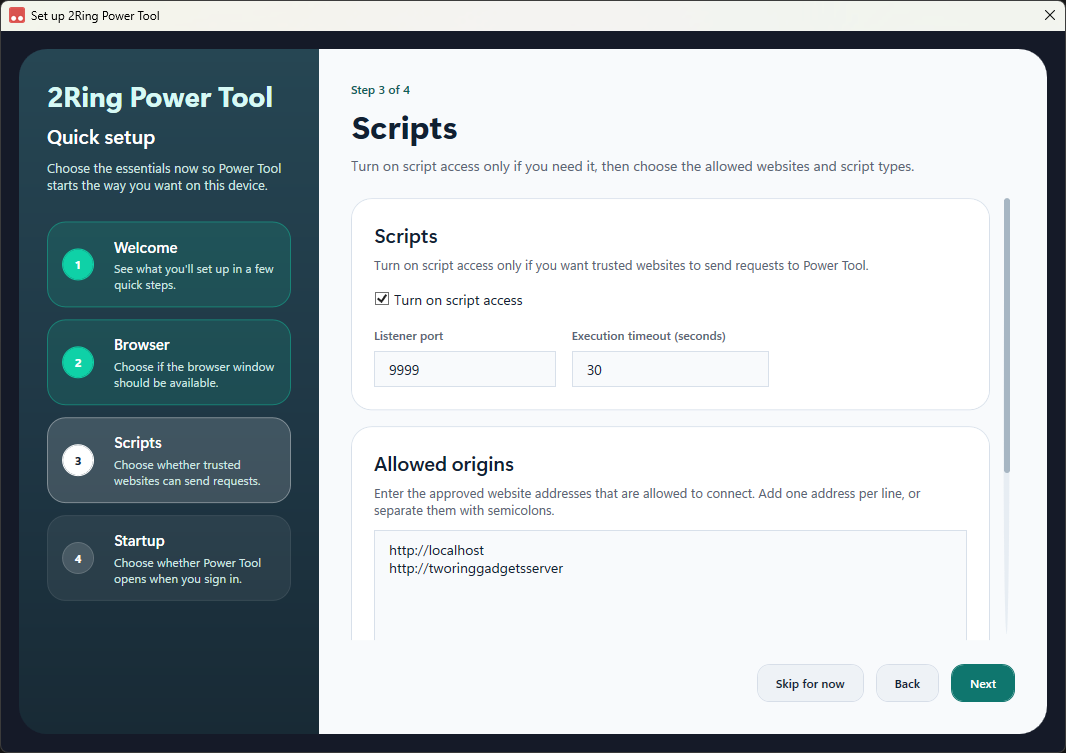
On the Scripts screen, configure script access settings. Turn on script access only if you need it, then choose the allowed websites and script types. Make your selections and click Next to continue:
Turn on script access - enable this if you want trusted websites to send requests to Power Tool.
Listener port - the port on which Power Tool listens for script requests (default: 9999).
Execution timeout - the maximum time in seconds for script execution (default: 30 seconds).
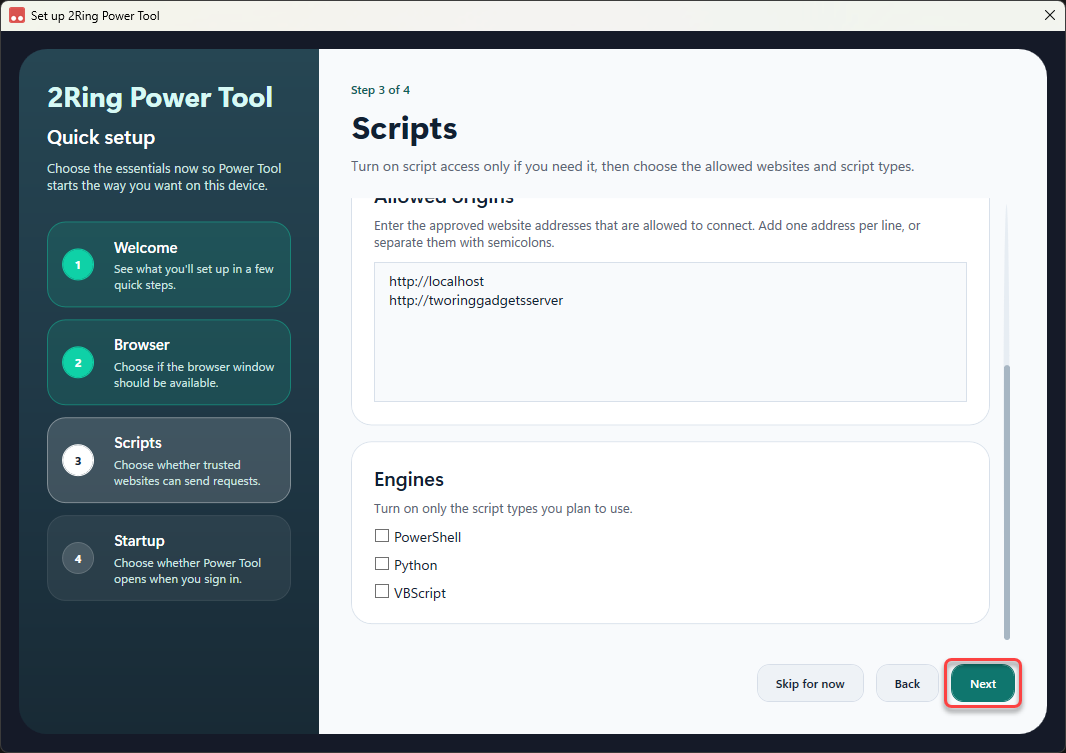
Allowed origins - enter the approved website addresses that are allowed to connect. Add one address per line, or separate them with semicolons.
Engines - turn on only the script types you plan to use (PowerShell, Python, VBScript).
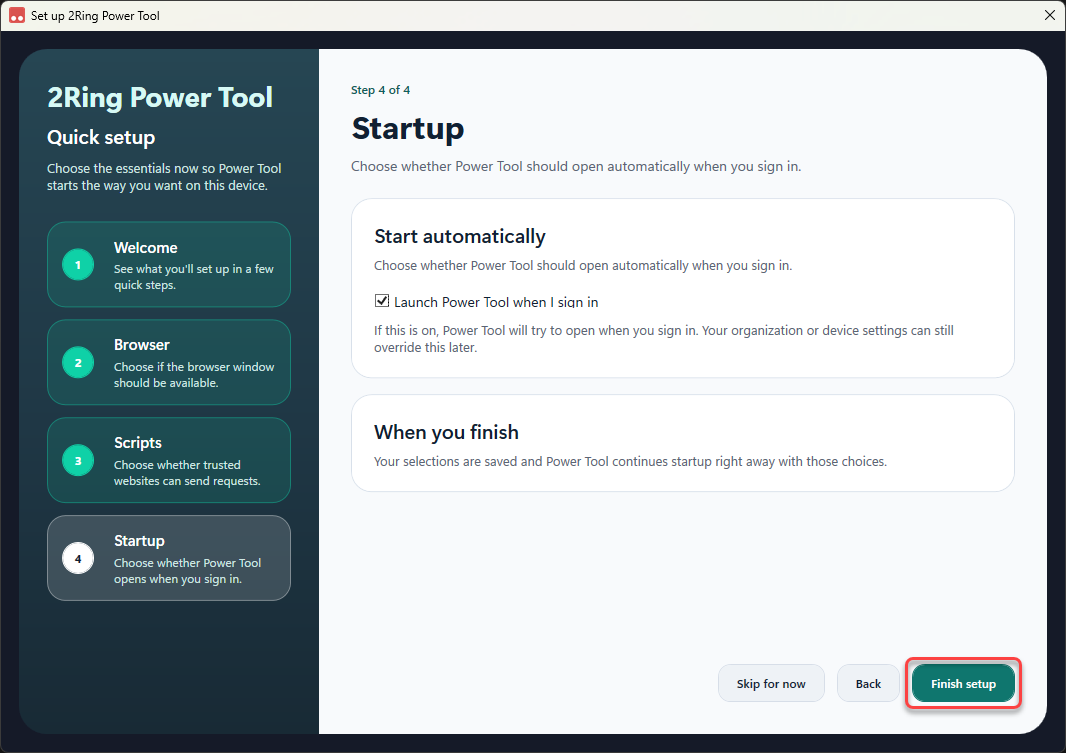
On the Startup screen, decide whether Power Tool should automatically launch when you sign in. Make your selection and click Finish setup to complete the installation:
Launch Power Tool when I sign in - check, if you want 2Ring Power Tool to initiate automatically upon sign in. Your organization or device settings can still override this choice later.