Update Banners
Related Videos
Business Unit administrators, Tenant administrators or Message authors can simply update multiple banners text through all Business Units and Layouts by clicking on the “update banners” button in the list of layouts.
Figure 1: Update banners button

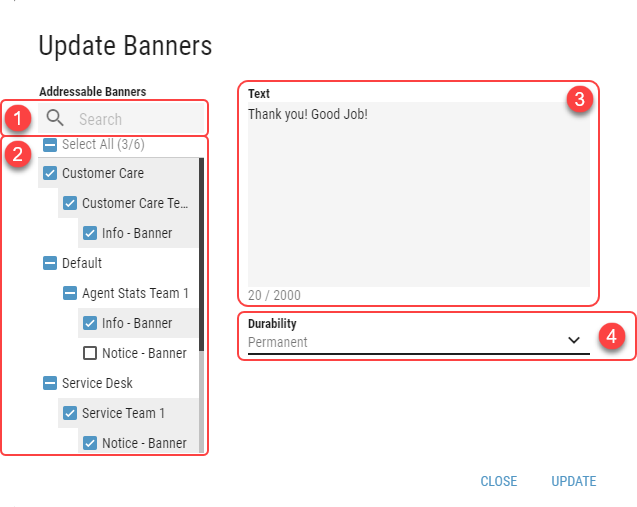
In an Update Banners dialog, specific banners, on which an administrator wants to update a message, can be selected in the left side of the dialog. A text and durability of the new text can be set in the right side.
Figure 2: Update banners text dialog
Search Bar
A search Bar for a faster filtering in the list of banners.List of banners
A list of all banners available to change the text. The structure of this list consists of Business Unit, Layout and a specific banner, identified by an External Reference Id.Banners are listed according to External Reference Id. If the External Reference Id has not been filled, banner will not be visible in the list of banners. Text Field
A text field for a new text of the banners. An administrator can create a text up to 2000 characters.Durability
A time period for which the new text should be visible in the banners.Permanent - The text will be changed permanently

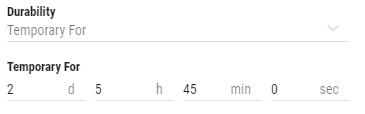
Temporary For - The time period for which the new text will be set from the moment of setting
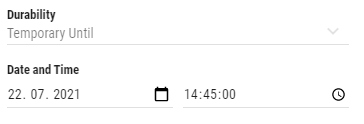
Temporary Until - The date and time until which the new text will be set. After this date, all banners will revert its original text. By clicking on the calendar and the clock icon, the date and time can be set using the integrated control.
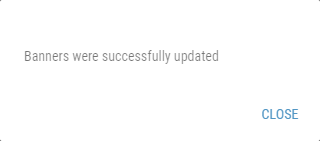
If the new text and durability are set, update the banners by pressing the “update” button. A dialog box will appear confirming the change of banner text.