Installation Prerequisites
2Ring DW Genesys integration
Before the Genesys Cloud connector can be installed, the 2Ring DW has to be integrated into the Genesys. Follow the steps below:
Buy the 2Ring Genesys integration and wait for it to be included in your org.
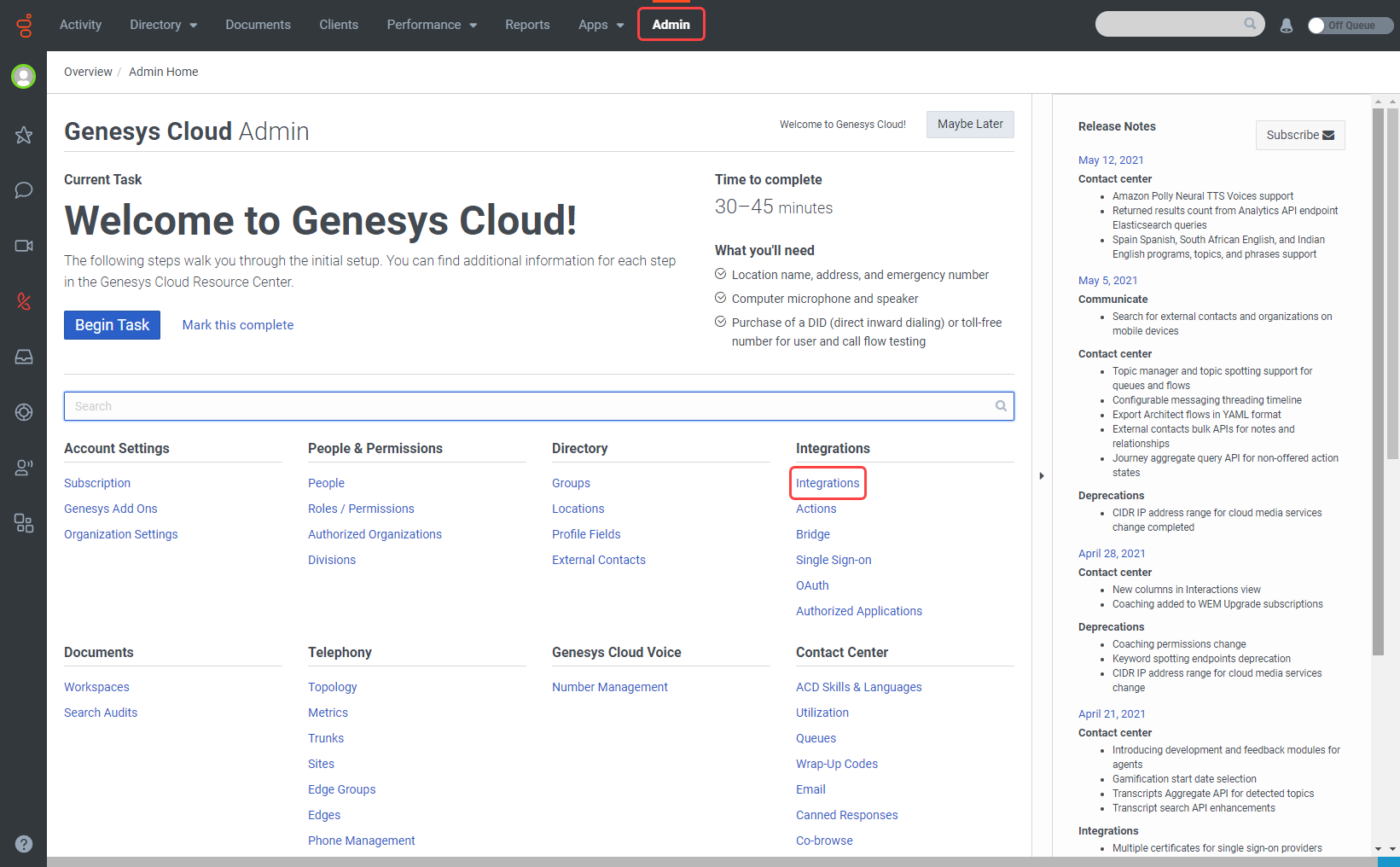
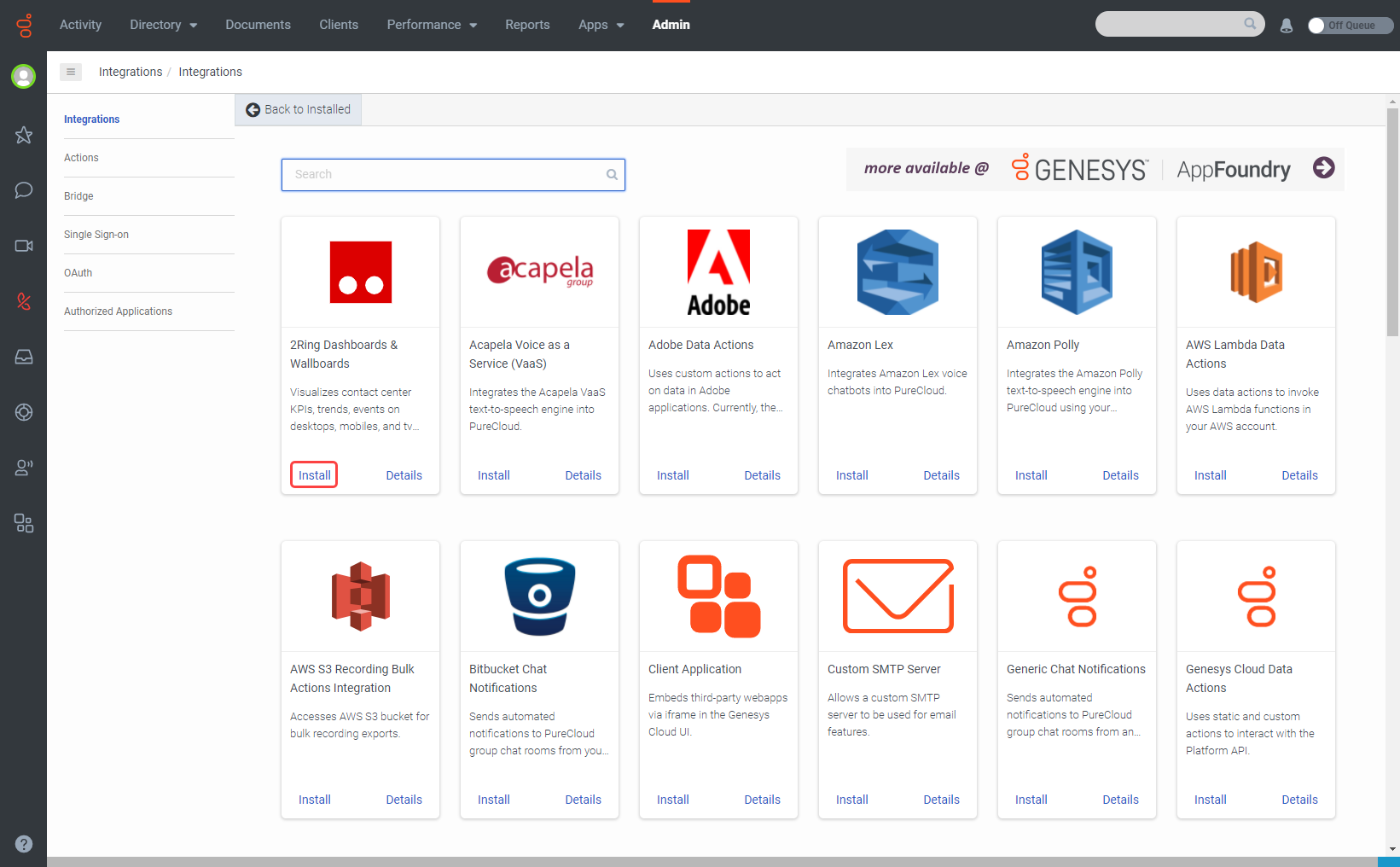
Go to Admin -> Integrations, click the + Integrations button on the top right, find the 2Ring Dashboards & Wallboards integration and click Install.
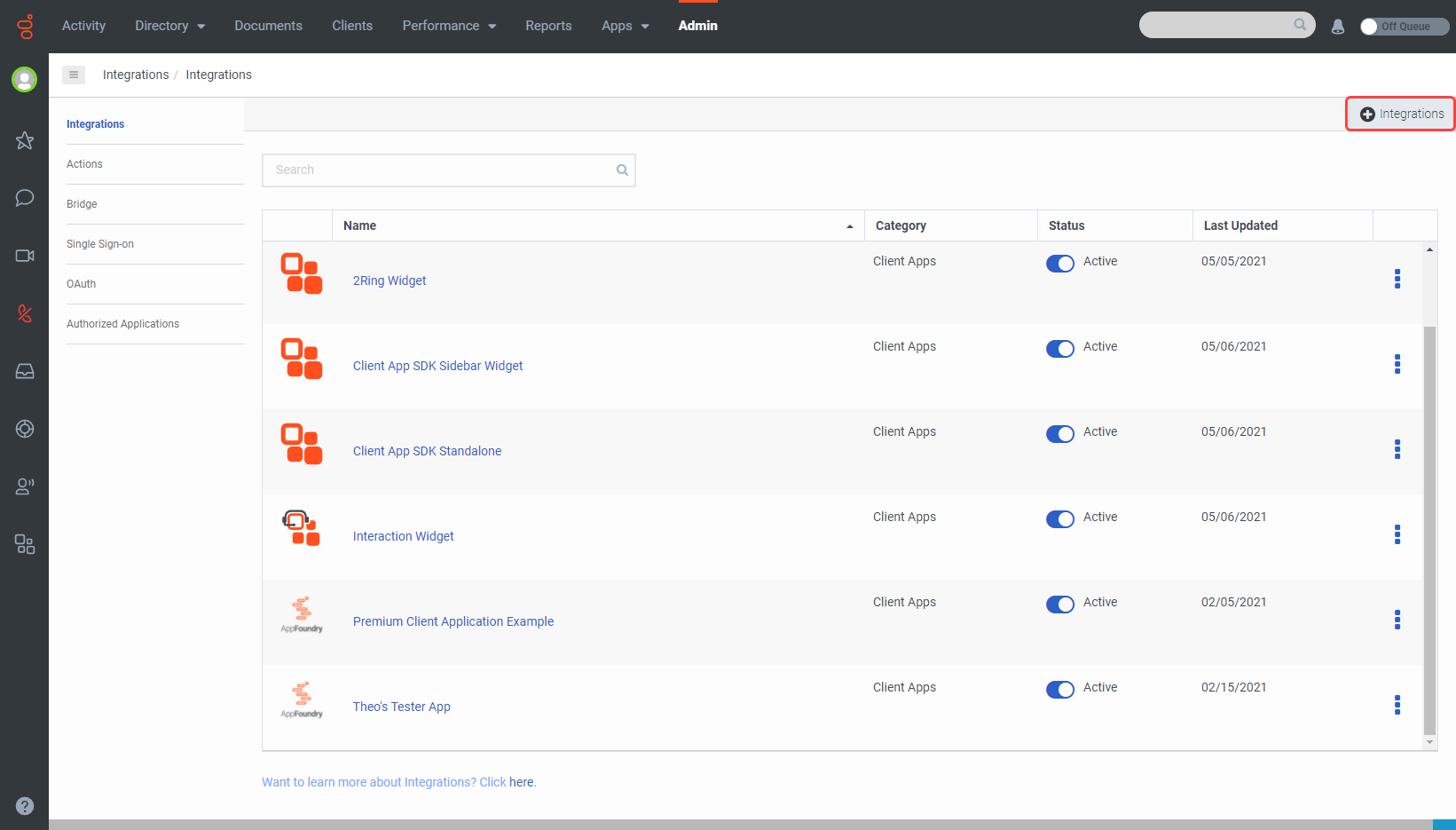
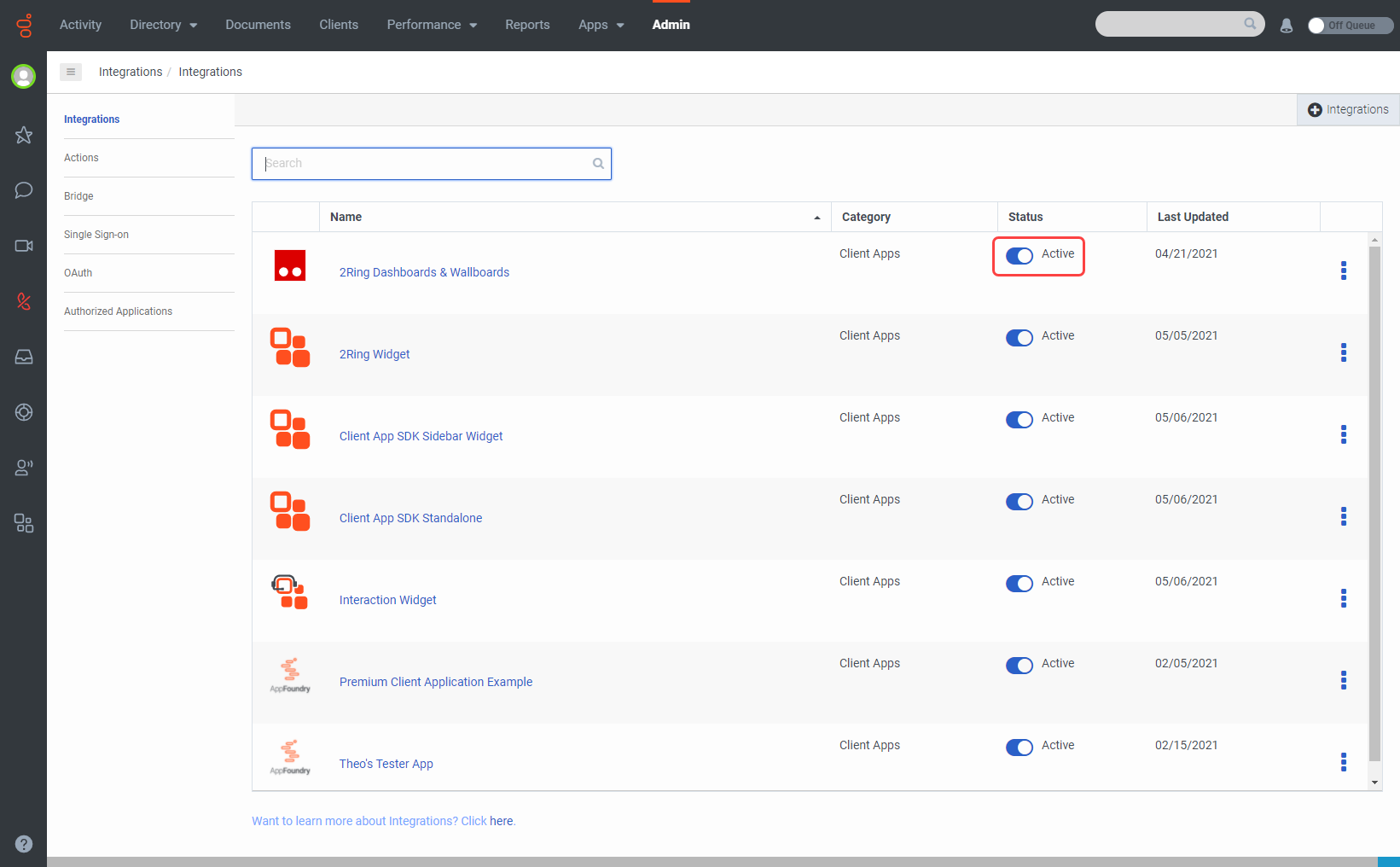
In the Integrations menu set the 2Ring Dashboards & Wallboards integration to Active.
Make sure that the person integrating the two products has the integration:2ringApps:View permission. Click on the 2Ring Dashboards & Wallboards.
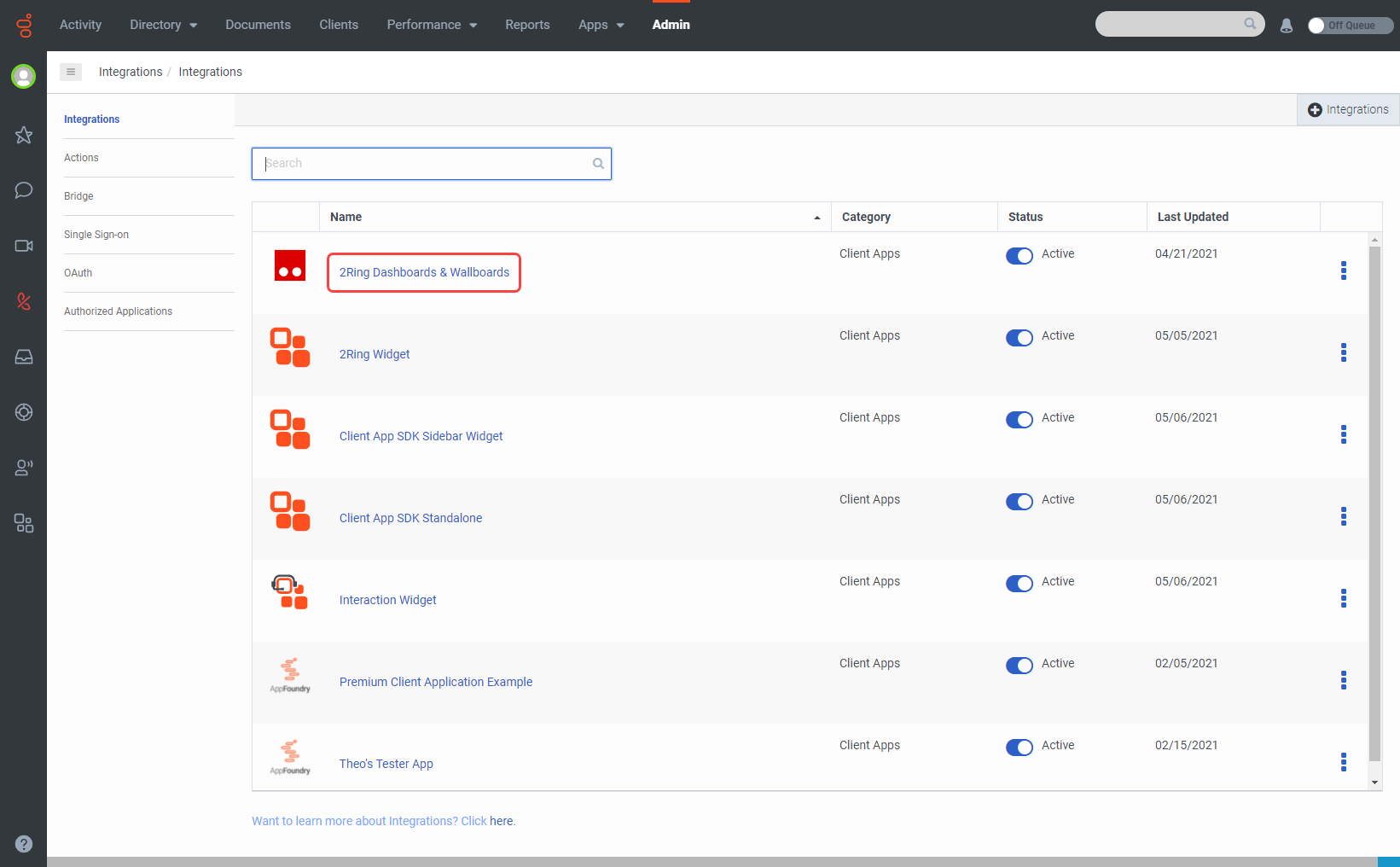
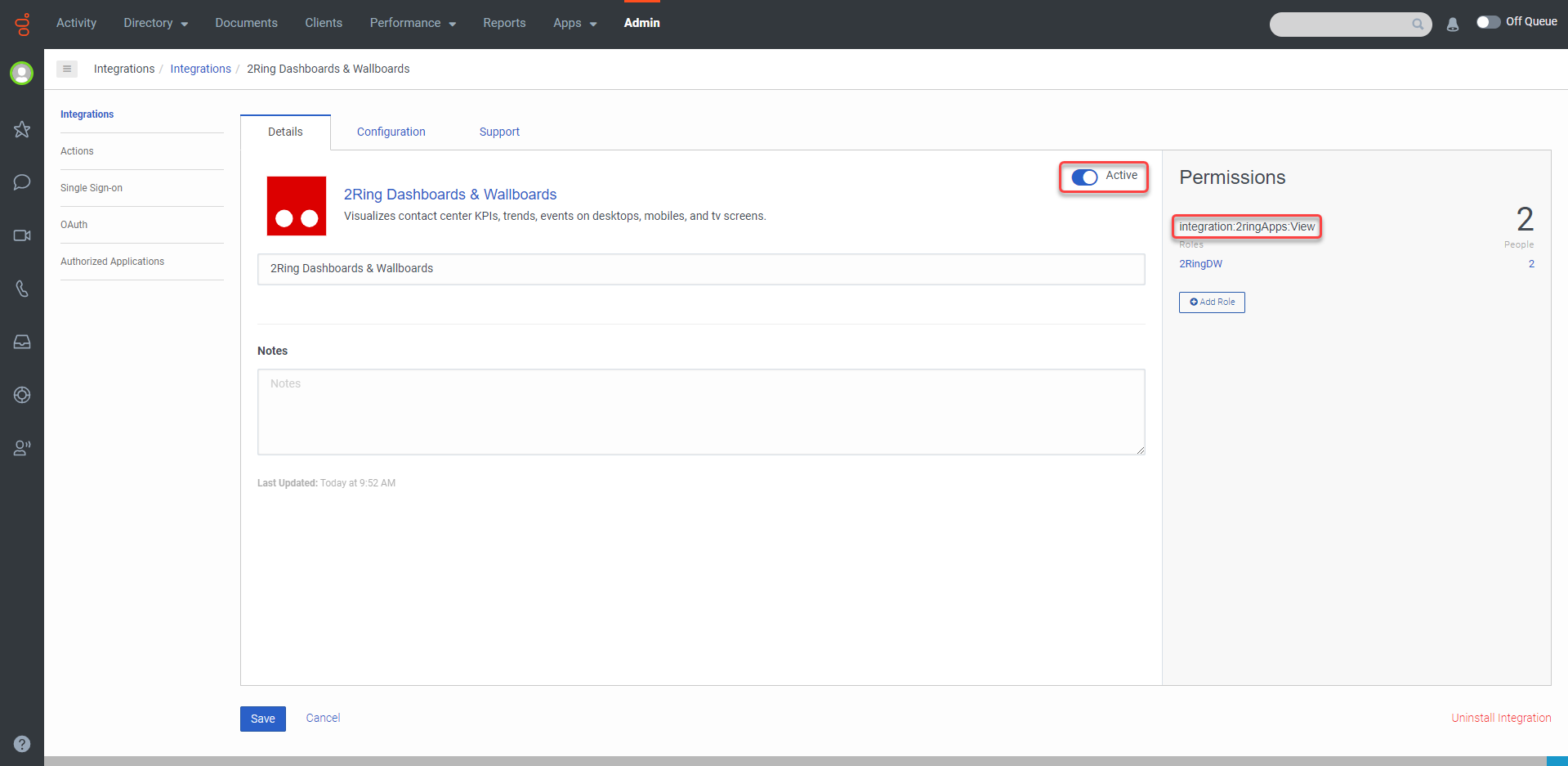
Permissions are listed on the right side of the screen.
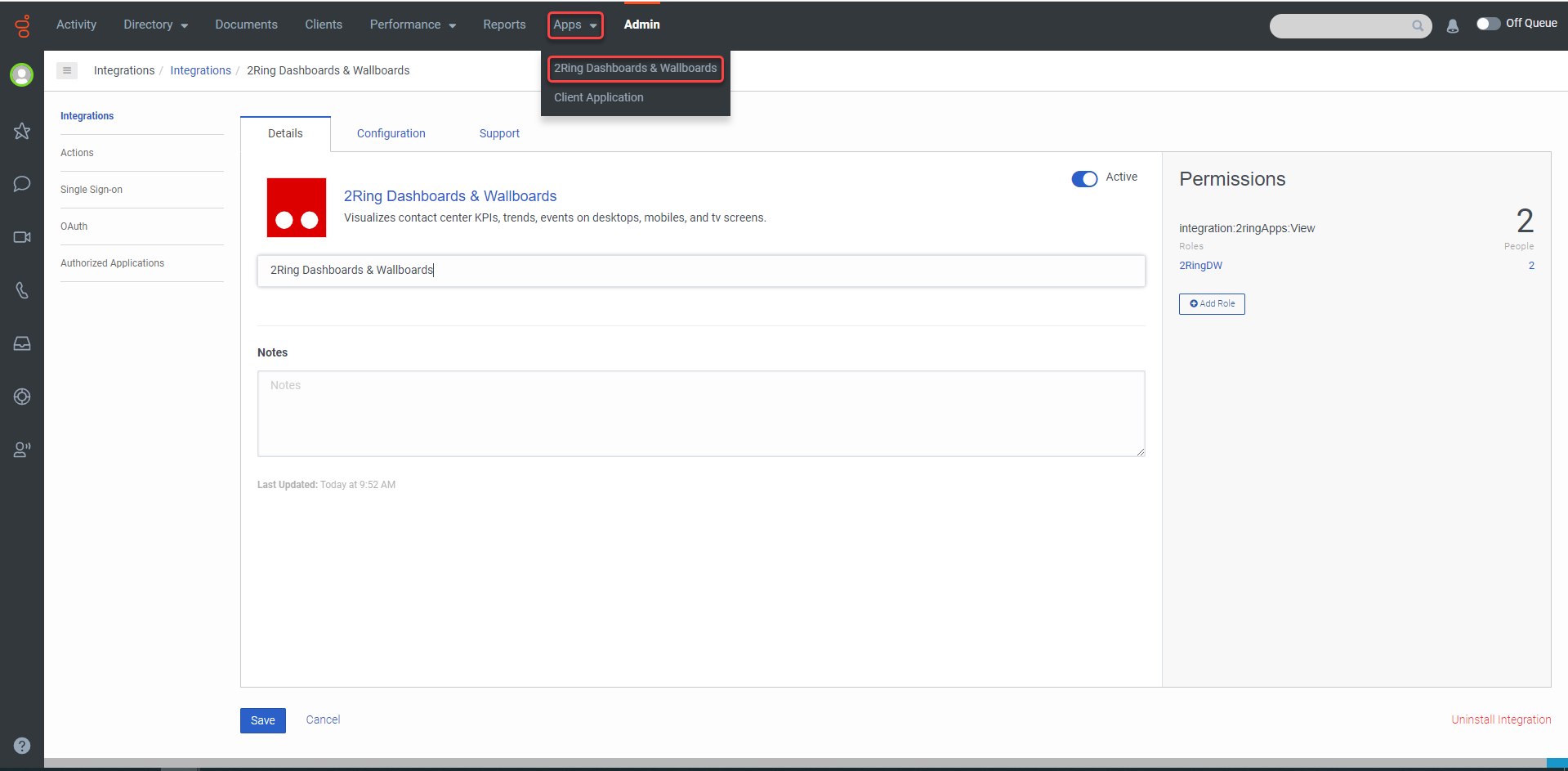
In the top panel, open Apps -> 2Ring Dashboards & Wallboards.
All of the information below also applies to the widget. Follow the on-screen instructions to install all necessary entities into the org.
In case the installation fails, and is not able to start again, all created entities must be manually removed from the organization. 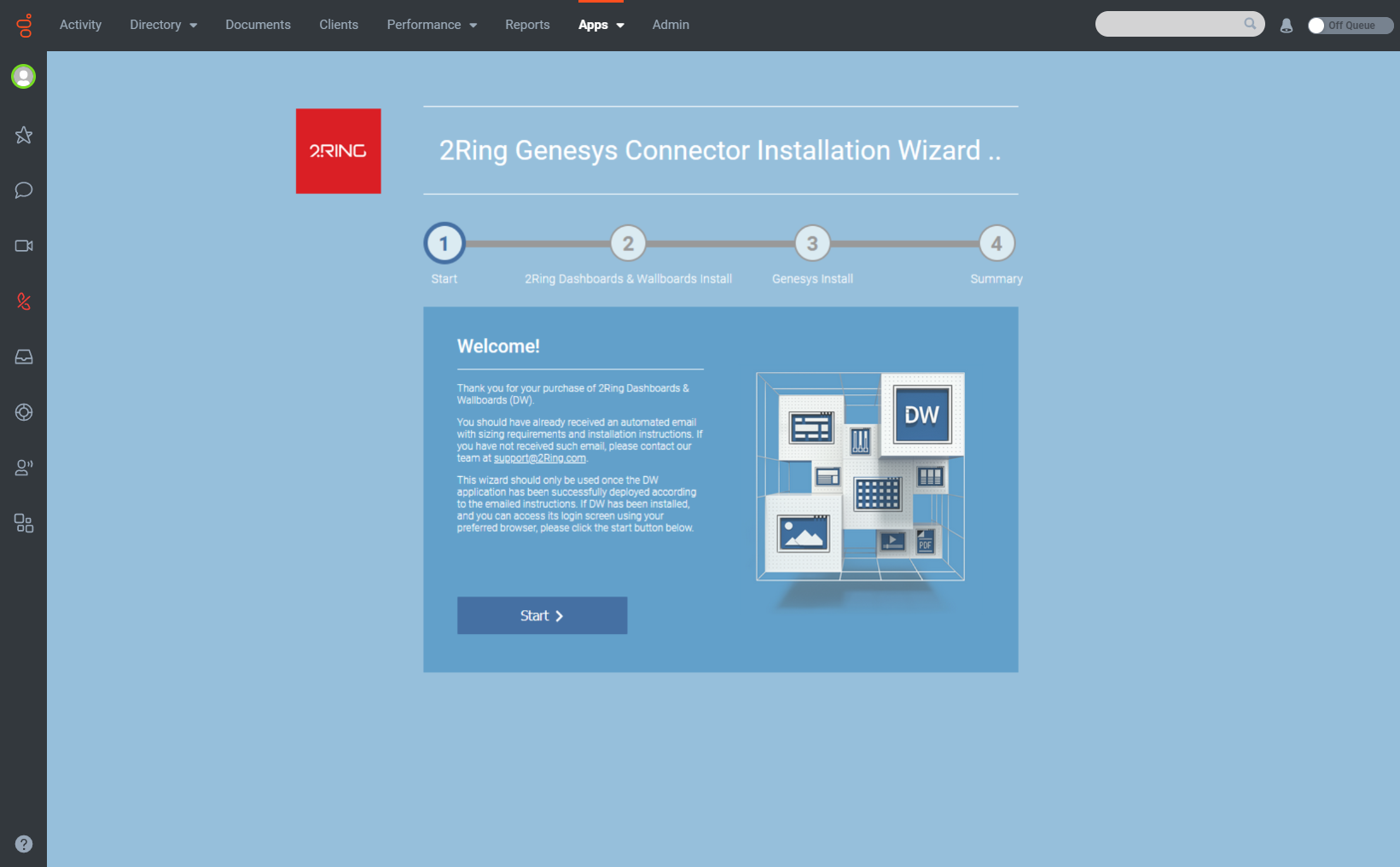
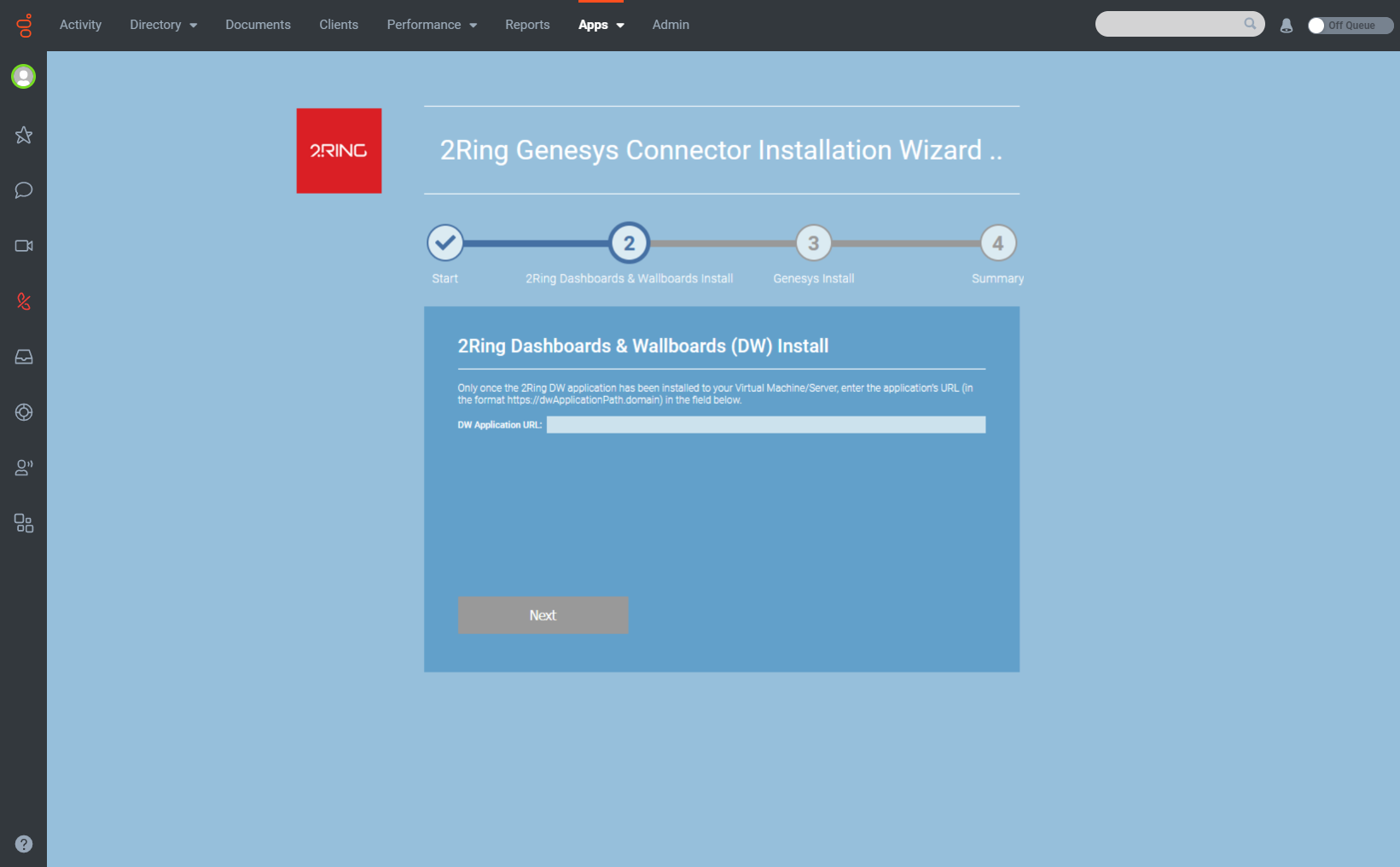
Enter the DW Application URL and click Next
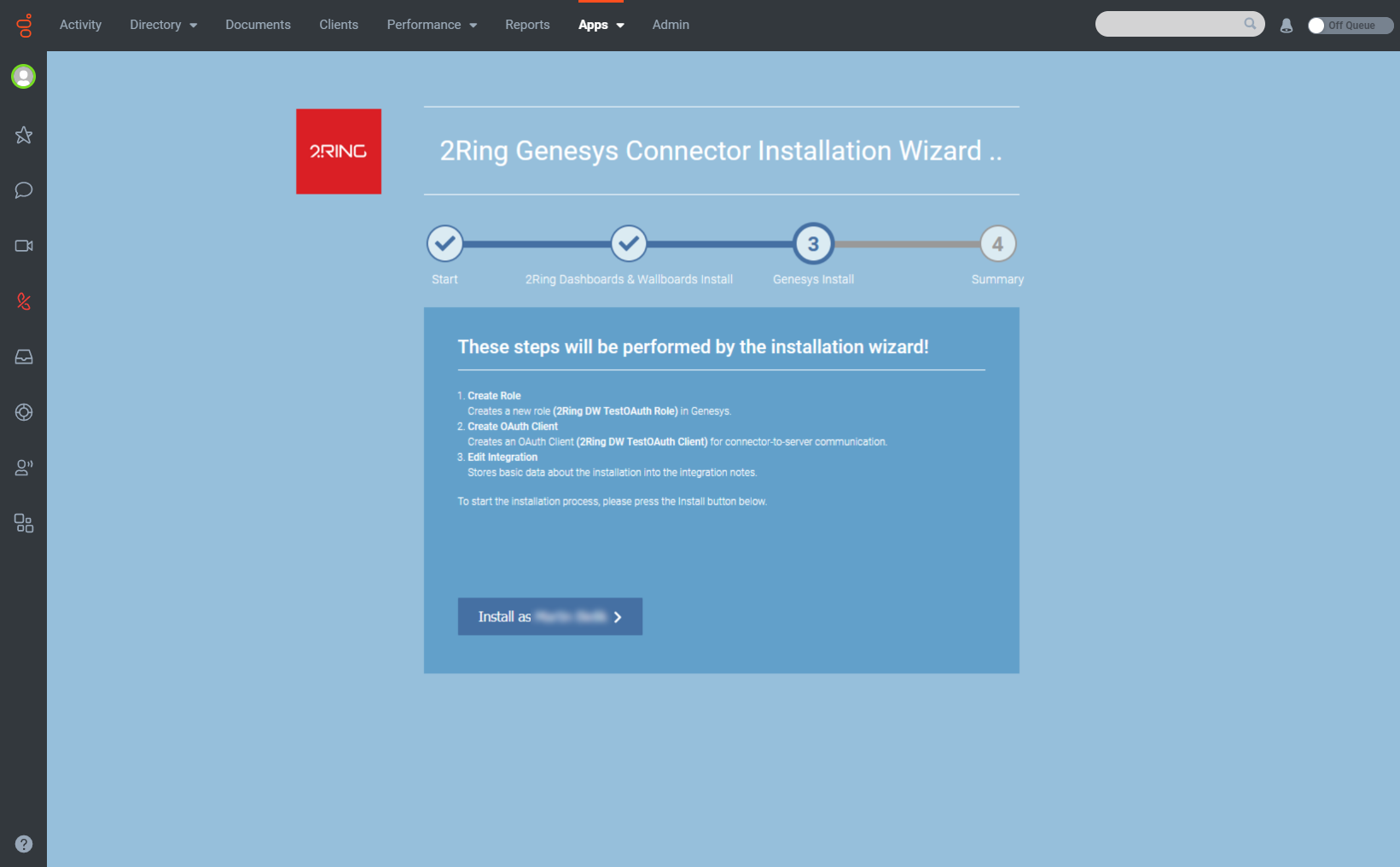
All steps that will be performed by the installation wizard are listed on this screen. Click Install as {UserName} to start the installation process.
After the integration has been installed, all necessary info for the installation should be displayed.
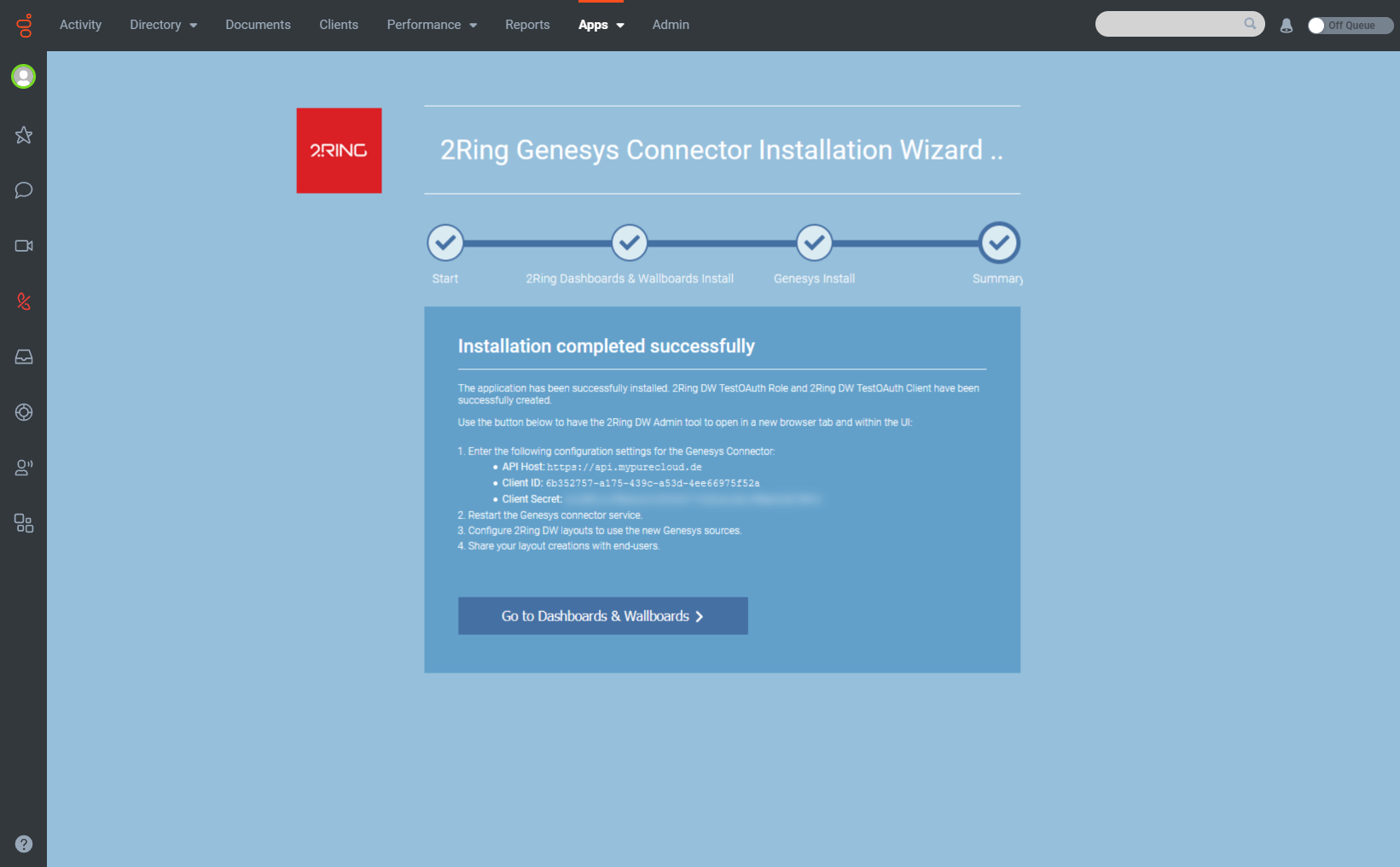
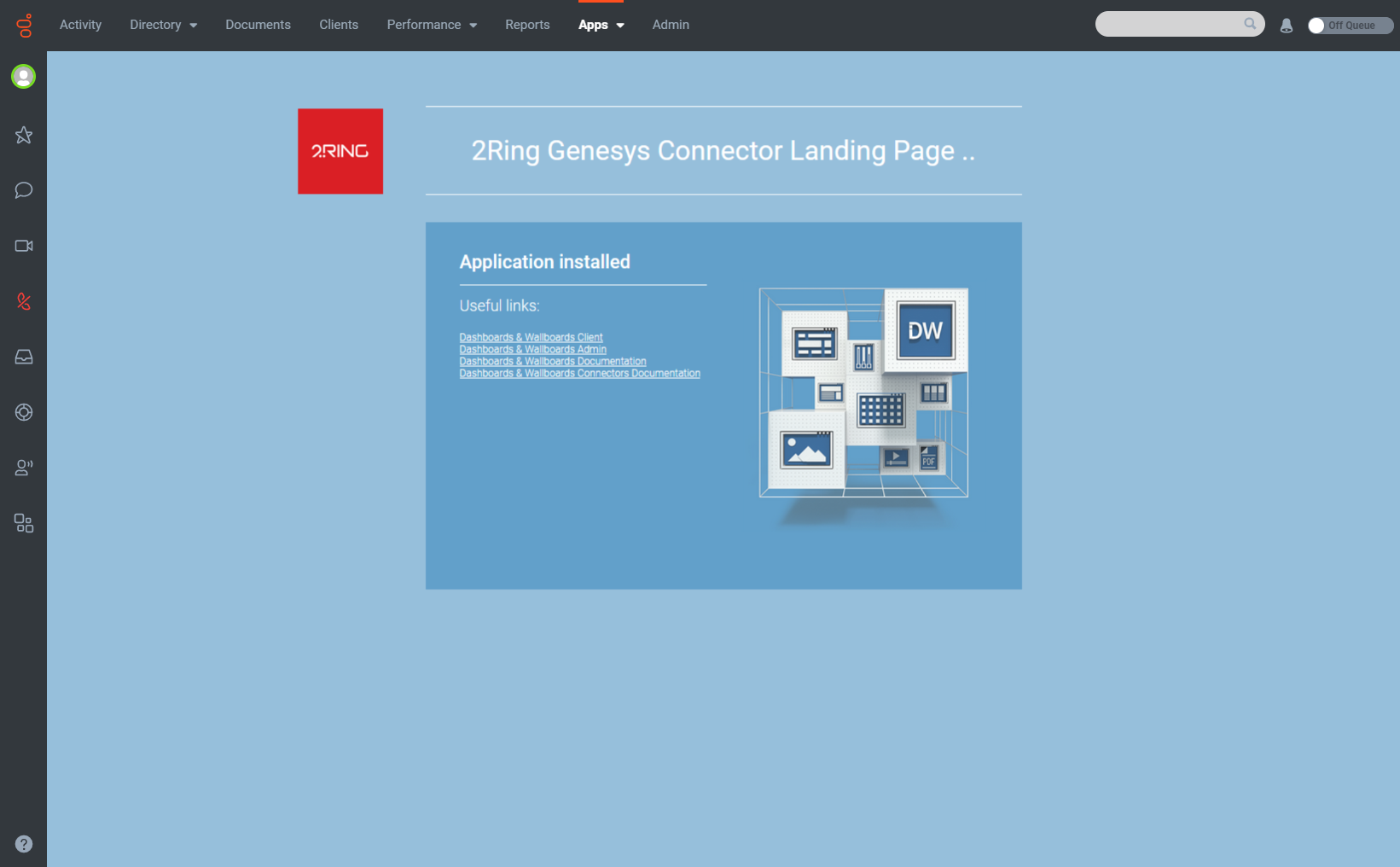
After the Genesys desktop is reloaded and the installation wizard app is accessed, a screen saying “Application installed” should be displayed.
In case the info could not be copied, collect the following info from Genesys:
API host - copy the base url of the used genesys platform and replace “apps” with “api”. The result should be similar to the following: “https://api.mypurecloud.com”. To confirm, see the list of API URLs by region here: here
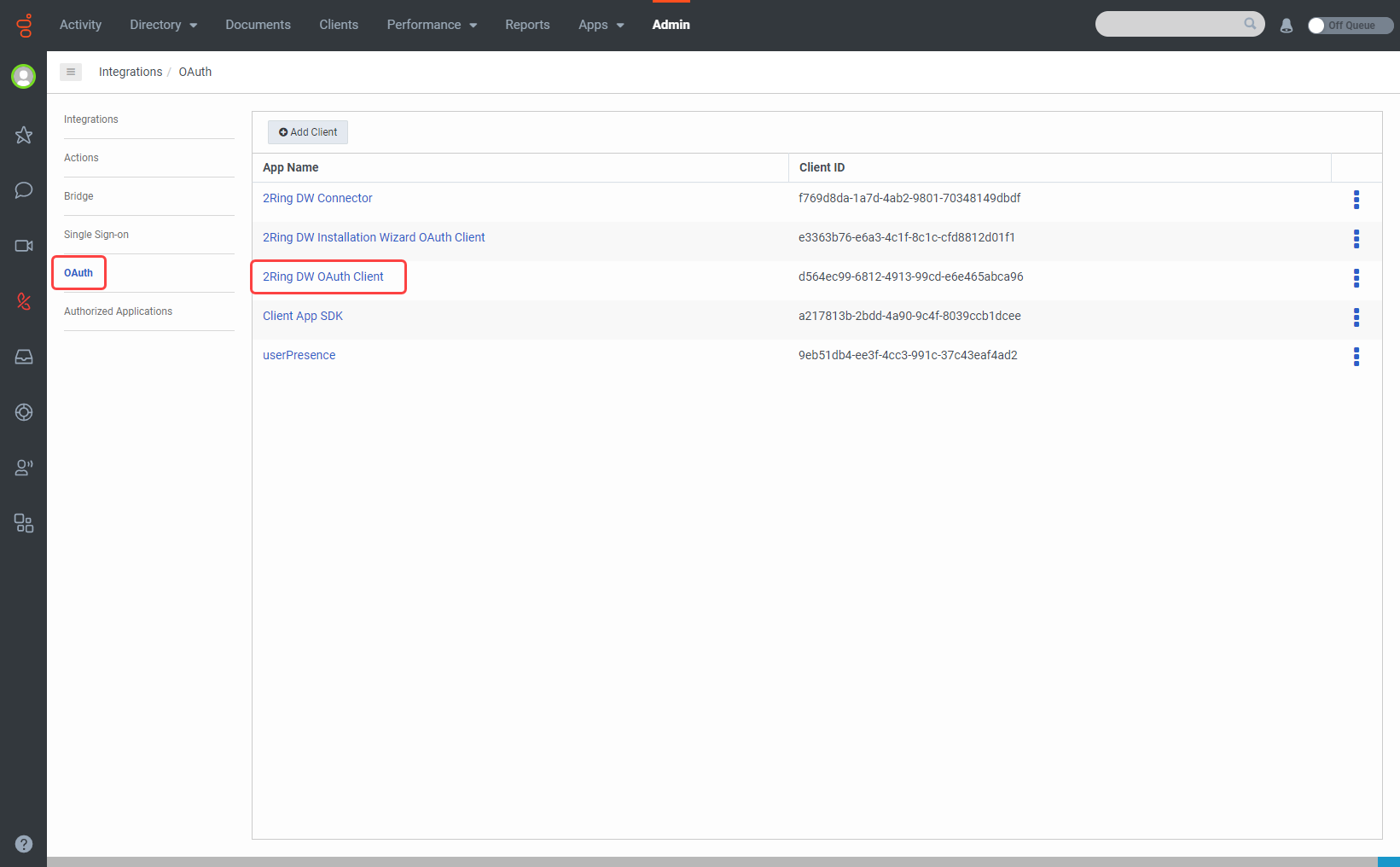
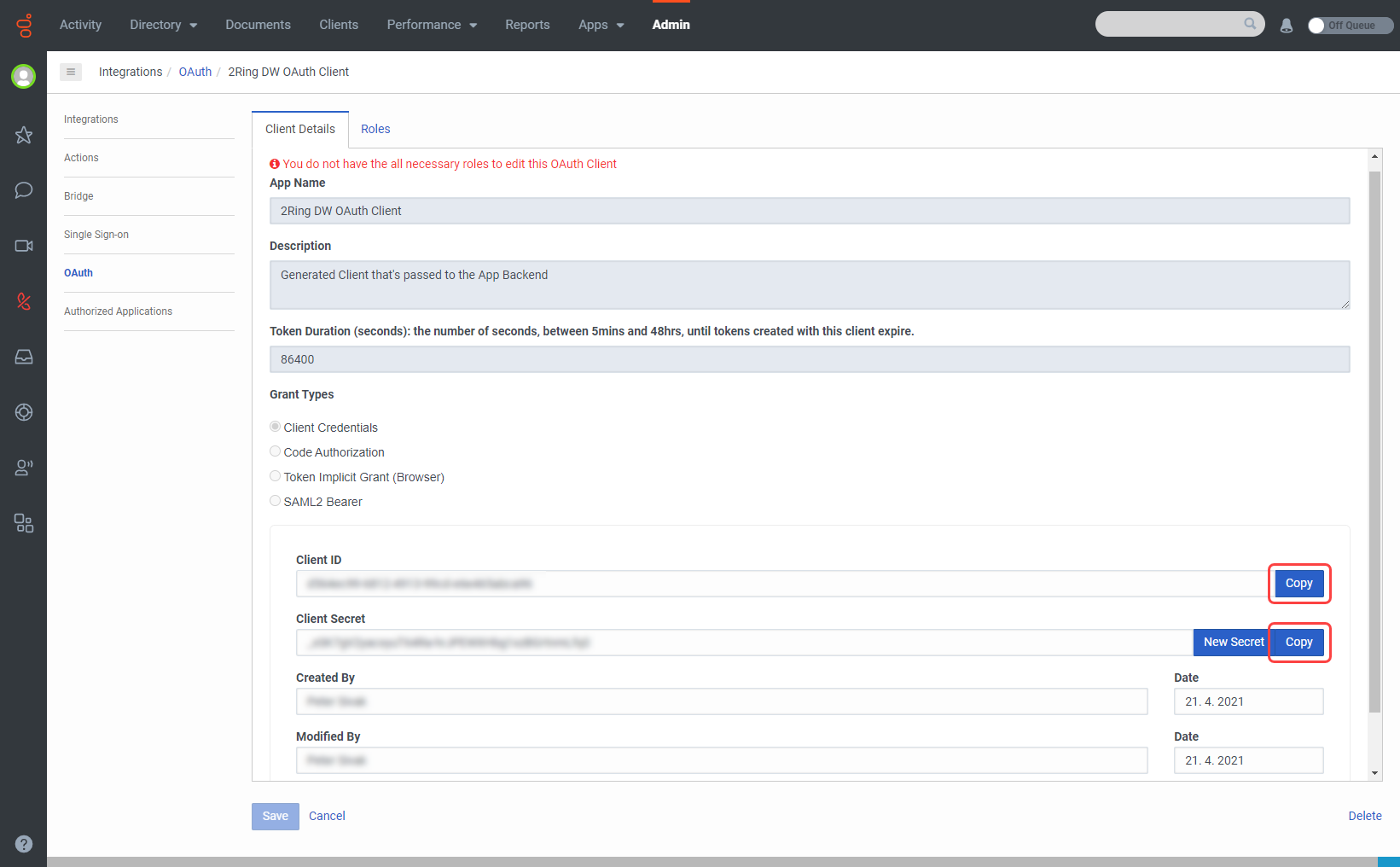
Client ID and Secret - go to Admin / Integrations / OAuth and open the 2Ring DW OAuth Client.
Copy both, the client ID and secret.
Install the connector in the DW administration tool.