Preview Mode
The Layout Editor allows you to move Segments by dragging and dropping them, resize them by dragging their edges, and click on them to open their configuration panel. However, these editing interactions take priority and suppress the interactive behaviors available to viewers outside the editor — such as manually sorting or filtering a Grid, showing Grid tooltips, clicking on hyperlinks, navigating paginated data sources, or interacting with embedded YouTube videos.
To enable Preview Mode, click the eye icon in the toolbar.
Figure 1: Preview Mode Button

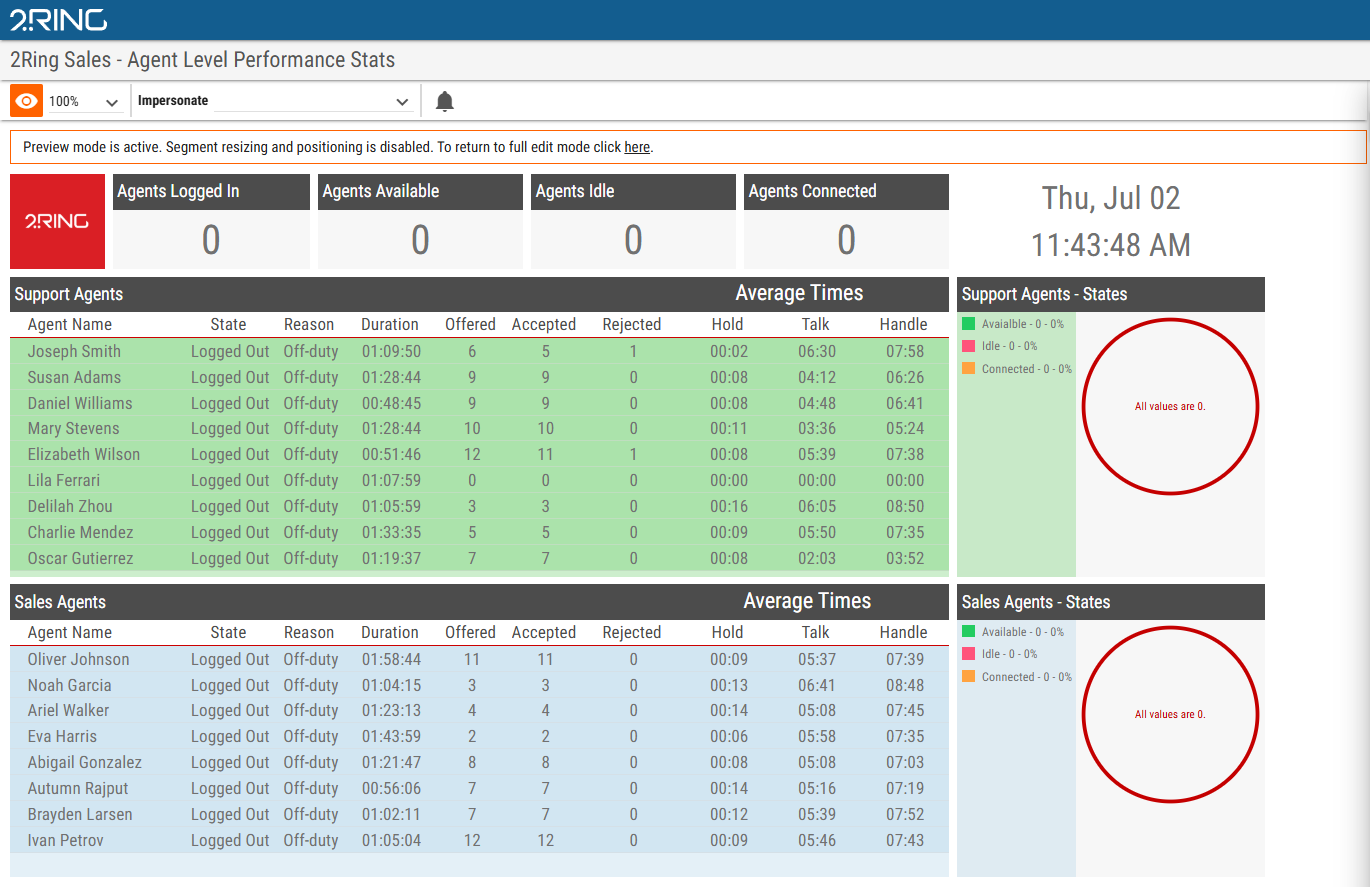
Preview Mode lets you temporarily disable the editor-level interactions so you can test the viewer-facing behaviors without leaving the editor. When Preview Mode is active, editing interactions (drag-and-drop, resize, panel opening) are disabled, and the segment interactions available to end users become accessible. Some toolbar functions that can be toggled in full edit mode are not applicable in Preview Mode and are therefore hidden. Turning Preview Mode off restores normal editing behavior. You can also return to full edit mode by clicking here in the orange banner.
Use this mode to verify the Layout’s interactivity before publishing.
Figure 2: Preview Mode