
Configuration Management
Power Tool supports a hierarchical configuration system that allows administrators to manage settings across the organization. This configuration layering enables fine-grained control while maintaining clear precedence rules.
Configuration Hierarchy
Power Tool loads and applies settings in the following order, with each layer potentially overriding the previous one:
Default Settings - Built-in application defaults included with Power Tool installation
Machine Settings - Organization-wide settings applied to the machine
User Settings - Individual user settings that can be configured through the Power Tool UI
Registry Overrides - Policy-based settings that lock down specific configurations
The final configuration is the result of merging all these layers, with later layers taking precedence over earlier ones. User settings take precedence over machine settings, meaning users can override machine-wide defaults for non-managed settings.
Configuration Sources
Default Settings
Default settings are included with the Power Tool installation in the application directory. These settings represent the standard configuration and are read-only.
Machine Settings
Machine-wide settings can be configured by creating or modifying a JSON file at:
%ProgramData%\2Ring\Power Tool\appsettings.machine.json
The file structure mirrors the default application settings. Only settings that differ from the defaults need to be included in this file. Administrators can use this location to apply organization-specific configurations that apply to all users on the machine.
Example:
{
  "Browser": {
    "Enabled": true,
    "StartUrl": "https://company.example.com"
  },
  "Scripts": {
    "Enabled": true,
    "ListenerPort": 7100,
    "ExecutionTimeoutSeconds": 150,
    "AllowedOrigins": [
      "https://one.example.com",
      "https://two.example.com"
    ]
  },
  "Startup": {
    "LaunchAtSignIn": true
  }
}
User Settings
User settings allow individual users to customize their Power Tool experience. These settings can be modified through the Power Tool Settings UI (see Settings for details). User settings take precedence over machine settings, providing flexibility for individual preferences while respecting organization-wide defaults.
Note that registry overrides will lock specific settings and prevent users from modifying them, even through the UI.
Registry Overrides
Registry-based overrides provide the highest level of control and are commonly used for enterprise policy management. These settings are locked and cannot be modified by end users or through the application UI.
Registry overrides can be configured in two locations:
User-specific policies:
HKCU:\Software\Policies\2Ring\PowerToolMachine-wide policies:
HKLM:\Software\Policies\2Ring\PowerTool
The registry structure mirrors the configuration hierarchy. Each setting can be specified as a registry value with the appropriate data type:
REG_DWORD- for boolean or numeric valuesREG_SZ- for text valuesREG_MULTI_SZ- for arrays or lists
Registry Structure Examples
HKCU\Software\Policies\2Ring\PowerTool\Browser
  Enabled              REG_DWORD    1
  StartUrl             REG_SZ       https://policy.example.com
  UsePersonalLayout    REG_DWORD    0
  AlwaysOnTop          REG_DWORD    1

HKCU\Software\Policies\2Ring\PowerTool\Browser\Window
  Width                REG_DWORD    800
  Height               REG_DWORD    500
  Position             REG_SZ       BottomRight
  OffsetX              REG_DWORD    10
  OffsetY              REG_DWORD    20

HKCU\Software\Policies\2Ring\PowerTool\Scripts
  Enabled                     REG_DWORD    1
  ListenerPort                REG_DWORD    7100
  ExecutionTimeoutSeconds     REG_DWORD    150
  AllowedOrigins              REG_MULTI_SZ https://one.example.com
                                            https://two.example.com

HKCU\Software\Policies\2Ring\PowerTool\Scripts\Engines\PowerShell
  Enabled              REG_DWORD    1

HKCU\Software\Policies\2Ring\PowerTool\Scripts\Engines\Python
  Enabled              REG_DWORD    0

HKCU\Software\Policies\2Ring\PowerTool\Scripts\Engines\VBScript
  Enabled              REG_DWORD    0

HKCU\Software\Policies\2Ring\PowerTool\Startup
  LaunchAtSignIn       REG_DWORD    1
Managed Settings
When a setting is controlled by a registry override, it becomes “managed” and cannot be modified by the end user. The Power Tool UI will indicate this status clearly:
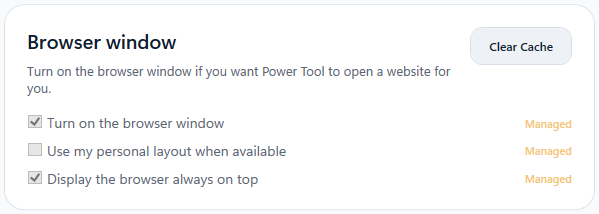
Visual Indicator: Settings that are managed will display a “Managed” label or indicator next to the setting name.
Tooltip: Hovering over the indicator displays the message: “This setting is managed by your organization”
User Interface: Managed settings will be disabled (read-only) in the settings UI, preventing users from attempting to change them.
This approach ensures that administrators can enforce critical security and operational policies while still allowing users flexibility with non-managed settings.
Configuration Resolution Example
Consider a scenario where an administrator wants to enforce specific browser and script settings across the organization:
Default Configuration (built-in): Browser enabled with standard URL, Scripts disabled
Machine Settings (
appsettings.machine.json): Scripts enabled, specific allowed origins configuredUser Settings (via UI): User customizes Browser StartUrl to a personal preference (different from machine setting)
Registry Override (
HKLM): Browser StartUrl locked to a specific company URL, Scripts ExecutionTimeoutSeconds set to 150
The resulting configuration would be:
Browser enabled with StartUrl from registry (managed - user’s preference is ignored because of the override)
Scripts enabled from machine settings
ExecutionTimeoutSeconds set to 150 from registry (managed)
All other settings that users may have customized through the UI inherit their user settings (for non-managed settings)
All remaining settings inherit their default values
Users can modify non-managed settings through the Power Tool UI, but cannot override any settings locked by registry policies. When a registry override exists for a setting, the UI will display it as managed and prevent modification.
Best Practices
Use Registry Overrides for Policies - Reserve registry overrides for settings that must be enforced organization-wide (security, compliance requirements).
Use Machine Settings for Defaults - Use machine settings to establish organization defaults without preventing user customization.
Document Policy Structure - Maintain clear documentation of which registry values are in use and their purposes.
Test Configuration Changes - Test configuration changes in a pilot group before rolling out to the entire organization.
Monitor Deployment - Verify that settings are applied correctly across target machines after deployment.