
Application Menu
The application menu contains essential application actions. It can be accessed in any part of the application, when logged in. The menu is opened by clicking the three dots icon, located on the top right corner of the screen.
Figure 1: Application Menu
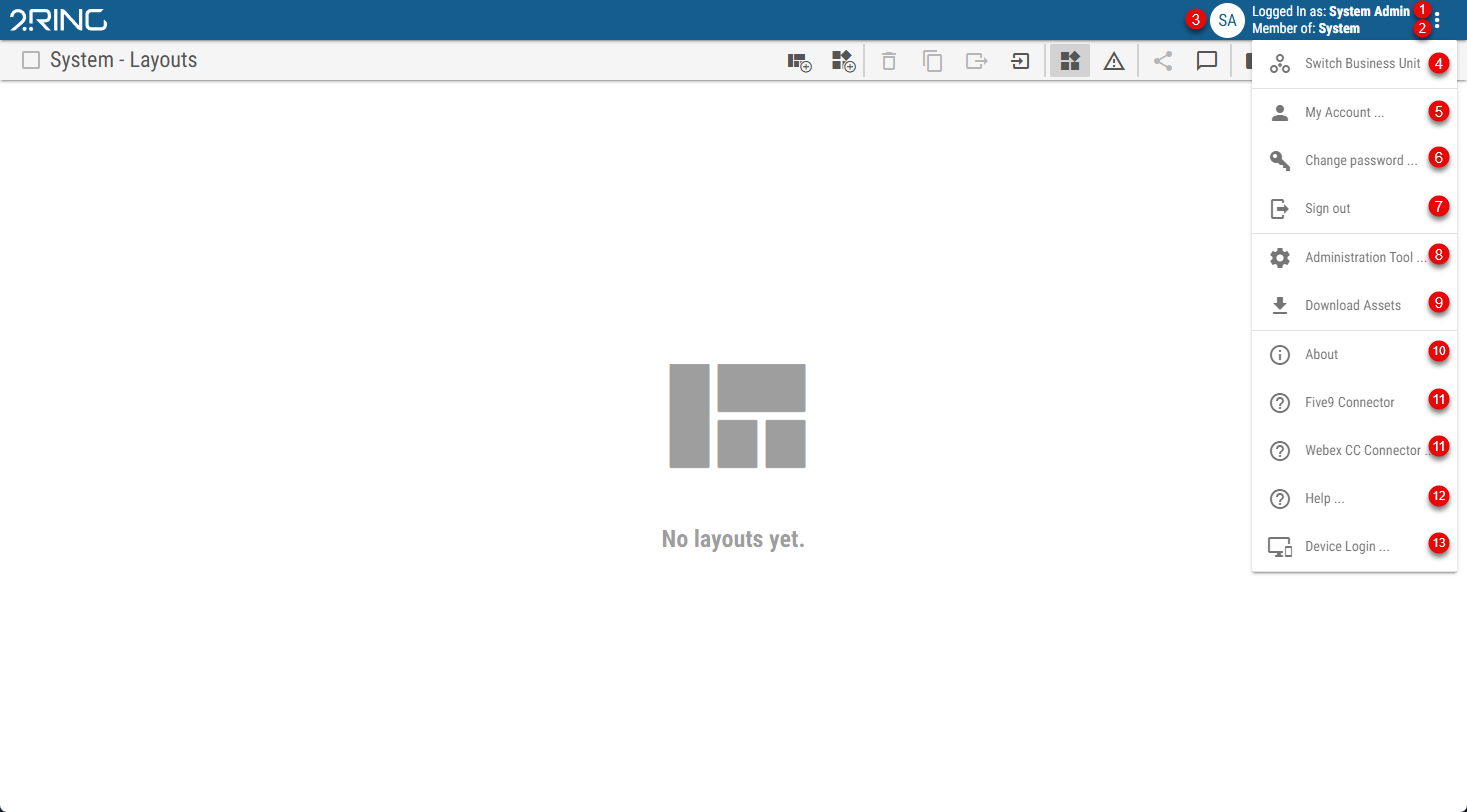
Username of the logged in user
Business Unit to which the user belongs
Logged in user’s initials
Business Unit Switch
Available only for users that have more than one Business Unit accessible. For more information see [switching-business-unit] chapterLink to the Account Management tool
Not available when logged in using Okta/Entra ID account or when logged in using TV login flow
Available only for local users with “Can change password” setting enabledChange password option
Not available when logged in using Okta/Entra ID account or when logged in using TV login flow
Available only for local users with “Can change password” setting enabledSign out option
Link to the DW Administration Tool
Available only when system, tenant or BU admin is logged in. Not available when logged in using TV login flowDownload Assets
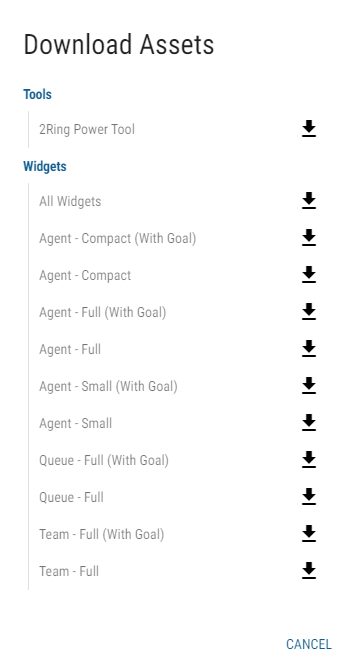
In the following dialog, all default assets, such as Tools, Layouts, Widgets or CSV files, can be downloaded by clicking the download button next to the desired asset.
Information about the current version of the application.
Links to the imported connectors documentation.
Link to the DW documentation
Link to the Device Login page
Not available when logged in using TV login flow