Displaying a Layout/Widget
Related Videos
The Layout view can be accessed in one of two ways:
From Layout list by clicking any listed Layout.
Directly using the Layout’s URL or short URL.
Figure 1: Layout
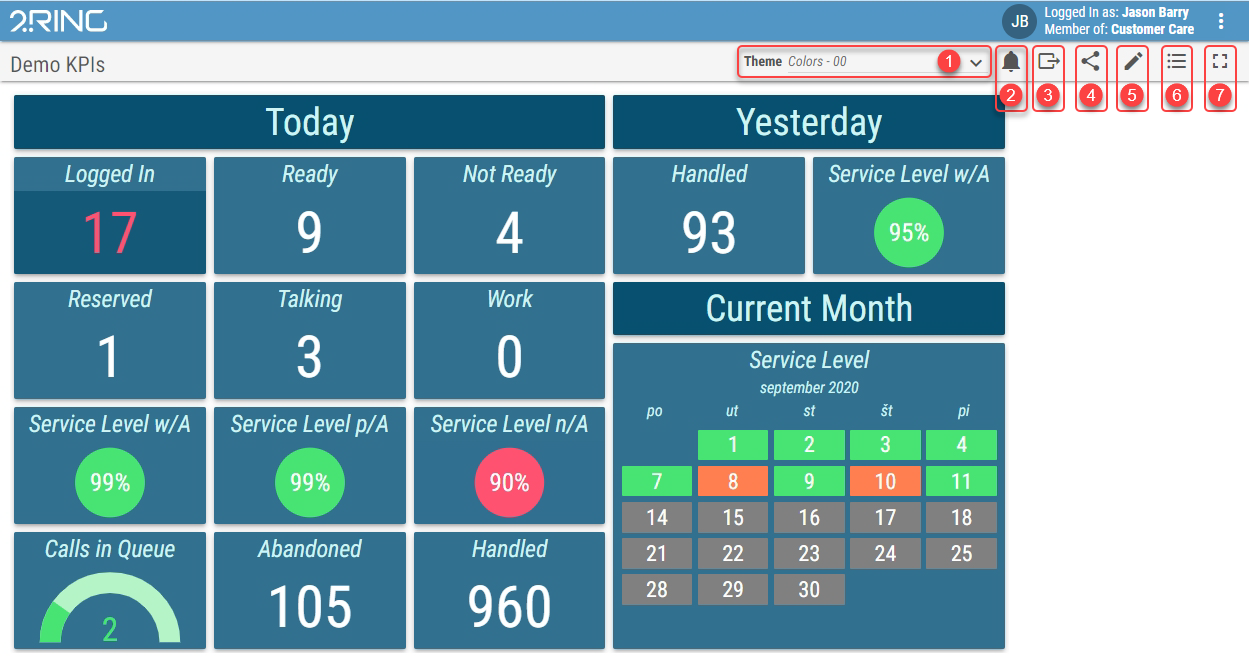
Theme Applies selected theme to the Layout during the current session. It is also applied to nested layouts/widgets with the “Apply Theme” option set to “From Parent Layout”.
Theme is applied only for the current session of viewing the Layout and only affects the user who set it. Other users viewing the same Layout are not affected by this setting. Additionally, changing this does not override the theme set in the Layout itself, meaning the exported Layout will not reflect this temporary setting. Reopening the layout in view mode resets the theme to the one set in layout itself. Suppress Notifications Opens a dialog where specific local notifications can be set to be suppressed while viewing the layout.
Export button Exports and downloads the currently opened layout/widget as a json file. For more info see Export/Import chapter.
Share button Opens a dialog in which full and short Layout URLs are displayed and can be copied. For more information about short URL see Using Short URL chapter.
Edit button Opens a Layout editor for selected Layout. Available only for users with permissions to access the Edit mode. For more information about the Layout editor, see Editing Layout chapter.
Layout list button Navigation to the Layout list. For more information about Layout list see Layout List chapter.
Full Screen button Toggle of the full screen mode. In full screen mode Layout’s toolbar and 2Ring toolbar will be hidden. Full screen mode can also be activated by double-clicking anywhere on the Layout. For more information see Full Screen Mode chapter.
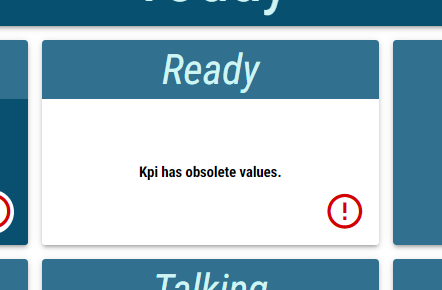
Misconfigured segments, unavailable application server, or calculation errors are indicated by an exclamation mark icon in the bottom right part of the affected segment. Error message is displayed in the tooltip when hovering over the icon as well as in the snackbar at the bottom of the layout.
Figure 2: Exclamation mark
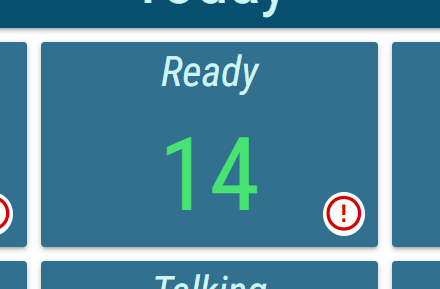
Figure 3: Exclamation mark - reason