
Real-World Grid Examples
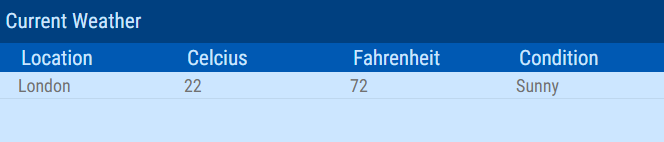
This chapter provides a practical example of how to configure a Grid Calculation Function in the Generic Web Service connector using metadata. The example demonstrates how to retrieve current weather data from a public API and display it in a Grid segment and uses the WeatherAPI to fetch current conditions for London.
Grid Example (JSON response) - Weather Data
Connector Settings
Before creating the Grid, ensure the following fields are configured in the Connector Settings:
Setting |
Value |
|---|---|
API URL |
|
Authentication |
|
API Key |
|
These settings allow the connector to reach the correct API endpoint and authorize the request using a predefined key.
Grid Metadata
Define the grid’s metadata to configure the API request.
{
  "request": {
    "methodType": "GET",
    "query": "/v1/current.json?key={$API_KEY}&q=London&aqi=no"
  }
}
The {$API_KEY} placeholder is automatically replaced with the value defined in the API Key connector setting.
API Response Preview
The example below illustrates the expected API response format returned by a weather API endpoint.
This response structure is used to define column metadata in the following section.
Example API Request
GET https://api.weatherapi.com/v1/current.json?key={API_KEY}&q=London
Example API Response
{
  "location": {
    "name": "London",
    "region": "City of London, Greater London",
    "country": "United Kingdom",
    "lat": 51.5171,
    "lon": -0.1062,
    "tz_id": "Europe/London",
    "localtime_epoch": 1768395203,
    "localtime": "2026-01-14 12:53"
  },
  "current": {
    "last_updated_epoch": 1768394700,
    "last_updated": "2026-01-14 12:45",
    "temp_c": 3.0,
    "temp_f": 37.4,
    "is_day": 1,
    "condition": {
      "text": "Mist",
      "icon": "//cdn.weatherapi.com/weather/64x64/day/143.png",
      "code": 1030
    },
    "wind_mph": 3.8,
    "wind_kph": 6.1,
    "wind_degree": 116,
    "wind_dir": "ESE",
    "pressure_mb": 1013.0,
    "pressure_in": 29.91,
    "precip_mm": 0.0,
    "precip_in": 0.0,
    "humidity": 100,
    "cloud": 25,
    "feelslike_c": 1.4,
    "feelslike_f": 34.5,
    "windchill_c": 4.7,
    "windchill_f": 40.5,
    "heatindex_c": 5.9,
    "heatindex_f": 42.6,
    "dewpoint_c": 0.4,
    "dewpoint_f": 32.7,
    "vis_km": 8.0,
    "vis_miles": 4.0,
    "uv": 0.7,
    "gust_mph": 5.0,
    "gust_kph": 8.0
  }
}
Column Metadata
Each column in the grid must be configured with a proper data path using the data.path JSON pointer.
The data.path value represents a JSON path pointing to a specific field in the API response object.
Below are the metadata definitions for the example columns shown in the API response above.
Column: Location
Property |
Value |
|---|---|
Data Type |
Text |
Metadata |
|
Column: Condition
Property |
Value |
|---|---|
Data Type |
Text |
Metadata |
|
Column: TemperatureCelsius
Property |
Value |
|---|---|
Data Type |
Numeric |
Metadata |
|
Column: TemperatureFahrenheit
Property |
Value |
|---|---|
Data Type |
Numeric |
Metadata |
|
Expected Result in Grid
Once the grid is configured and the layout is published, the segment displays the current weather data in real time.
Grid Example (JSON response) - Google Sheets
Connector Settings
Before creating the Grid, ensure the following fields are configured in the Connector Settings:
Setting |
Value |
|---|---|
API URL |
|
Authentication |
|
OAuth2 Grant Type |
|
Token Url |
|
Access Token Response Type |
|
JWT Audience |
|
JWT Issuer |
|
JWT Key |
|
JWT Subject |
|
JWT Additional Claims |
|
These settings allow the connector to reach the correct API endpoint and authorize the request using a predefined key.
Grid Metadata
Define the grid’s metadata to configure the API request.
{
  "request": {
    "methodType": "GET",
    "query": "/v4/spreadsheets/{SPREADSHEET_ID}/values/{SHEET_NAME}",
    "rootPath": "values",
    "isPivotArray": true
  }
}
The {SPREADSHEET_ID} and {SHEET_NAME} placeholders have to be replaced with the respective spreadsheet ID and sheet name.
API Response Preview
The example below illustrates the expected API response format returned when querying a specific range from Google Sheets.
This response structure is used to define column metadata in the following section.
Example API Request
GET https://sheets.googleapis.com/v4/spreadsheets/{spreadsheetId}/values/Sheet1!A20:D24
Authorization: Bearer <ACCESS_TOKEN>
Example API Response
{
  "range": "Sheet1!A20:D24",
  "majorDimension": "ROWS",
  "values": [
    [
      "2025-01-01 8:30",
      "42",
      "2:15:00",
      "Example A"
    ],
    [
      "2025-02-14 12:00",
      "100",
      "0:45:30",
      "Example B"
    ],
    [
      "2025-03-20 19:45",
      "7.5",
      "10:00:00",
      "Example C"
    ],
    [
      "2025-04-05 6:10",
      "-12",
      "1:05:00",
      "Example D"
    ],
    [
      "2025-05-30 23:59",
      "9999",
      "0:30:00",
      "Lorem ipsum dolor sit amet, consectetur adipiscing elit. Sed non risus..."
    ]
  ]
}
Column Metadata
Each column in the grid must be configured with a proper data path using the data.path JSON pointer.
The data.path value corresponds to the zero-based index of the column within each row in the values array.
Below are the metadata definitions for the example columns shown in the API response above.
Column: Datetime
Property |
Value |
|---|---|
Data Type |
Text |
Metadata |
|
Column: Numeric
Property |
Value |
|---|---|
Data Type |
Numeric |
Metadata |
|
Column: Timespan
Property |
Value |
|---|---|
Data Type |
Text |
Metadata |
|
Column: Text
Property |
Value |
|---|---|
Data Type |
Text |
Metadata |
|
Grid Example (JSON response) – SharePoint
Connector Settings
Before creating the Grid, ensure one of the following set of fields are configured in the Connector Settings:
Client Credentials
Setting |
Value |
|---|---|
API URL |
|
Authentication |
|
Token Request Content-Type |
|
Username / Client ID |
|
OAuth2 Custom Body |
|
Token Url |
|
Access Token Response Type |
|
Client Credentials (JWT)
Settings |
Value |
|---|---|
API URL |
|
Authentication |
|
OAuth2 Grant Type |
|
Token Url |
|
Token Request Content-Type |
|
Username / Client ID |
|
Access Token Response Type |
|
OAuth2 Custom Body |
|
Algorithm |
|
Audience |
|
Issuer |
|
Key |
|
Key ID |
|
Subject |
|
X.509 Certificate Chain |
|
These settings allow the connector to authenticate against Microsoft Graph and access Excel workbook data stored in SharePoint.
Grid Metadata
Define the grid’s metadata to configure the API request.
{
  "request": {
    "methodType": "GET",
    "query": "v1.0/drives/{DRIVE_ID}/items/{EXCEL_FILE_ID}/workbook/worksheets/{SHEET_NAME}/{TABLE_ADDRESS}",
    "rootPath": "text",
    "isPivotArray": true
  }
}
The following placeholders must be replaced with actual values:
{DRIVE_ID} – ID of the SharePoint drive
{EXCEL_FILE_ID} – ID of the Excel file
{SHEET_NAME} – Worksheet name
{TABLE_ADDRESS} – Excel table or range address
Details on how to define {TABLE_ADDRESS} can be found in the official Microsoft Graph documentation.
API Response Preview
The example below illustrates the expected API response format returned by Microsoft Graph when querying a worksheet range from an Excel file stored in SharePoint. This response structure is used to define column metadata in the following section.
GET https://graph.microsoft.com/v1.0/drives/{DRIVE_ID}/items/{EXCEL_FILE_ID}/workbook/worksheets/{SHEET_NAME}/{TABLE_ADDRESS}
Authorization: Bearer <ACCESS_TOKEN>
Example API Response
{
  "@odata.context": "https://graph.microsoft.com/v1.0/$metadata#microsoft.graph.workbookRange",
  "@odata.id": "...",
  "address": "Sheet1!A20:D24",
  "addressLocal": "Sheet1!A20:D24",
  "columnCount": 4,
  "cellCount": 20,
  "columnHidden": false,
  "rowHidden": false,
  "columnIndex": 0,
  "text": [
    [
      "2025-01-01 8:30",
      "42",
      "2:15:00",
      "Example A"
    ],
    [
      "2025-02-14 12:00",
      "100",
      "0:45:30",
      "Example B"
    ],
    [
      "2025-03-20 19:45",
      "7.5",
      "10:00:00",
      "Random"
    ],
    [
      "2025-04-05 6:10",
      "-12",
      "1:05:00",
      "Example D"
    ],
    [
      "2025-05-30 23:59",
      "9999",
      "0:30:00",
      "Lorem ipsum dolor sit amet, consectetuer adipiscing elit. Aenean commodo ligula eget dolor."
    ]
  ]
}
Column Metadata
Each column in the grid must be configured with a proper data path using the data.path JSON pointer.
The data.path value corresponds to the zero-based index of the column within each row in the text array.
Below are the metadata definitions for the example columns shown in the API response above.
Column: Datetime
Property |
Value |
|---|---|
Data Type |
Text |
Metadata |
|
Column: Numeric
Property |
Value |
|---|---|
Data Type |
Numeric |
Metadata |
|
Column: Timespan
Property |
Value |
|---|---|
Data Type |
Text |
Metadata |
|
Column: Text
Property |
Value |
|---|---|
Data Type |
Text |
Metadata |
|
Expected Result in Grid
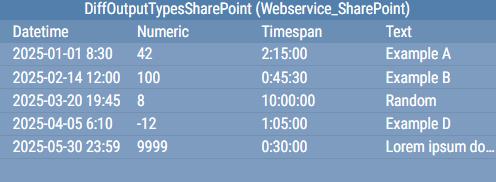
Once the grid is configured and the layout is published, the segment displays the current Excel data retrieved from SharePoint in real time.
Grid Example (XML response)
Connector Settings
Before creating the Grid, ensure the following fields are configured in the Connector Settings:
Setting |
Value |
|---|---|
API URL |
|
Authentication |
|
API Key |
|
These settings allow the connector to reach the correct API endpoint and authorize the request using a predefined key.
Grid Metadata
Define the grid’s metadata to configure the API request.
{
  "request": {
    "methodType": "GET",
    "contentType": "xml",
    "query": "/v1/forecast.xml?key={$API_KEY}&q=London&aqi=no"
  }
}
The {$API_KEY} placeholder is automatically replaced with the value defined in the API Key connector setting.
API Response Preview
The example below illustrates the expected API response format returned in XML.
This response structure is used to define column metadata using XPath expressions in the following section.
Example API Request
GET https://api.weatherapi.com/v1/current.xml?key={API_KEY}&q=London
Example API Response
<?xml version="1.0" encoding="utf-8"?>
<root>
  <location>
    <name>London</name>
    <region>City of London, Greater London</region>
    <country>United Kingdom</country>
    <lat>51.5171</lat>
    <lon>-0.1062</lon>
    <tz_id>Europe/London</tz_id>
    <localtime_epoch>1768395257</localtime_epoch>
    <localtime>2026-01-14 12:54</localtime>
  </location>
  <current>
    <last_updated_epoch>1768394700</last_updated_epoch>
    <last_updated>2026-01-14 12:45</last_updated>
    <temp_c>3</temp_c>
    <temp_f>37.4</temp_f>
    <is_day>1</is_day>
    <condition>
      <text>Mist</text>
      <i class="//cdn.weatherapi.com/weather/64x64/day/143.png"></i>
      <code>1030</code>
    </condition>
    <wind_mph>3.8</wind_mph>
    <wind_kph>6.1</wind_kph>
    <wind_degree>116</wind_degree>
    <wind_dir>ESE</wind_dir>
    <pressure_mb>1013</pressure_mb>
    <pressure_in>29.91</pressure_in>
    <precip_mm>0</precip_mm>
    <precip_in>0</precip_in>
    <humidity>100</humidity>
    <cloud>25</cloud>
    <feelslike_c>1.4</feelslike_c>
    <feelslike_f>34.5</feelslike_f>
    <windchill_c>4.7</windchill_c>
    <windchill_f>40.5</windchill_f>
    <heatindex_c>5.9</heatindex_c>
    <heatindex_f>42.6</heatindex_f>
    <dewpoint_c>0.4</dewpoint_c>
    <dewpoint_f>32.7</dewpoint_f>
    <vis_km>8</vis_km>
    <vis_miles>4</vis_miles>
    <uv>0.7</uv>
    <gust_mph>5</gust_mph>
    <gust_kph>8</gust_kph>
  </current>
</root>
Column Metadata
Each column in the grid must be configured with a proper data path using the data.path XPath expression.
The XPath expression selects a specific element from the XML response.
Below are the metadata definitions for the example columns shown in the API response above.
Column: Location
Property |
Value |
|---|---|
Data Type |
Text |
Metadata |
|
Column: Condition at 9:00 AM
Property |
Value |
|---|---|
Data Type |
Text |
Metadata |
|
Column: TemperatureCelsius At 9:00 AM
Property |
Value |
|---|---|
Data Type |
Numeric |
Metadata |
|
Expected Result in Grid
Once the grid is configured and the layout is published, the segment displays the current weather data in real time.
