
Installation Process
A 2Ring Power Tool installer is provided as an executable file. For proper installation of the Power Tool, please follow these steps.
Locate and open the installation file on your computer.
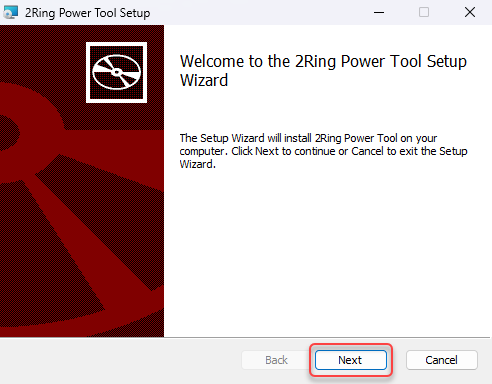
On the welcome screen, click Next.
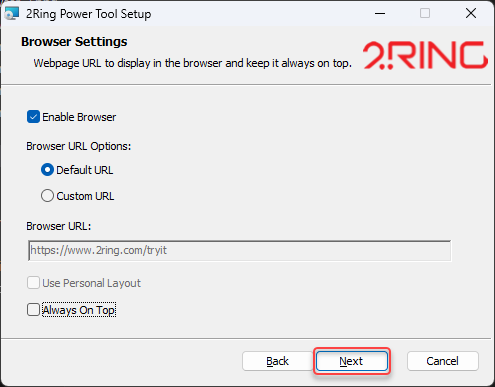
On this screen, decide, whether to enable and click “Next” to continue:
Enable Browser - whether the browser should be enabled after installation.
Browser URL Options - you can use the default URL: https://www.2ring.com/tryit or enter a custom URL by changing the “Custom Browser URL” field.
Use Personal Layout - check, if you want to use a personal layout.
Always On Top - check, to keep the 2Ring Power Tool always on top.
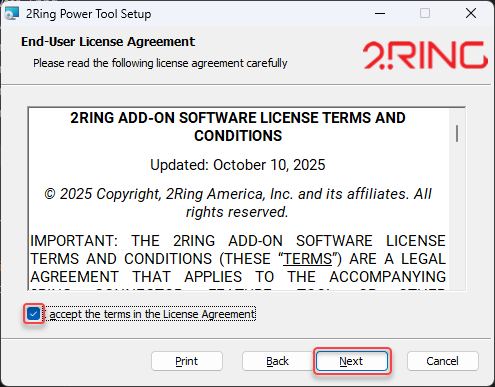
On the next screen, read and accept the license agreement by selecting the checkbox. Click Next to continue.
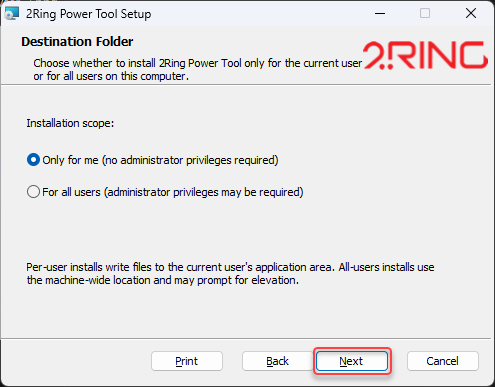
Choose whether to install 2Ring Power Tool only for the current user or for all users on the computer. Click Next.
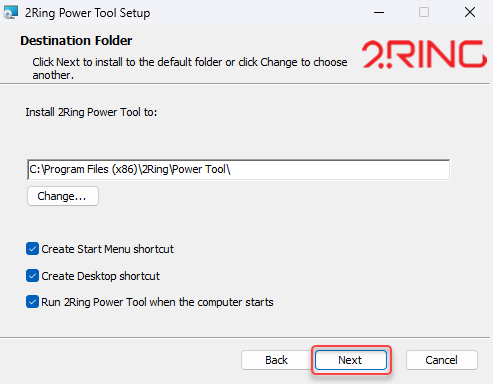
Select an Installation Folder. Select the checkbox to indicate your preferences for creating a Start Menu or Desktop shortcut. Additionally, choose this option if you want 2Ring Power Tool to initiate automatically upon computer startup. Click Next.
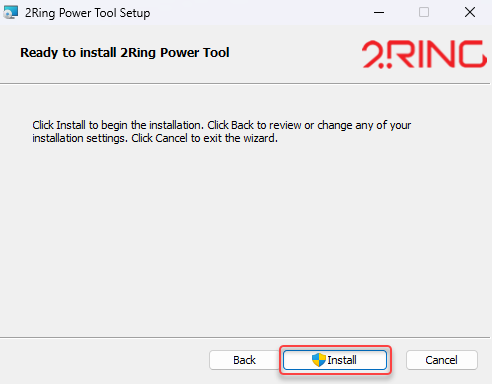
Confirm the installation settings and start installation by clicking Install.
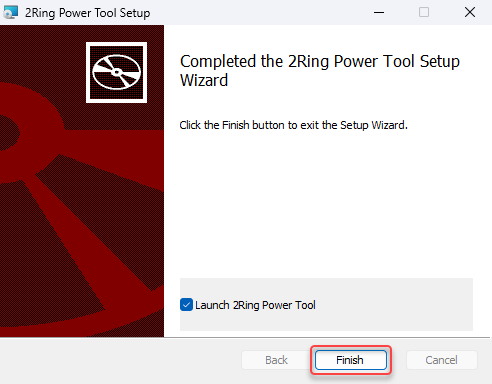
When the installation is successfully completed, check the checkbox, if you want 2Ring Power Tool to launch and click Finish.
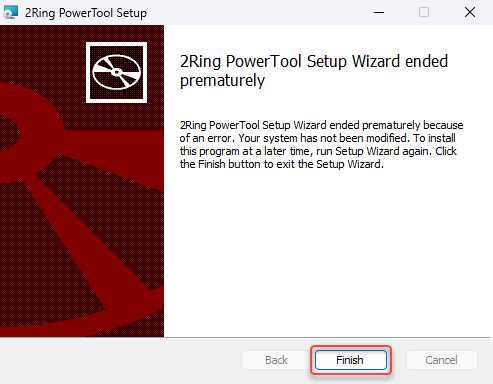
If the installation concludes with an error, you will receive an error message.
Silent Install
Silent install allows for an unattended installation of the 2Ring Power Tool.
Open Command Prompt as Administrator
Run the following command
msiexec /i "<PATH_TO_INSTALLER>" INSTALLFOLDER="<INSTALLATION_FOLDER>" /quiet <INSTALL_SCOPE> CF_BROWSER_ENABLED=<CF_BROWSER_ENABLED> CF_URL_OPTION=<CF_URL_OPTION> CF_BROWSER_URL=<CF_BROWSER_URL> CF_USE_PERSONAL=<CF_USE_PERSONAL> CF_ALWAYS_ON_TOP=<CF_ALWAYS_ON_TOP> CF_LISTENER_ENABLED=<CF_LISTENER_ENABLED> CF_LISTENER_PORT=<CF_LISTENER_PORT> CF_LISTENER_TIMEOUT=<CF_LISTENER_TIMEOUT>
<PATH_TO_INSTALLER> - Path to the 2Ring Power Tool installer
<INSTALLATION_FOLDER> - Path to a directory, where the 2Ring Power Tool will be installed
<INSTALL_SCOPE> - Determines whether the application is installed for the current user or for all users on the machine:
For current user installation, use:
ALLUSERS=2 MSIINSTALLPERUSER=1For local machine (all users) installation, use:
ALLUSERS=1
<CF_BROWSER_ENABLED> - Set to true if you want 2Ring Power Tool to use browser
<CF_URL_OPTION> - Set to Custom if you want to fill custom browser URL (Applicable only if <CF_BROWSER_ENABLED> = true)
<CF_BROWSER_URL> - URL of a webpage, that should be displayed in the web browser (Applicable only if <CF_BROWSER_ENABLED> = true and <CF_URL_OPTION> = Custom)
<CF_USE_PERSONAL> - Set to true if you want 2Ring Power Tool to use Personal layout in browser (Applicable only if <CF_BROWSER_ENABLED> = true and <CF_URL_OPTION> = Custom)
<CF_ALWAYS_ON_TOP> - Set to true if you want 2Ring Power Tool to always stay on top
<CF_LISTENER_ENABLED> - Set to true if you want to enable Listener after installation
<CF_LISTENER_PORT> - Port number, on which Listener will listen for HTTP requests (Applicable only if <CF_LISTENER_ENABLED> = true)
<CF_LISTENER_TIMEOUT> - Maximum number of seconds allowed for a script to run before the Listener forcibly stops it (Applicable only if <CF_LISTENER_ENABLED> = true)
Example:
```
msiexec /i "C:\Installer.msi" INSTALLFOLDER="C:\2Ring Power Tool" /quiet ALLUSERS=2 MSIINSTALLPERUSER=1 CF_BROWSER_ENABLED=true CF_URL_OPTION=Custom CF_BROWSER_URL=https://www.2ring.com/tryit CF_USE_PERSONAL=false CF_ALWAYS_ON_TOP=true
```