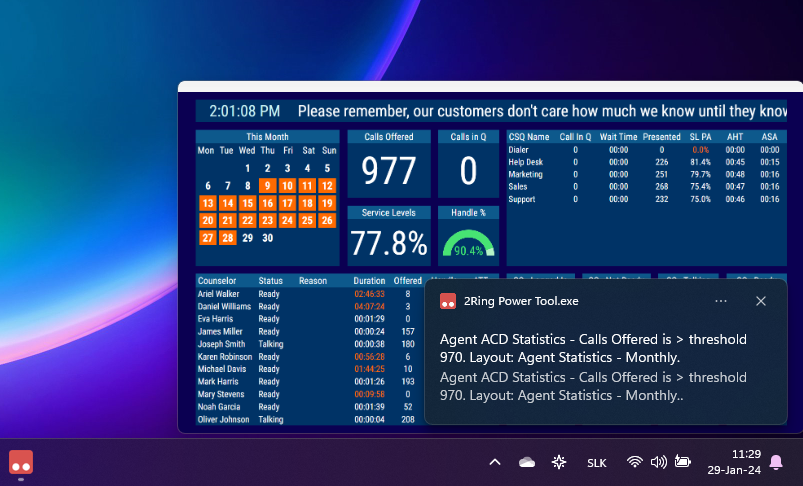
Notifications
Power Tool can receive local notifications configured in the DW.
To configure a notification rule in DW, compatible with the Power Tool, follow these steps:
Open layout in the Layout editor
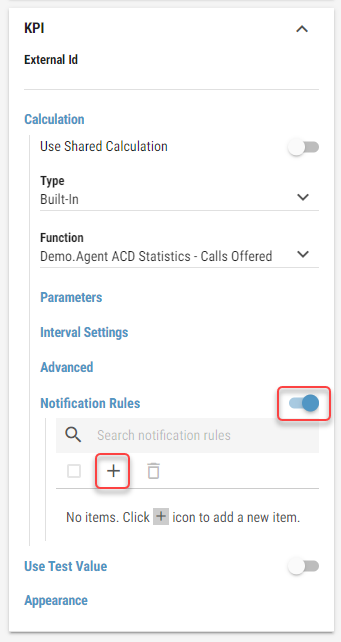
On the desired segment, enable Notification Rules in the Calculation group and add a new one
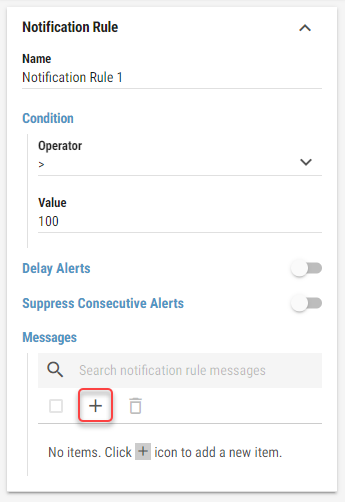
Fill the condition that should trigger the notification, and add new message
Select “DW Local” as a Channel, fill the Subject and the Message Body
If you want to use a Busylight notifications, see Busylight section. 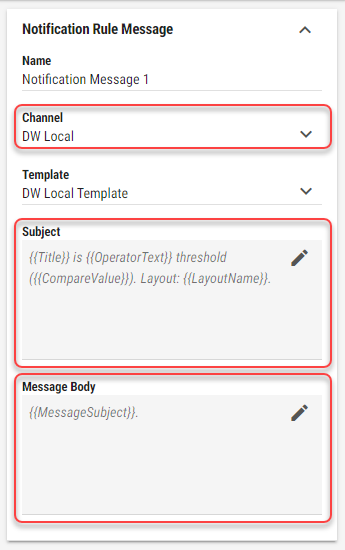
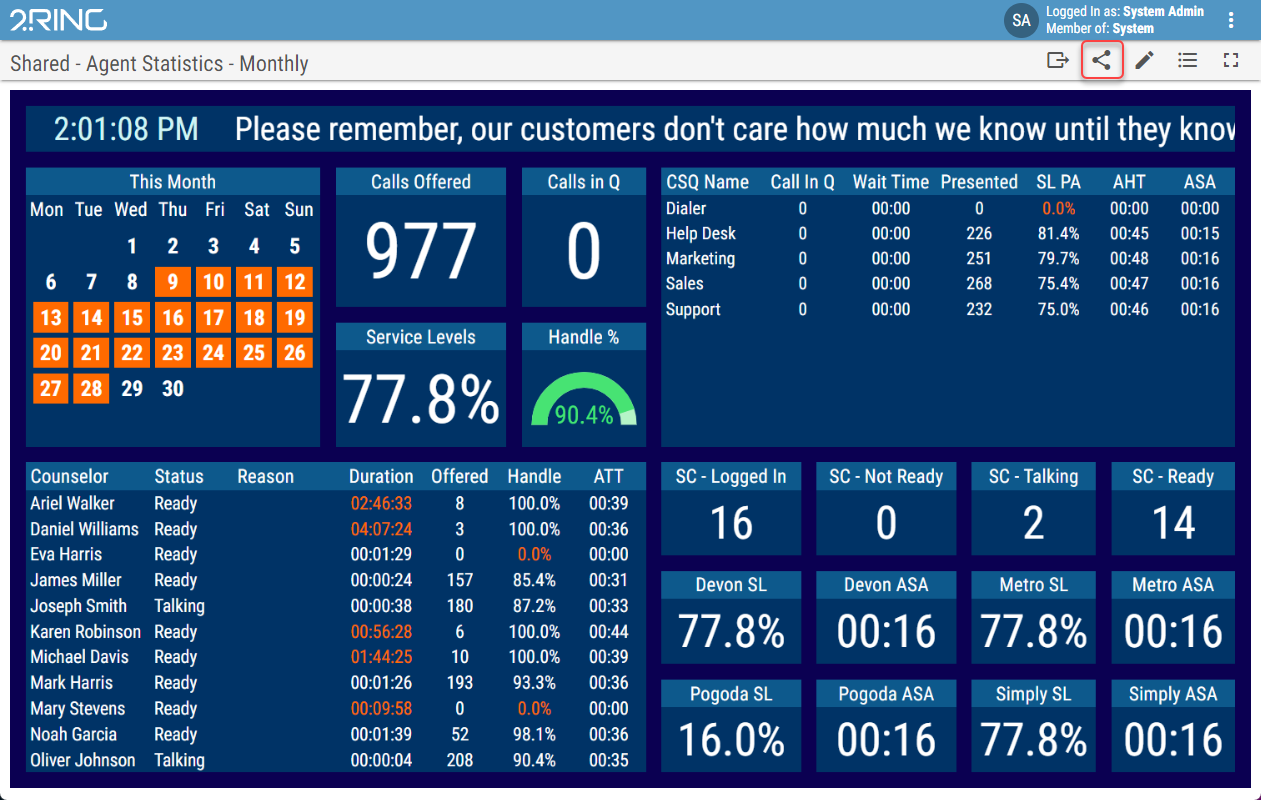
Click on “Share Layouts” button
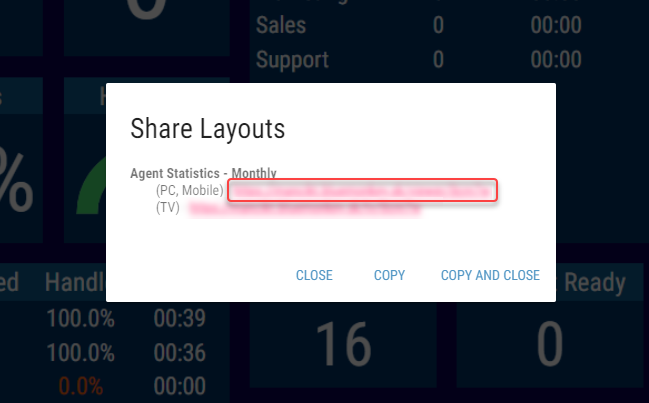
Copy the URL from the Share Layouts dialog
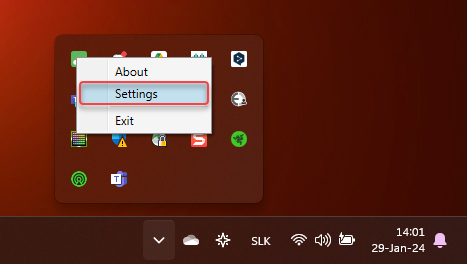
Right-click on the Power Tool icon and select “Settings”
Paste the copied URL into the “Browser URL” field and confirm by clicking on “OK” button.
If Dynamic Filter with URL parameters is used in the layout, you can define them in the “Browser URL”. For more information see Dynamic Filter chapter in the DW Layout Editor guide. 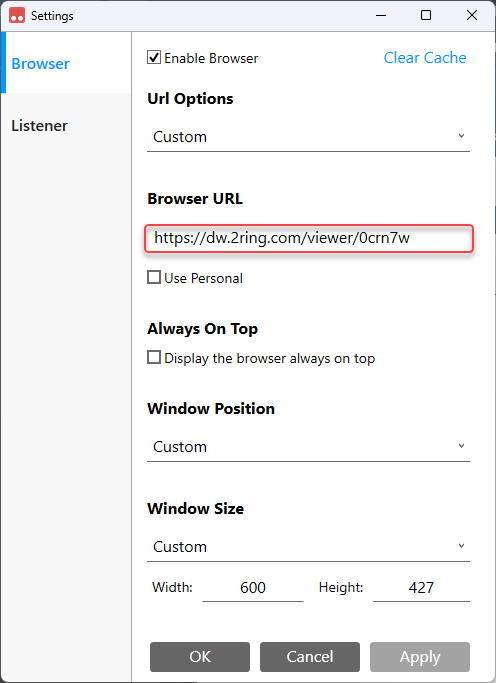
Layout is displayed by the Power Tool and notifications from the layout are received.
Busylight
It is possible to configure a special notification in the DW, which Power Tool processes and then sends a request to the localhost server that controls Kuando Busylight.
This notification has to meet following requirements:
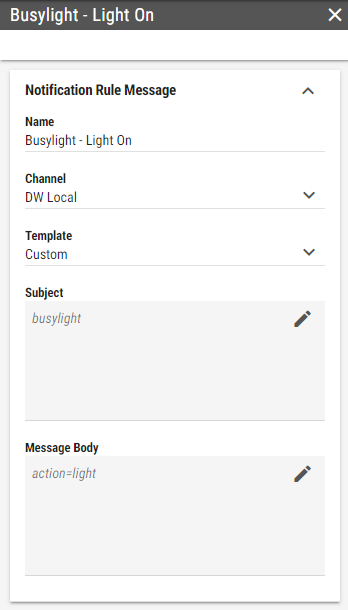
Channel - “DW Local” channel has to be selected
Subject - “busylight” has to be filled as a message subject
Message Body - desired action has to be filled as a message body (e.g. action=light)
Busylight actions
Below are actions with all available parameters, that can be defined in the message body:
Light command
action=light&red=100&green=100&blue=100
Parameter Name |
Values |
|---|---|
Red |
0..100 (Default 0) |
Green |
0..100 (Default 0) |
Blue |
0..100 (Default 0) |
Alert command
action=alert&red=100&sound=5&volume=25
Parameter Name |
Values |
|---|---|
Red |
0..100 (Default 0) |
Green |
0..100 (Default 0) |
Blue |
0..100 (Default 0) |
Sound |
0..8 (See list) |
Volume |
0..100 (See list) |
Sound |
Sound number |
|---|---|
No sound |
0 |
Fairy Tale |
1 |
Funky |
2 |
Kuando Train |
3 (Default) |
Open Office |
4 |
Quiet |
5 |
Telephone Nordic |
6 |
Telephone original |
7 |
Telephone Pick Me Up |
8 |
Volume |
Volume value |
|---|---|
100% |
100 |
75% |
75 (Default) |
50% |
50 |
25% |
25 |
Mute |
0 |
Blink command
action=blink&blue=100
Parameter Name |
Values |
|---|---|
Red |
0..100 (Default 0) |
Green |
0..100 (Default 0) |
Blue |
0..100 (Default 0) |
Ontime (0.1 seconds steps light on) |
Default: 5 (0.5 Seconds) |
Offtime (0.1 seconds steps light off) |
Default: 5 (0.5 Seconds) |
Jingle command
action=jingle&red=100&sound=3&volume=100
Parameter Name |
Values |
|---|---|
Red |
0..100 (Default 0) |
Green |
0..100 (Default 0) |
Blue |
0..100 (Default 0) |
Sound |
0..8 (See list) |
Volume |
0..100 (See list) |
For Sound and Volume values, see the Alert command.
Pulse command
action=pulse&blue=100&red=100
Parameter Name |
Values |
|---|---|
Red |
0..100 (Default 0) |
Green |
0..100 (Default 0) |
Blue |
0..100 (Default 0) |
ColorWithFlash command
action=colorwithflash&green=100&red=100&flashblue=100
Parameter Name |
Values |
|---|---|
Red |
0..100 (Default 0) |
Green |
0..100 (Default 0) |
Blue |
0..100 (Default 0) |
flashred |
0..100 (Default 0) |
flashgreen |
0..100 (Default 0) |
flashblue |
0..100 (Default 0) |
Off command
action=off
The Off-Command has no parameters associated with it.