
Settings
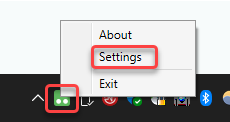
In order to modify any application settings, right-click on the 2Ring Power Tool icon in the system tray and click Settings.
Browser
The following settings can be used to modify the integrated web browser.
For more information about the web browser usage, see Browser chapter.
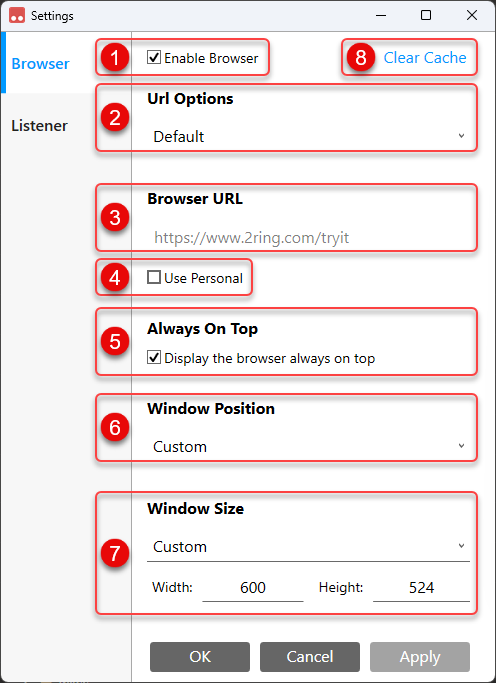
Enable Browser
Choose whether to enable the browser window.URL Options
Choose whether to use the default URL or a custom URL.Default: Use the default webpage https://www.2ring.com/tryit.
Custom: Enter your custom webpage URL in the “Browser URL” field.
Browser URL
Specify the URL of the webpage to be displayed in the web browser. This field is active only when “URL Options” is set to “Custom”.Use Personal
Check this option to add /personal to the webpage URL. This will automatically display the personal layout if the browser URL is filled correctly.Always On Top
If enabled, the web browser will always be displayed over other open windows, even when it does not have focus.Window Position
Position of the browser window. Available options are:Top - Left
Top - Right
Bottom - Left
Bottom - Right
Custom
When the Custom position is selected, user can drag and drop the web browser into any place on the screen.
Window Size
Size of the web browser. Available options are:500 x 300
500 x 400
640 x 360
1280 x 720
Custom
When the Custom size is selected, user can enter the desired size into the Width and Height fields, or resize the web browser by pulling its edges.
Clear Cache
Clears browsers cache.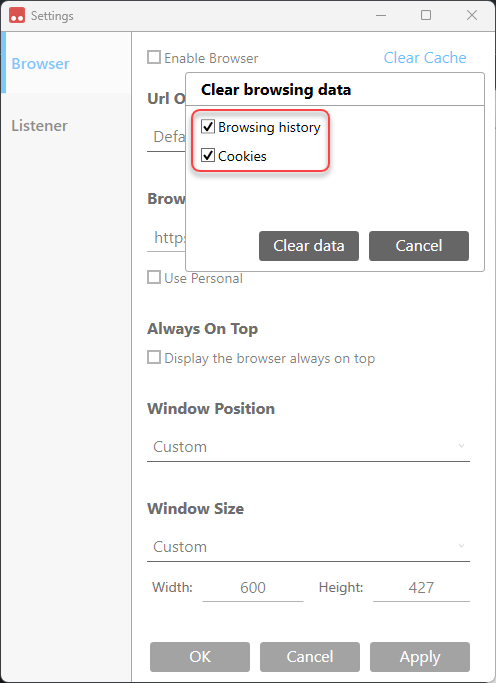
It is possible to choose whether to delete browsing history or cookies.
Listener
The following settings can be used to modify the web listener.
For more information about the listener, see Listener chapter.
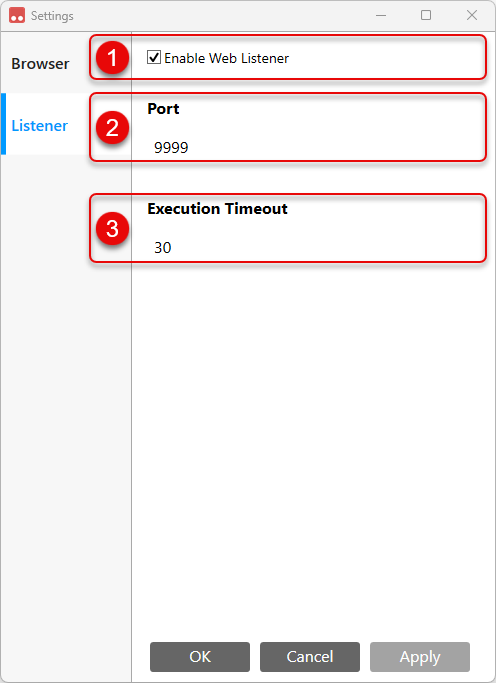
Enable Web Listener
Choose whether to enable the web listener.Port
The port number the web listener will be listening on.Execution Timeout
Maximum number of seconds allowed for a script to run before the Listener forcibly stops it.