
Nested Widget
Related Videos
A widget can be displayed inside of a segment, using the Nested Widget segment type. Nested Widget is fully interactable.
The nested Widget can be selected in the Widget dropdown. Only Widgets from the same Business Unit or Shared Business Unit can be selected.
Figure 3: Edit button
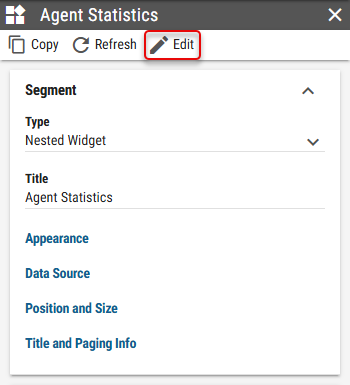
Figure 4: Refresh button
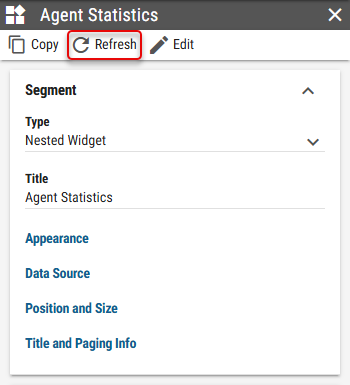
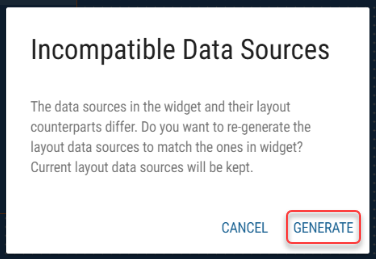
Figure 5: Generate button
Widget
A widget, that should be nested.Appearance
The style of the Nested Widget.Show Background
Whether background from the nested Widget should be applied.Background Type
Inheritable
Type of the Widget’s background.Image - Image is applied as a background.
Solid Color - Solid color is applied as a background.
Inherited - Background from the nested Widget is applied.
Background Color
Inheritable
Available only when Solid Color is selected as Background Type
For more information see Color Field section.
Color of the Widget’s background.Background Image
Inheritable
Available only when Image is selected as Background Type
Image of the Widget’s background.
Scaling Mode
Whether the relative sizes in widget segments should be applied relative to parent layout or to widget itself.Self - Relative sizes in widget segments are applied relative to the widget itself.
Parent - Relative sizes in widget segments are applied relative to parent layout.
Apply Theme
Whether parent layout theme, theme set on the widget itself or custom theme should be applied to segments in widget.From Parent Layout - Theme from the parent layout is applied.
From Nested Widget - Theme from the nested widget is applied.
Custom - Custom theme is applied.
Custom Theme
Available only when “Custom” is selected as Apply Theme
Visual theme, applied to all segments in the Nested Widget.
Data Sources
Mapping of widget calculations to parent layout calculations. For more information see Data Sources chapter.