Troubleshooting
Incorrect/Missing Values
Cause
UCCX database (db_cra) synchronization issue between UCCX nodes or both UCCX nodes are not recording data. By default, if two UCCX nodes are configured in DW, the UCCX connector synchronizes historical data from the UCCX slave.
Run a historical CUIC report for today’s date using each UCCX node as a data source and compare the CUIC report results from both reports.
Examples of CUIC Reports to compare the wallboards with:
Agent States: Reports > Stock > Unified CCX Historical > Inbound > Agent State Detail Report filtered for today and the missing agent.
CSQ/Agent Calls: Reports > Stock > Unified CCX Historical > Inbound > Detailed Call CSQ Agent Report filtered for today and the missing agent.
Agent Calls: Reports > Stock > Unified CCX Historical > Inbound > Agent All Fields Report filtered for today and the missing agent.
CSQ Calls: Reports > Stock > Unified CCX Historical > Inbound > CSQ All Fields Report filtered for today and the CSQ in question.
License (only when there is no license filter placed on the connector): Reports > Stock > Unified CCX Historical > System > Unified License Consumption Report
Result Output |
Cause |
|---|---|
Both CUIC reports return zeros. Report 1 uses the data source from the UCCX master. Report 2 uses the data source from the UCCX slave. |
No data is being recorded into db_cra databases for both nodes. |
CUIC report using the UCCX slave as a data source returns zeros. CUIC report using the UCCX master as the data source returns valid data. |
Synchronization issue with db_cra database on UCCX slave from the UCCX master. |
The CUIC reports and the Wallboards are both showing incorrect values. |
The source tables in the db_cra are not updating. |
Solution
Contact your Cisco Solutions support vendor to investigate.
Queue Real Time statistics Always Showing Zero/Not updating
Cause
Real Time Snapshot Configuration is not set up in CCX Administration.
Solution
For KPIs Calls – In Queue and Longest Waiting Now to work, Real Time Snapshot Configuration must be in CCX Administration. Go to CCX Administration -> Tools -> Real Time Snap Config and make sure the following is set:
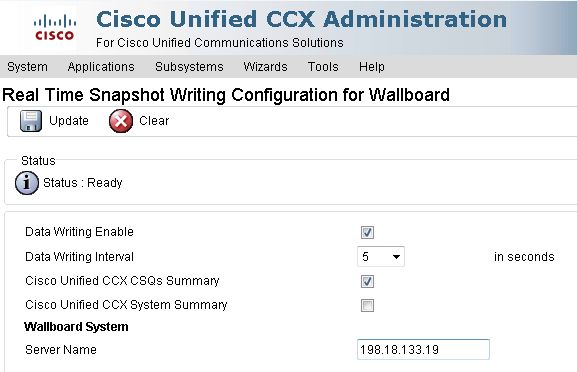
Data Writing Enable: set to true.
Data Writing Interval: set to 5 seconds.
Cisco Unified CCX CSQs Summary: set to true.
Server Name: add the IP address of each UCCX server.
To add multiple nodes, separate each IP address with a comma. Ex: 172.15.12.200, 172.15.12.201.
Click Update.
Resolve Cluster State Error
Error message in the Diagnostics:
ErrorNumber: 50000
ErrorState: 1
ErrorProcedure: ResolveClusterState
ErrorLine: 59

ErrorMessage: Server nodes are not available.
OLE DB provider "MSDASQL" for linked server "uccx10" returned message "[Microsoft][ODBC Driver Manager] Driver's SQLSetConnectAttr failed".
OLE DB provider "MSDASQL" for linked server "uccx10" returned message "[Microsoft][ODBC Driver Manager] Driver's SQLSetConnectAttr failed".
OLE DB provider "MSDASQL" for linked server "uccx10" returned message "[Informix][Informix ODBC Driver][Informix]Incorrect password or user uccxhruser@10.66.254.99[localhost] is not known on the database server.".

Error occured while reading data from node1.
OLE DB provider "MSDASQL" for linked server "uccx10" returned message "[Microsoft][ODBC Driver Manager] Driver's SQLSetConnectAttr failed".
OLE DB provider "MSDASQL" for linked server "uccx10" returned message "[Microsoft][ODBC Driver Manager] Driver's SQLSetConnectAttr failed".
OLE DB provider "MSDASQL" for linked server "uccx10" returned message "[Informix][Informix ODBC Driver][Informix]Incorrect password or user uccxhruser@10.66.254.99[localhost] is not known on the database server.".

Error occured while reading data from node2.
Cause
The Linked Server can’t connect to the UCCX db_cra database.
Solution
Check if the hostname/IP of each UCCX node is reachable from the SQL Server hosting 2Ring Databases.
If the password for the uccxhruser user in UCCX has changed, update it. See Changed Uccxhruser password chapter of this guide.
Changed Uccxhruser password
Cause
The password has been changed for uccxhruser and the SQL linked server/ODBC driver is not able to connect to the Informix database.
Solution
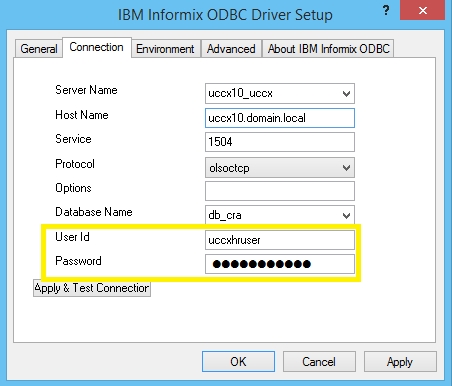
Update password for ODBC driver.
In Windows Server, go to ODBC Data Sources 64bit.
Click on the System DSN tab.
For each UCCX node, click on Configure button.
Click on the Connection tab.
Update Password for uccxhruser.
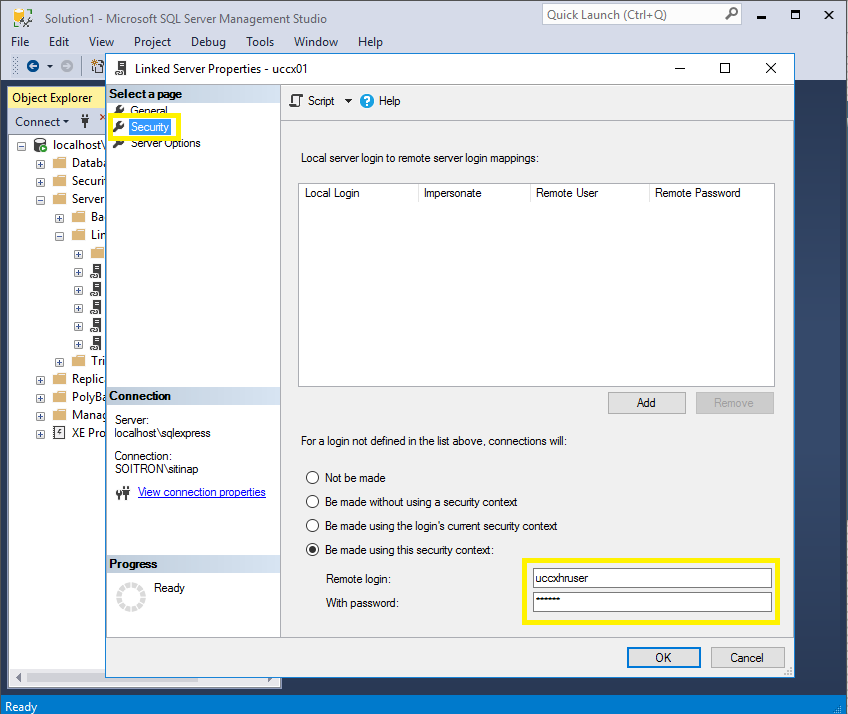
Update password for SQL linked server.
Open SQL Server Management Studio and connect as sysadmin (or any user with sysadmin role assigned) to the instance where the 2ring databases are located.
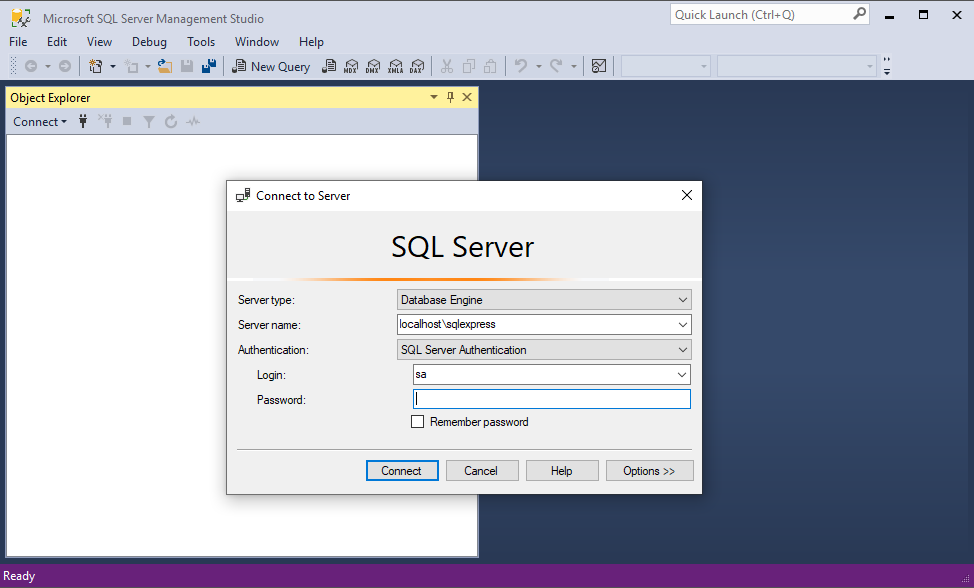
Expand Server Objects -> Linked Servers.
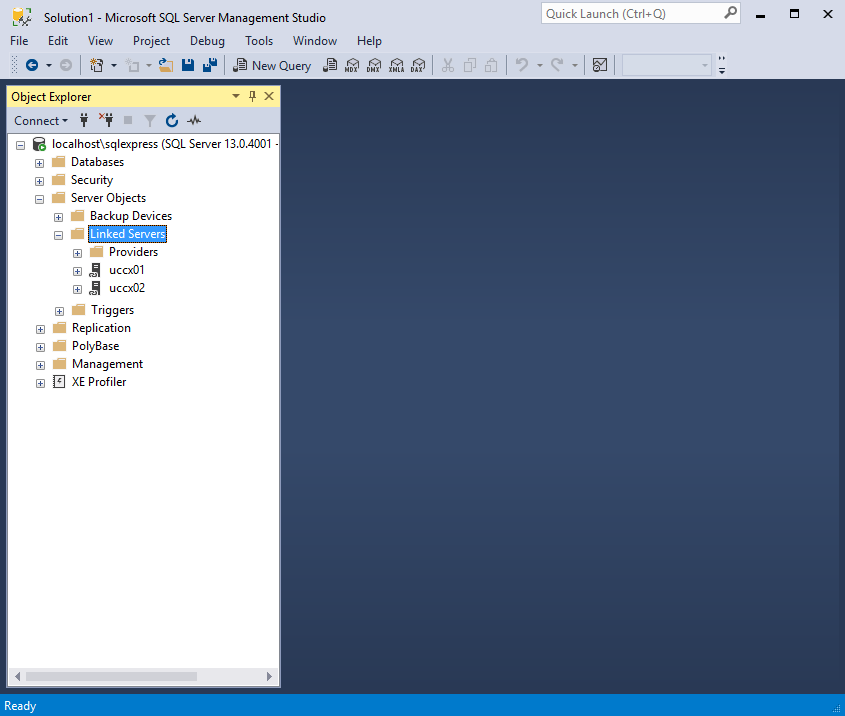
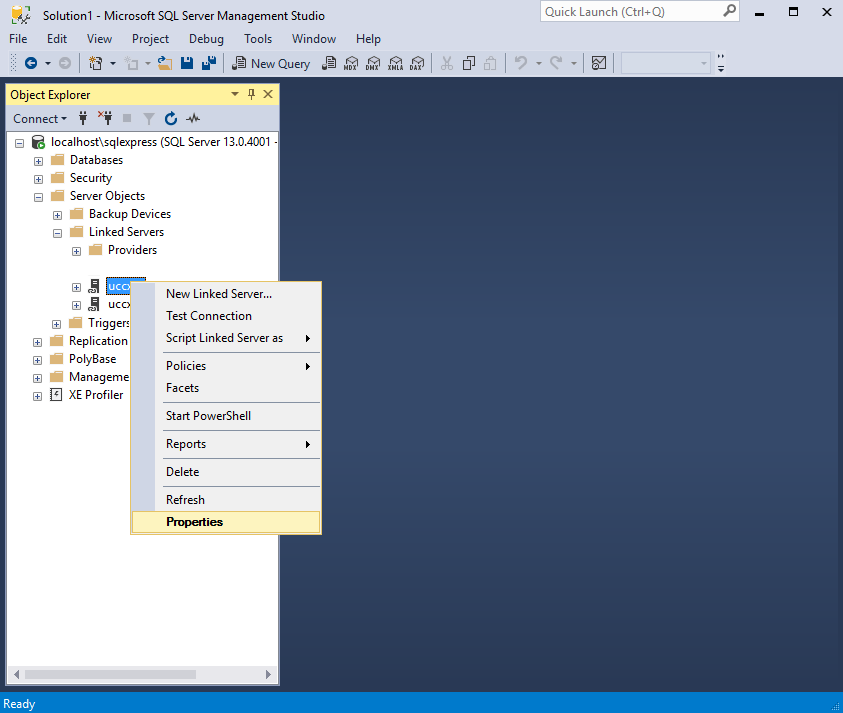
Right-click on the linked server node and select Properties.
Click on the Security tab.
Update password for uccxhruser.