
Connector Windows Service
Installation
This install script will install connector as Windows service which will be running under virtual Windows account NT Service\\2Ring [instanceName] [connectorName]. Script will also assign this account all required rights and permission needed for this service to run.
Navigate to the connector installation package and run install.ps1 as Administrator.
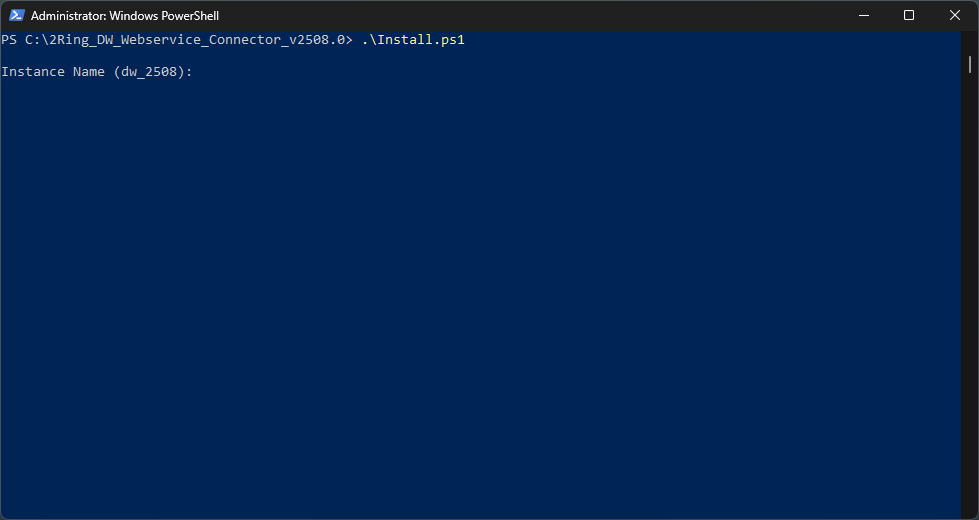
Enter the 2Ring DW application instance name.
Figure 1: Connector Windows Service Installation
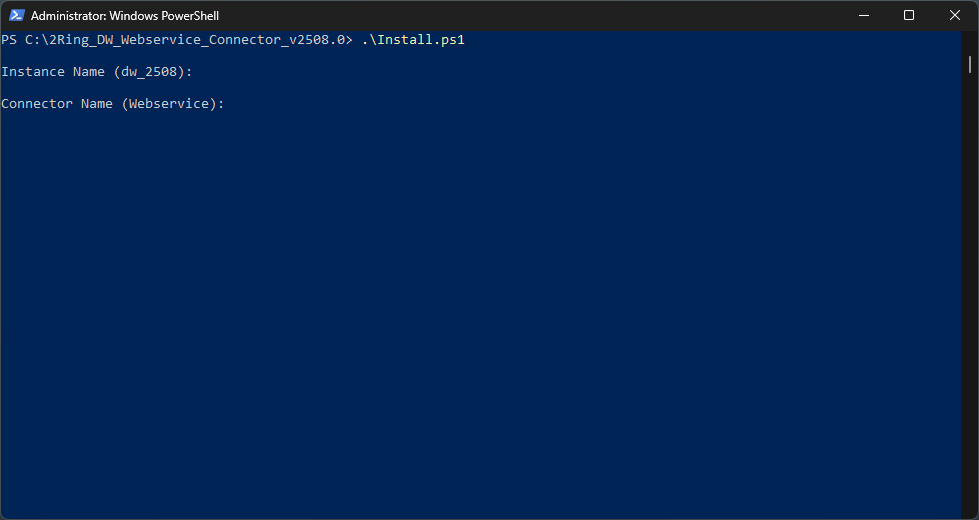
Enter the connector name.
Figure 2: Connector Windows Service Installation
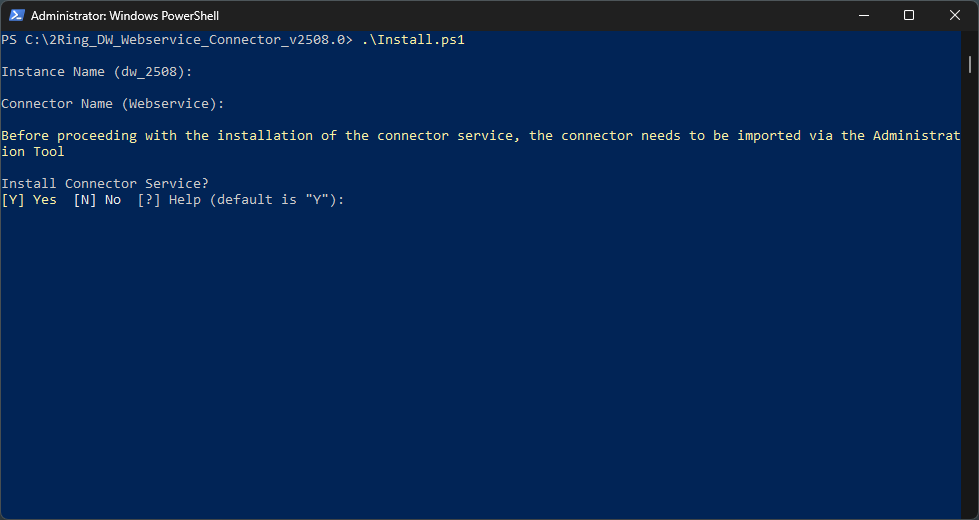
Choose whether a connector service should be installed.
Before proceeding with the installation of the connector service, the connector needs to be imported via the Administration Tool. For information about the connector installation, please reach out to 2Ring via support contacts listed on the 2Ring website at https://www.2Ring.com/contact. Figure 3: Connector Windows Service Installation
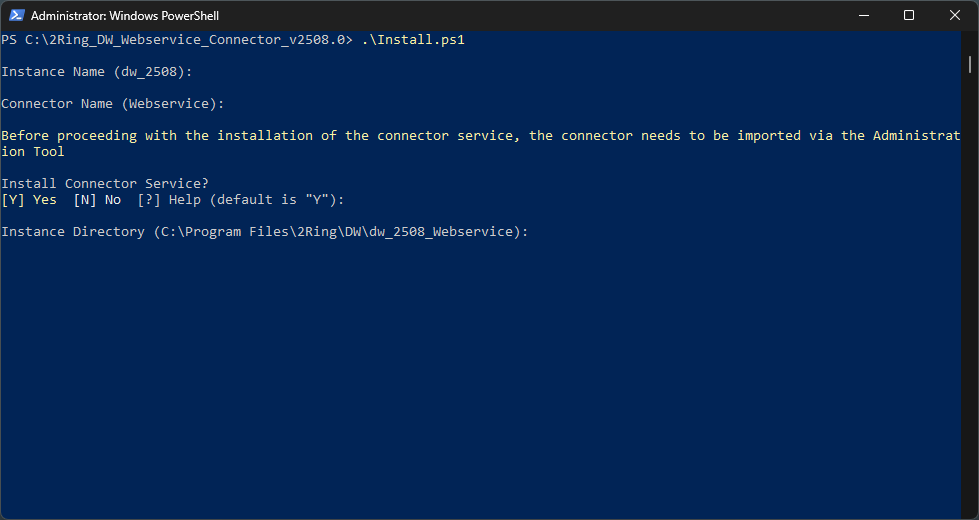
Enter the full path to the connector instance directory.
Figure 4: Connector Windows Service Installation
Enter the API URL of the 2Ring DW application instance.
Figure 5: Connector Windows Service Installation
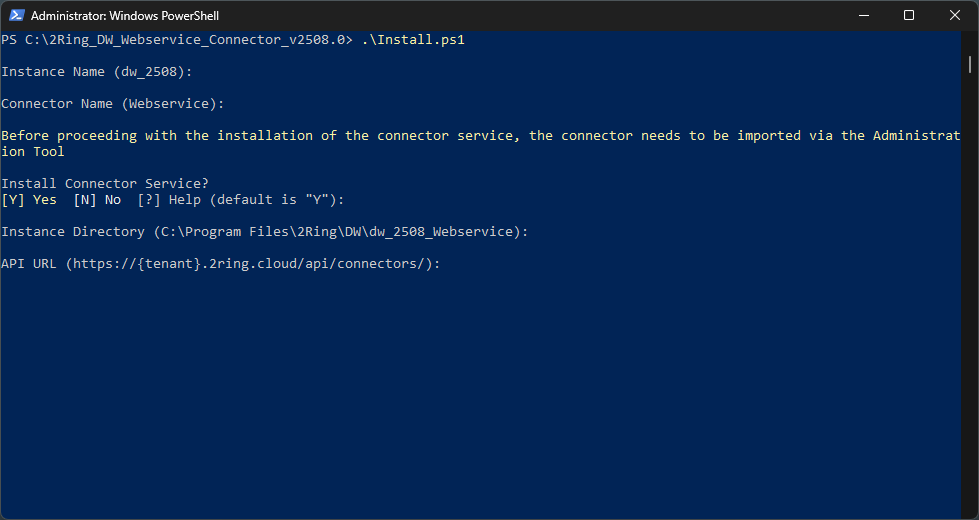
Enter the API key of the 2Ring DW application instance.
Figure 6: Connector Windows Service Installation
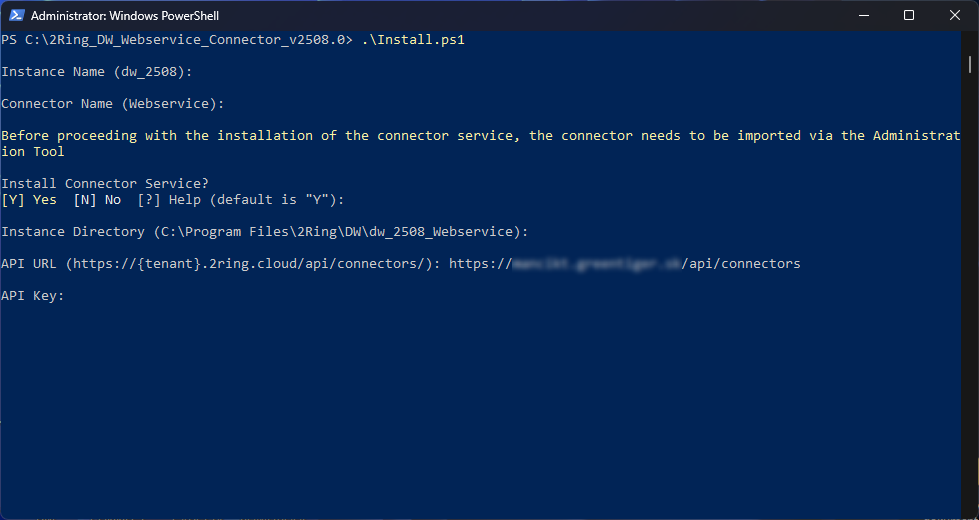
WebService connector Windows service has been successfully installed.
Figure 7: Connector Windows Service Installation
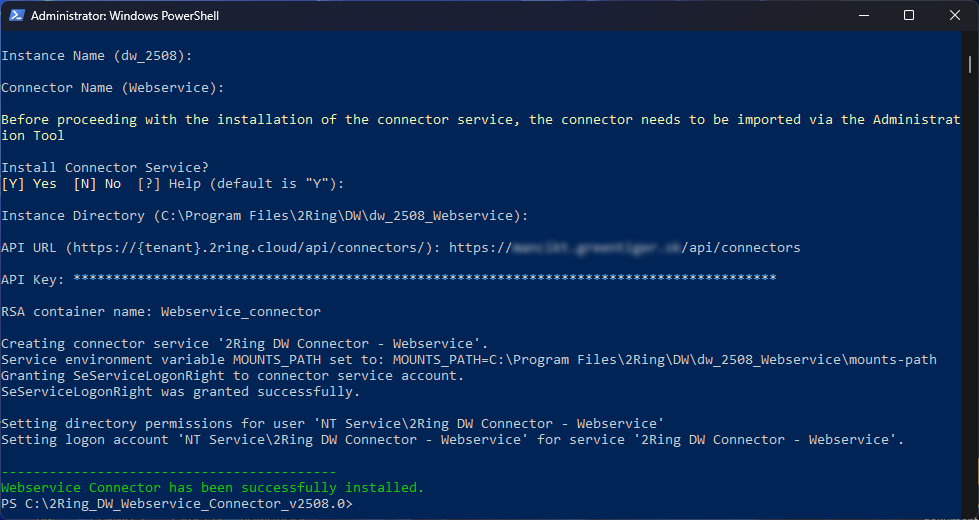
Figure 8: WebService connector Windows Service

Running connector via command prompt
The connector can also run via the command line. To run the connector in the command line, open it and navigate to the connector deploy folder and run the following command:
ConnectorHost.exe --connector=Webservice