
Connector Windows Service
Installation
This install script will install connector as Windows service which will be running under virtual Windows account NT Service\\2Ring [instanceName] [connectorName]. Script will also assign this account all required rights and permission needed for this service to run.
Navigate to the connector installation package and run install.ps1 as Administrator.
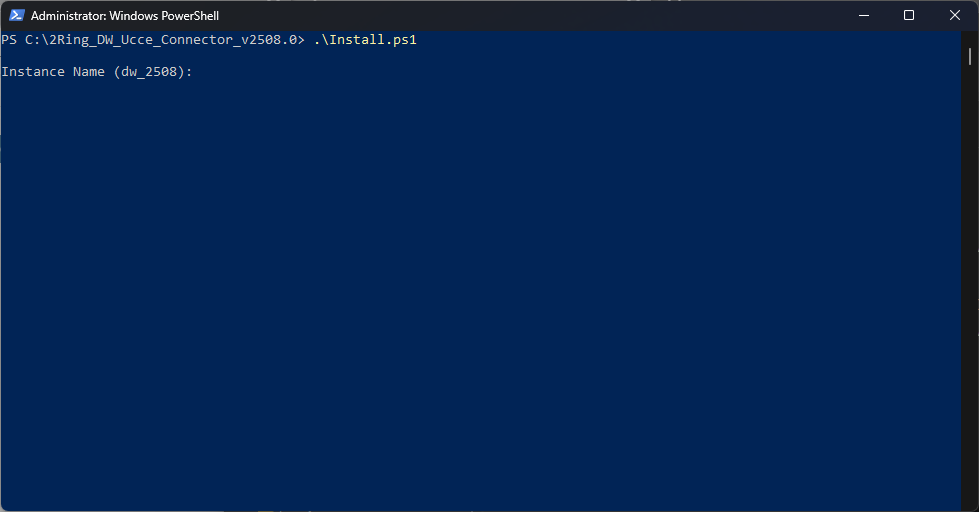
Enter the 2Ring DW application instance name.
Figure 1: Connector Windows Service Installation
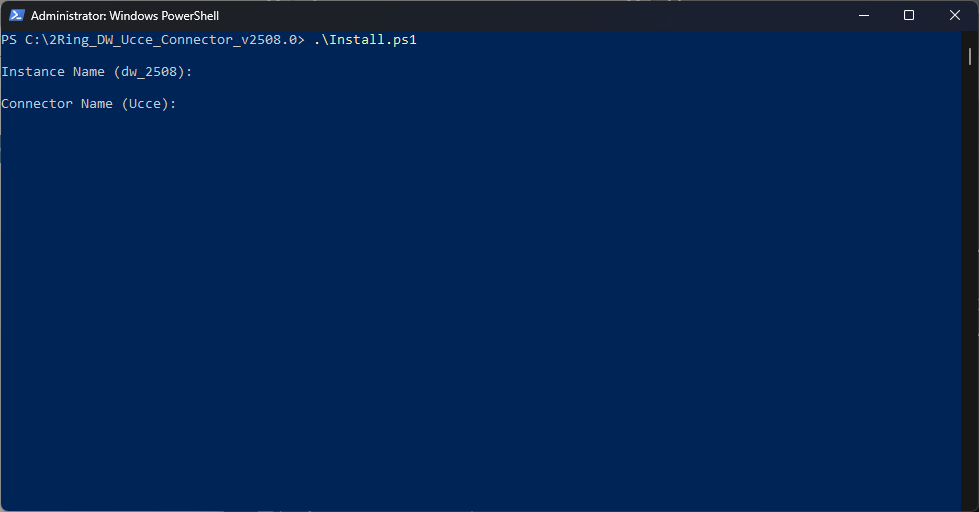
Enter the connector name.
Figure 2: Connector Windows Service Installation
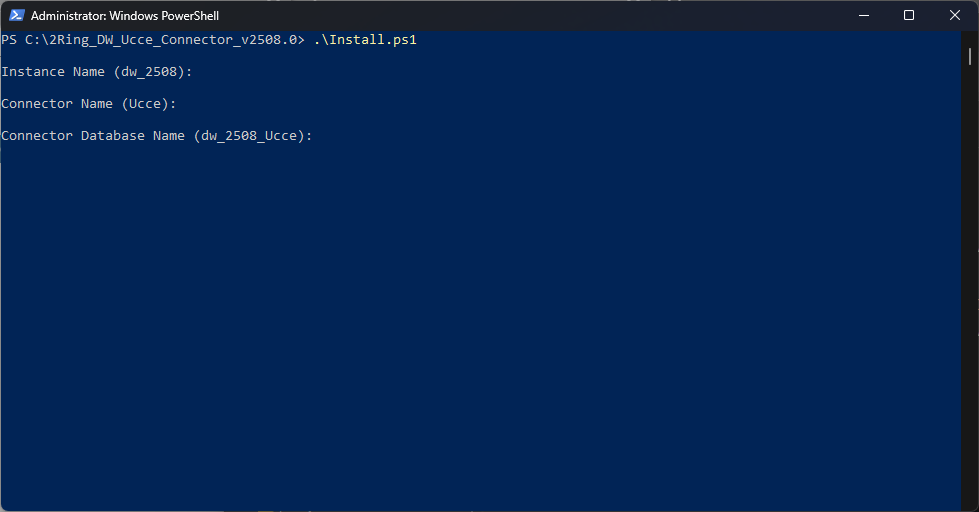
Enter the name of the database that will be used by connector.
Figure 3: Connector Windows Service Installation
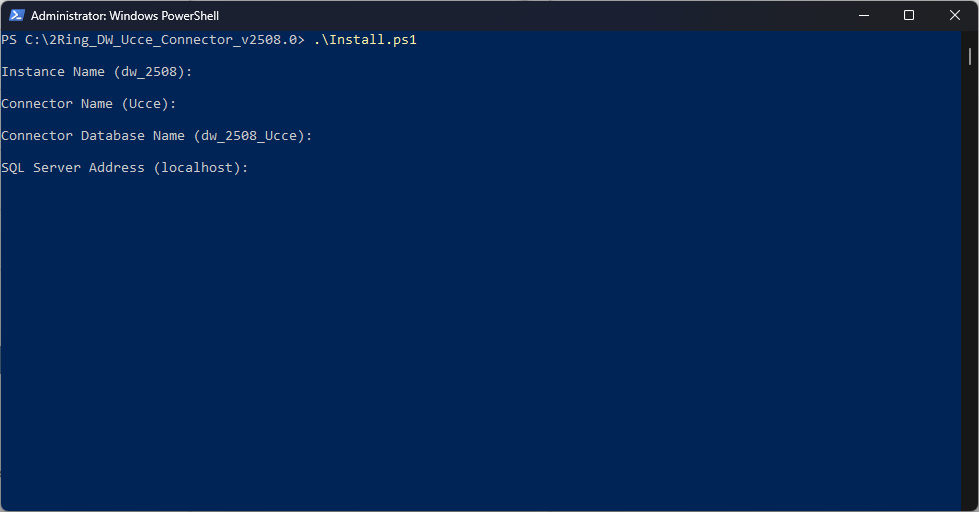
Enter the server address of the SQL server.
Figure 4: Connector Windows Service Installation
Choose whether an integrated security should be used when installing the database.
If “Yes” is chosen, windows credentials are used for the installation purpose.
If “No” is chosen, an Administrative database user and a password has to be provided. This user is used for running the installation.
These credentials are only used during the installation process and are not stored anywhere. The SQL Server login must have sysadmin rights. Figure 5: Connector Windows Service Installation
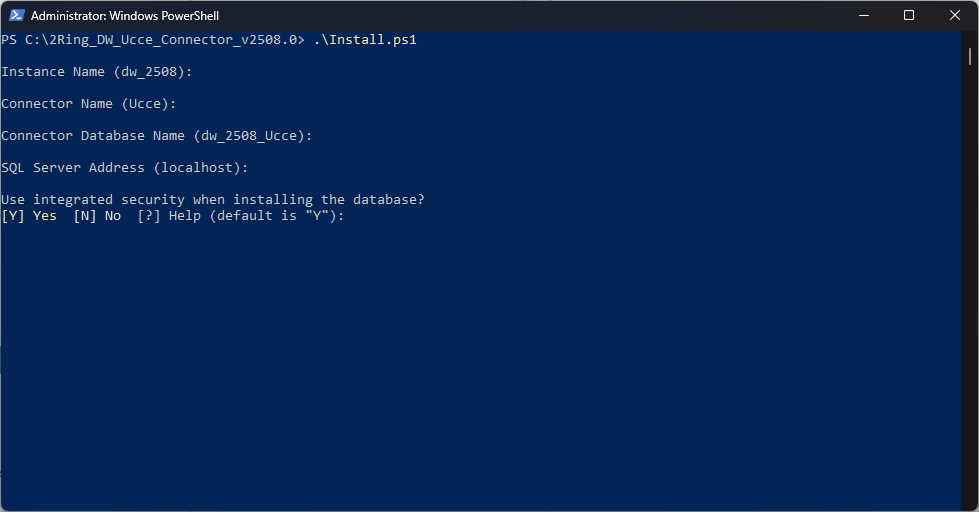
Choose whether SQL certificate should be trusted.
If you choose not to trust the SQL certificate, make sure that it is located in the Trusted Root Certification Authorities folder on the system the installation script is running from. Figure 6: Connector Windows Service Installation
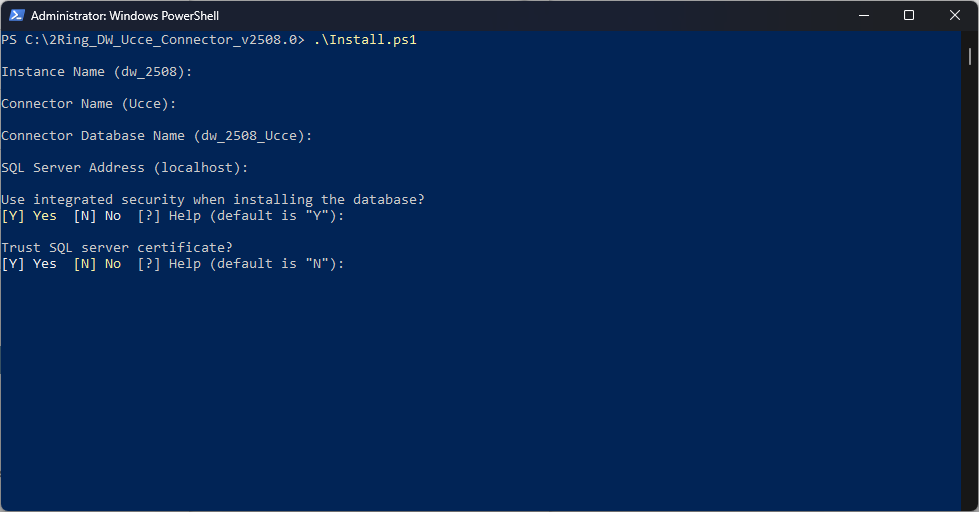
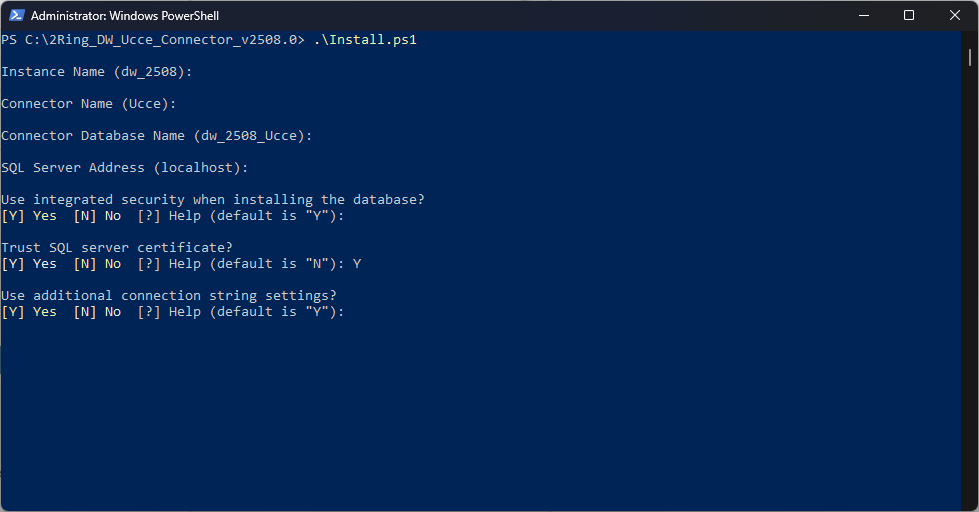
Choose whether to use an additional connection string settings for a database connection.
If “Yes” is chosen, define the additional connection string settings.
Figure 7: Connector Windows Service Installation
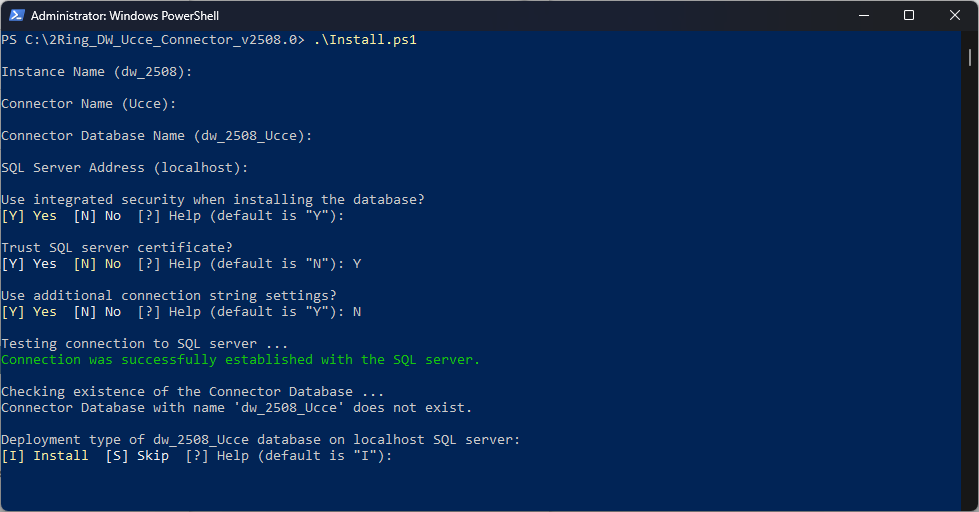
In case when a connector database does not exist yet, choose whether you want to install the database or skip this step. In case when a connector database already exists, choose whether you want to upgrade the database or skip this step.
The script automatically detects if the connector database exists. Figure 8: Connector Windows Service Installation
Enter a database user for the connector. This user is used by the connector to connect to database during runtime.
The password for the user is auto generated and will be listed in the installation summary after the connector is successfully installed. Figure 9: Connector Windows Service Installation
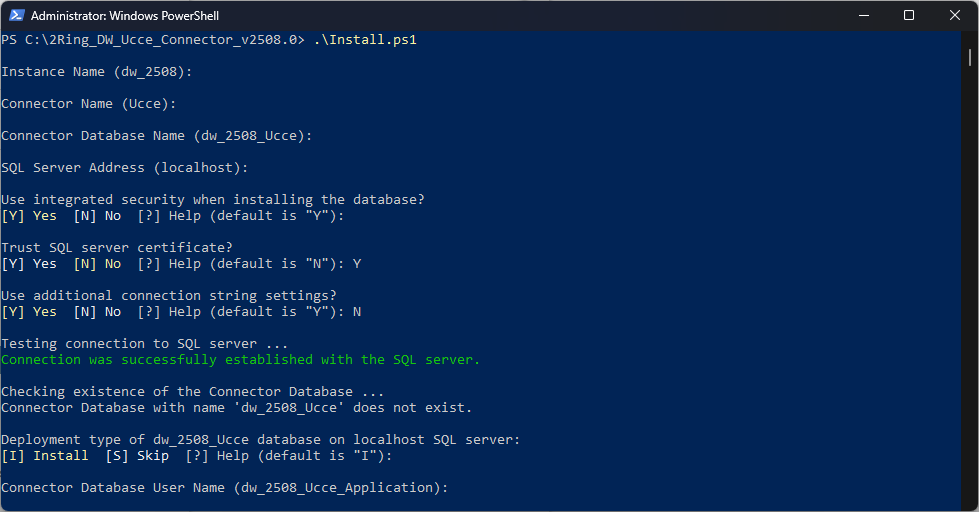
Enter the address of the SQL Server, that contains the primary AWDB database.
Figure 10: Connector Windows Service Installation
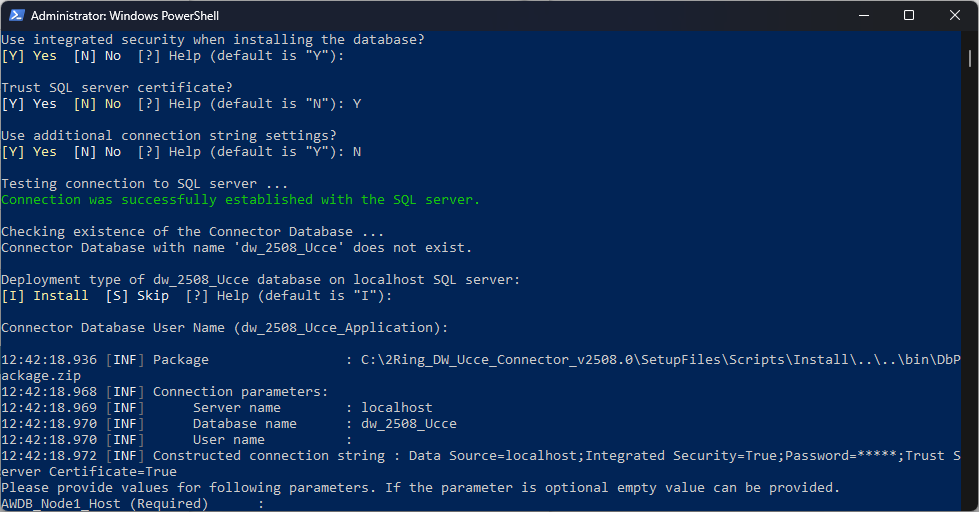
Enter the name of the AWDB database on node 1 to retrieve data from.
Figure 11: Connector Windows Service Installation
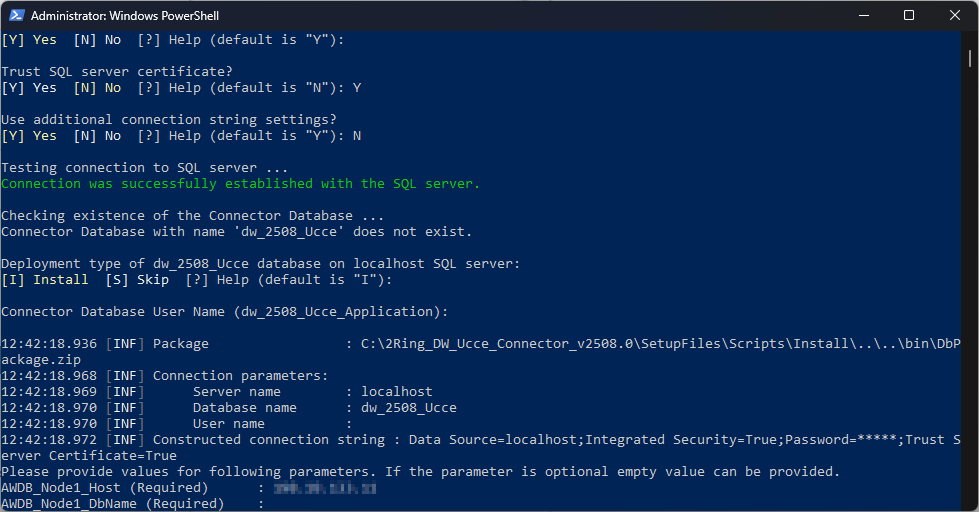
Enter the username of a SQL user with read privileges to both AWDB and HDS databases, that will be used to access the primary AWDB database.
Figure 12: Connector Windows Service Installation
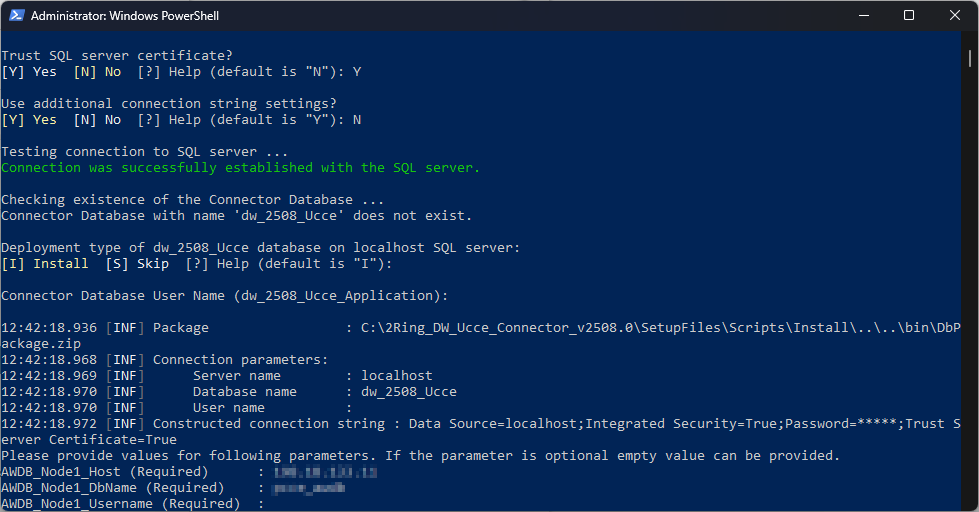
Enter the password of the SQL user.
Figure 13: Connector Windows Service Installation
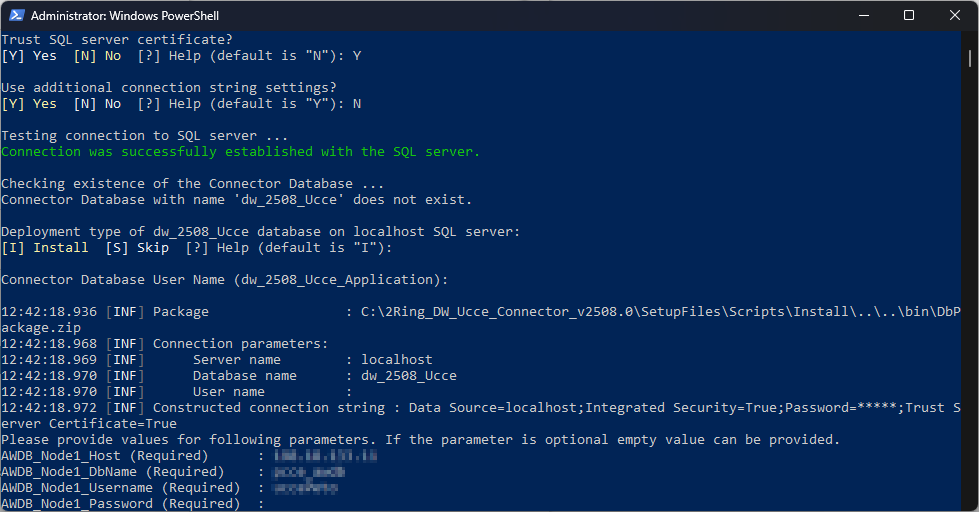
Enter the address of the SQL Server, that contains the secondary AWDB database.
Figure 14: Connector Windows Service Installation
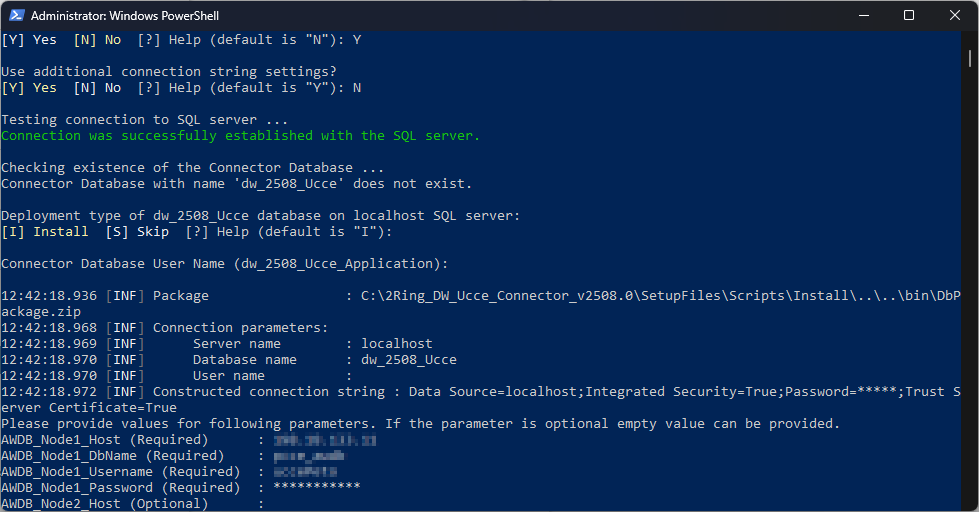
Enter the name of the AWDB database on node 2 to retrieve data from.
Figure 15: Connector Windows Service Installation
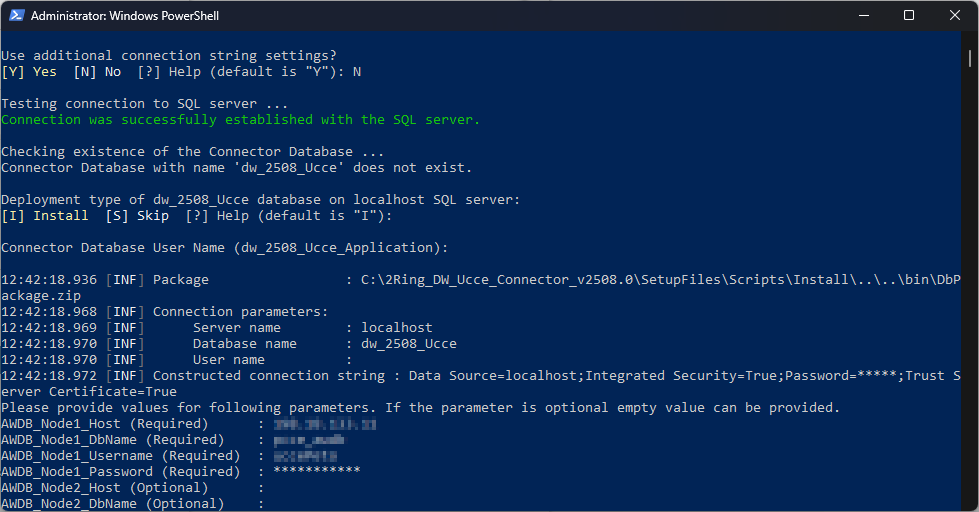
Enter the username of a SQL user with read privileges to both AWDB and HDS databases, that will be used to access the secondary AWDB database.
Figure 16: Connector Windows Service Installation
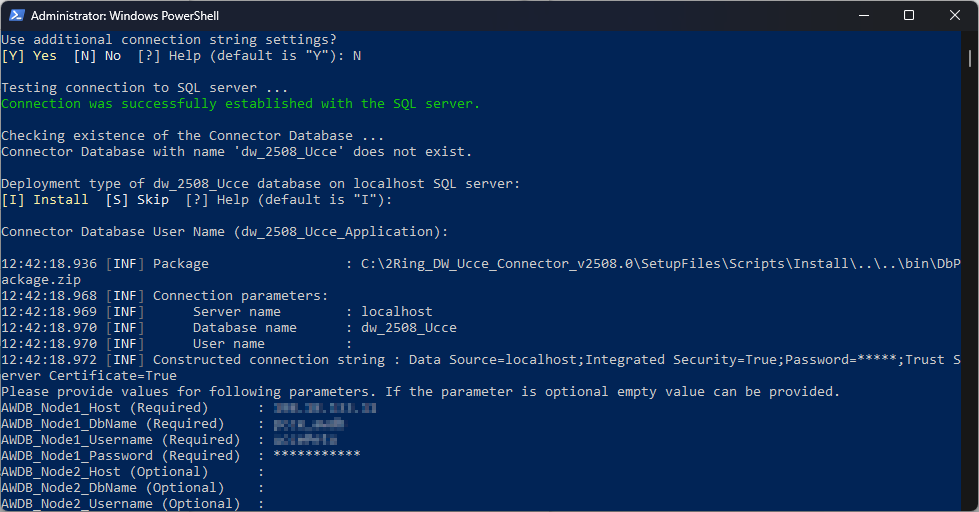
Enter the password of the SQL user.
Figure 17: Connector Windows Service Installation
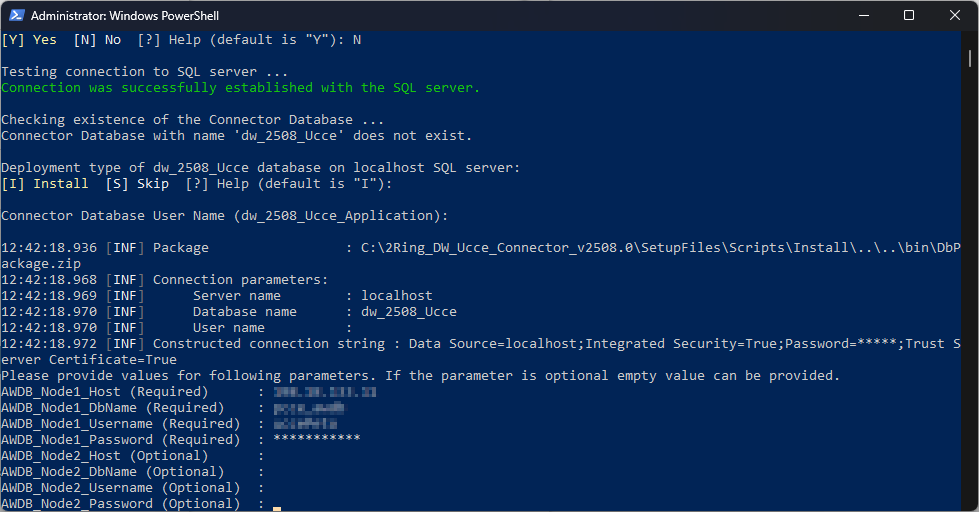
Confirm previously entered values by pressing ENTER.
Figure 18: Connector Windows Service Installation
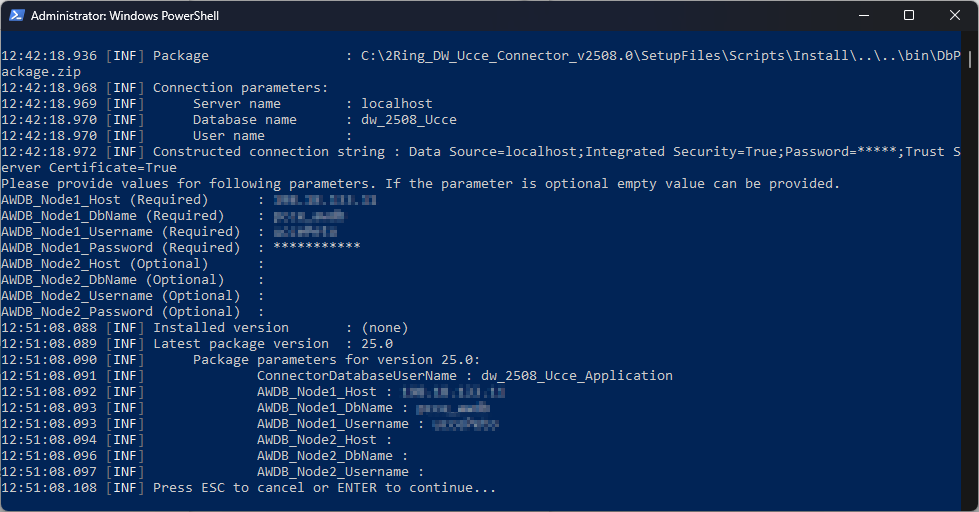
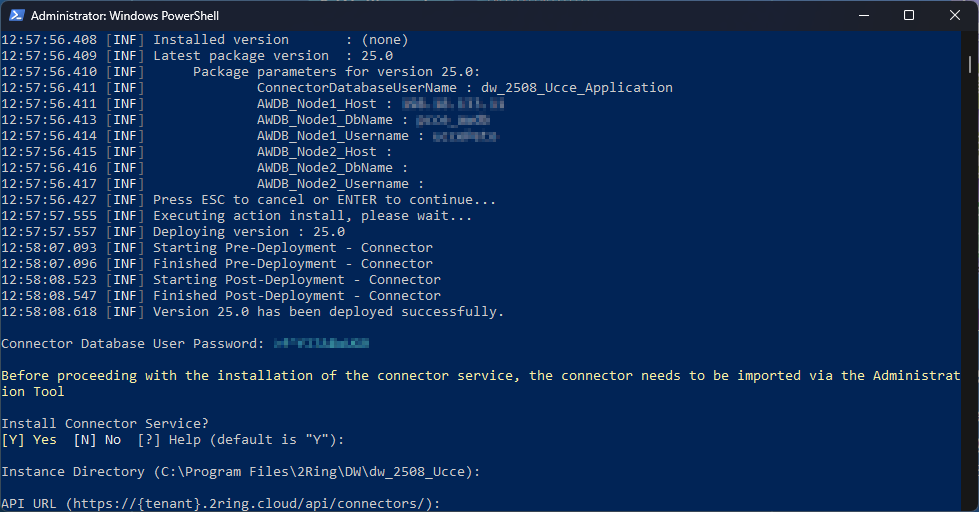
Choose whether a connector service should be installed.
Figure 19: Connector Windows Service Installation
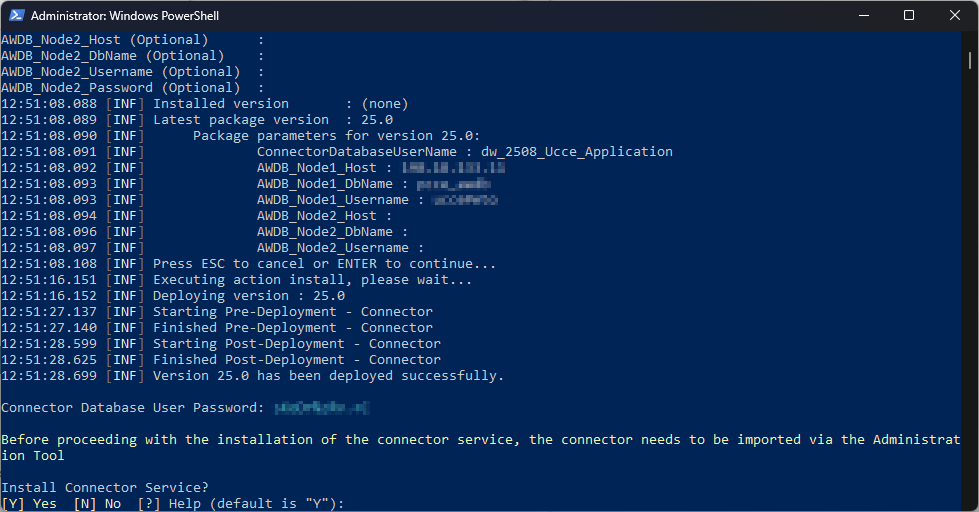
Enter the connector instance directory.
Figure 20: Connector Windows Service Installation
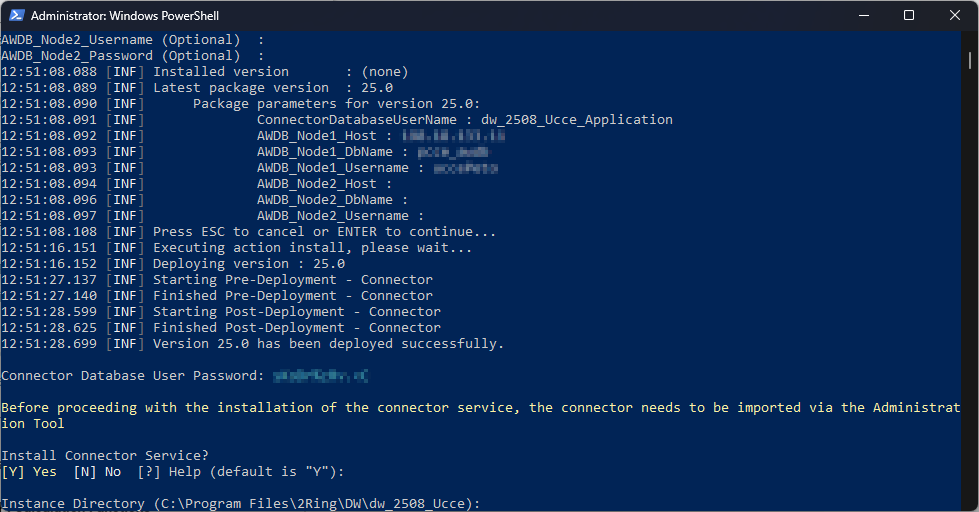
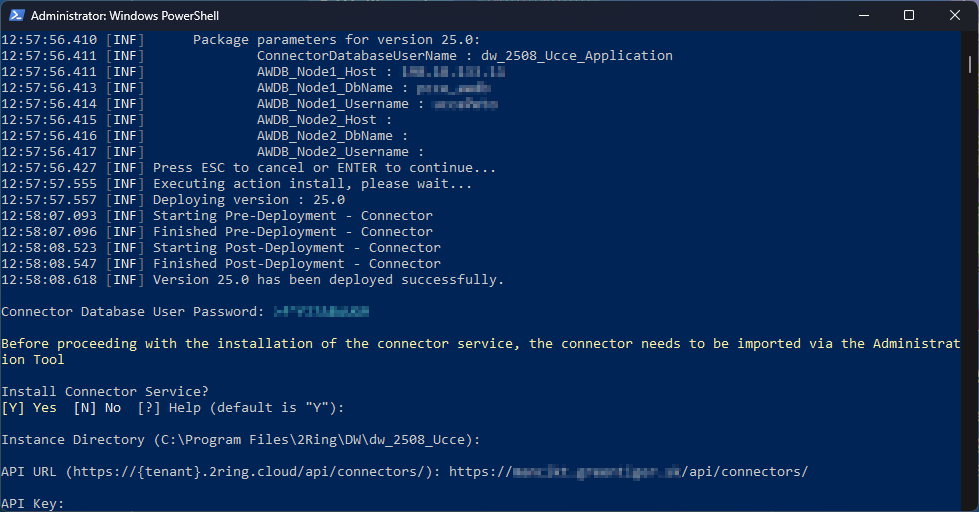
Enter the API URL of the 2Ring DW application instance.
Figure 21: Connector Windows Service Installation
Enter the API key of the 2Ring DW application instance.
Figure 22: Connector Windows Service Installation
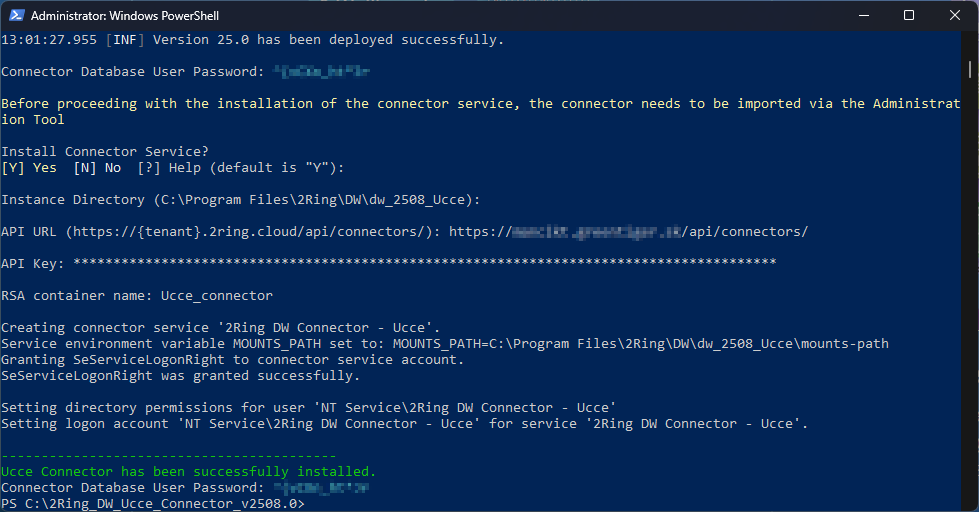
UCCE connector Windows service has been successfully installed.
Figure 23: Connector Windows Service Installation
Running connector via command prompt
The connector can also run via the command line. To run the connector in the command line, open it and navigate to the connector deploy folder and run the following command:
ConnectorHost.exe --connector=Ucce