Application Menu
The application menu contains essential application actions. It can be accessed in any part of the application, when logged in. The menu is opened by clicking the three dots icon, located on the top right corner of the screen.
Figure 1: Application menu
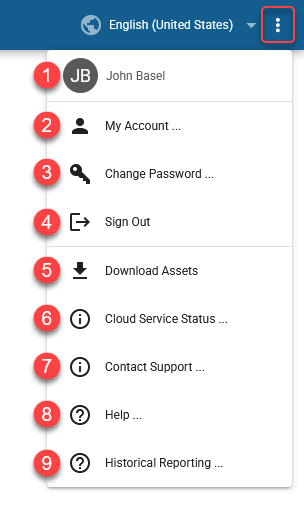
Logged in user name with full name credentials
Link to the Account Management tool
Not available when logged in using Okta/Entra ID/Webex account or when logged in using TV login flow
Available only for local users with “Can change password” setting enabledChange password option
Not available when logged in using Okta/Entra ID/Webex account or when logged in using TV login flow
Available only for local users with “Can change password” setting enabledSign out option
Download Assets
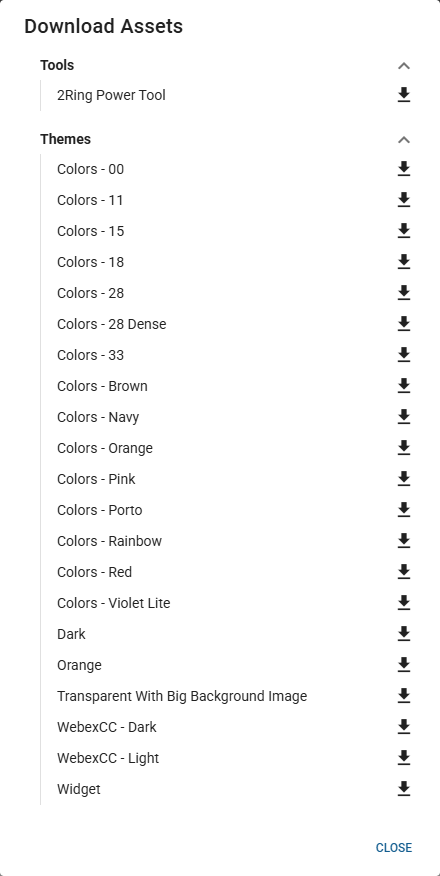
Available only when tenant or BU admin is logged inIn the following dialog, all default tools and themes can be downloaded in the zip format by clicking the download button next to the desired asset.
Link to the Cloud Service Status page, where users can check the current status of the 2Ring Cloud services and any ongoing incidents or maintenance activities that might affect the availability or performance of the application.
Link to the 2Ring website containing support contact details.
Link to the documentation
Link to the Historical Reporting documentation
Available only for customers with access to the Historical Reporting feature