
AI Assistant
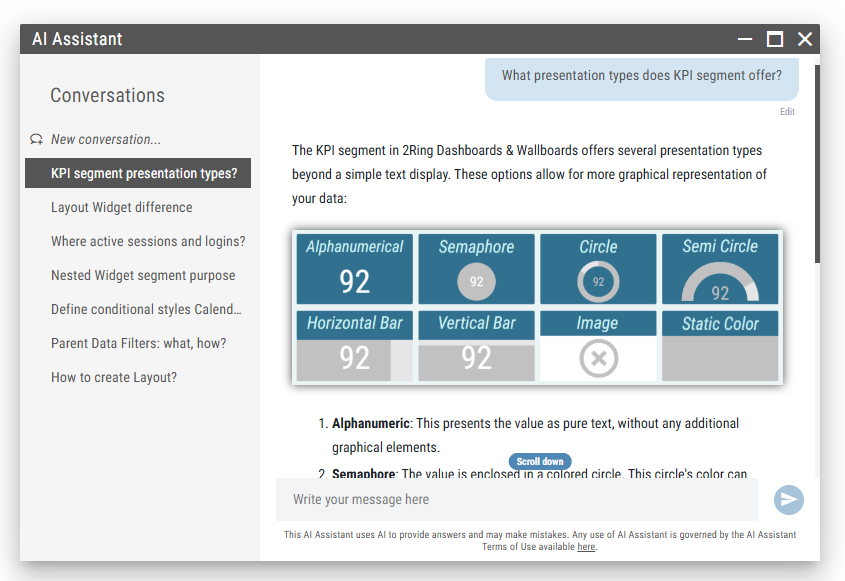
The AI Assistant is an integrated help and support feature available in the 2Ring Layout Viewer and Editor. It provides instant answers to user questions related to the configuration and usage of the 2Ring Dashboards & Wallboards solution — including Layouts, Widgets, Administration Tool, and installed Connectors.
The assistant is designed to improve productivity and user autonomy by delivering quick contextual help without the need to consult external documentation. It uses AI to answer questions in natural language and can guide both new and experienced users through the platform’s capabilities.
Figure 1: AI Assistant
Launching and Using the Assistant
The AI Assistant remains hidden by default. To open it, click the Chat button located on the left side of the toolbar.
Figure 2: Chat button
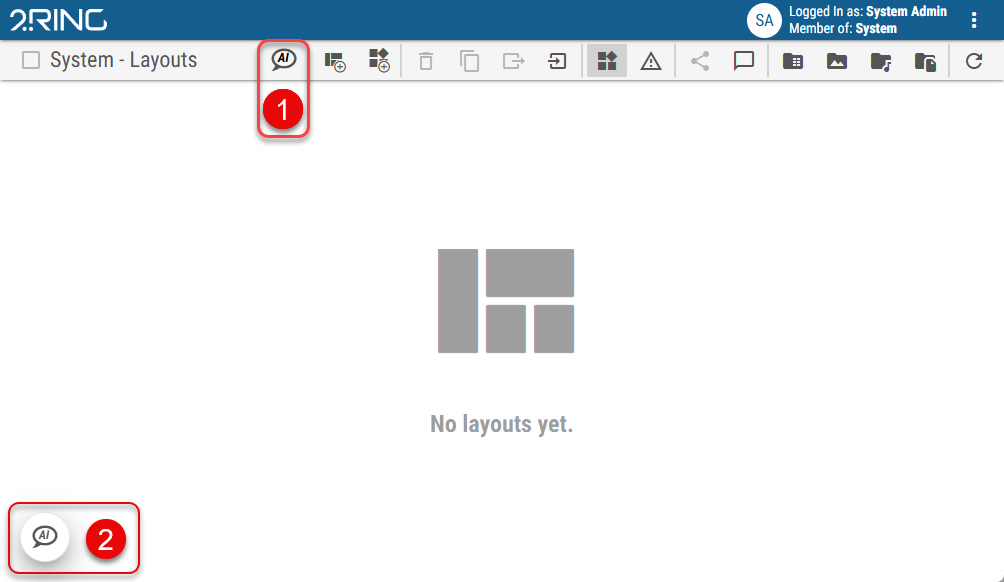
Chat button - This button is always visible in the toolbar. Clicking it opens the AI Assistant window. The button only opens the assistant, it does not toggle it.
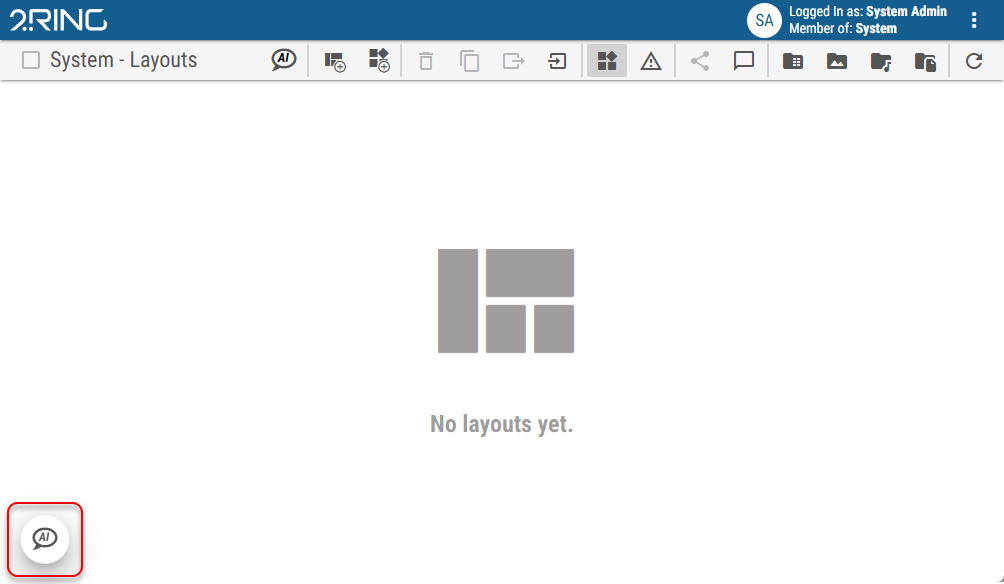
Chat bubble - When the assistant is minimized, a small chat bubble appears in the bottom-left corner of the screen. Clicking this bubble restores the assistant window.
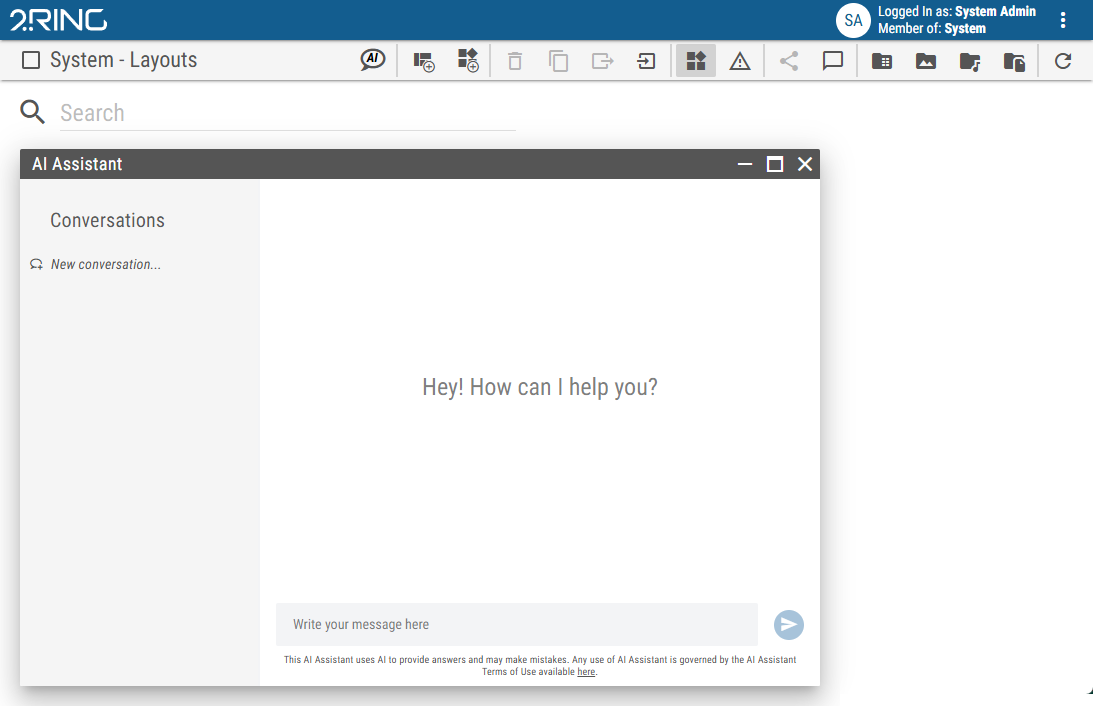
Once the window is open, users can type a question directly into the input field and receive a response.
Figure 3: AI Assistant
Window Controls
The AI Assistant window offers the following control buttons:
🗕 (Minimize) - Minimizes the assistant into a small chat bubble in the bottom-left corner. Clicking the bubble restores the window.
🗖 (Maximize) - Expands the assistant to its maximum available size.
✖ (Close) - Closes the assistant completely. No chat bubble will remain visible on the screen. AI Assistant can be reopened at any time by clicking the Chat button in the toolbar.
Figure 4: Minimized AI Assistant
Conversation Management
On the left side of the AI Assistant window is a list of conversations.
New Conversation: Click the “New conversation…” option at the top of the list to start a new session. This new conversation will appear at the top. Conversations are automatically named based on the initial question
Delete Conversation: When hovering over an existing conversation, an
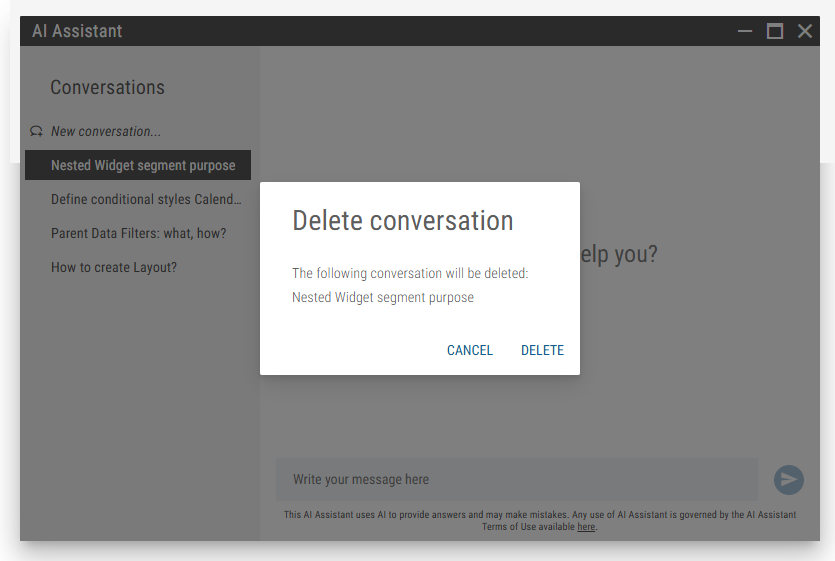
Xbutton appears on the right side. Clicking this opens a confirmation dialog:Figure 5: Conversation delete button
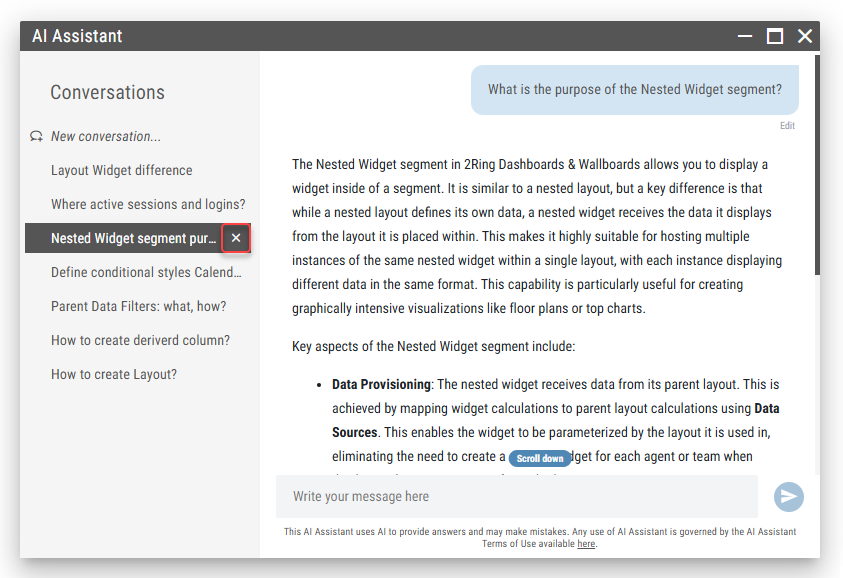
Figure 6: Conversation delete confirmation
Conversations are persistent — they remain available even after page reloads and re-authentication.
Response Details
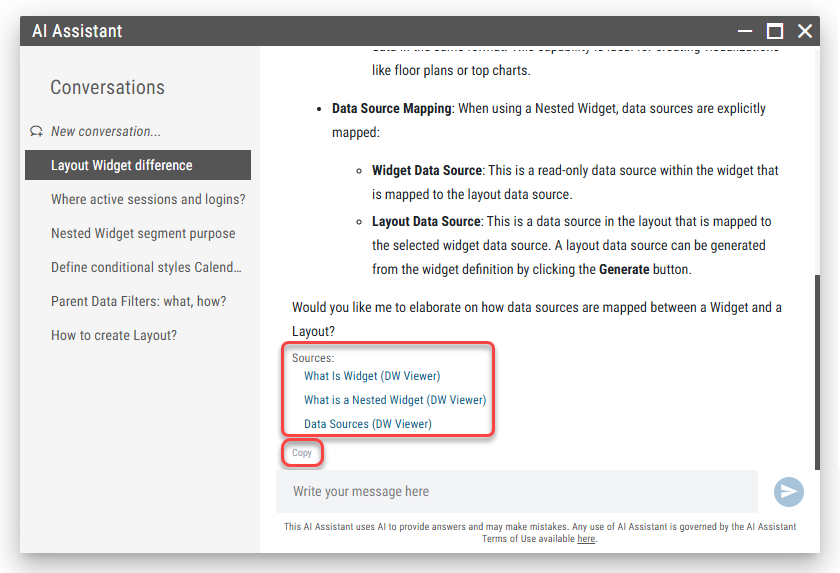
Each answer provided by the AI Assistant includes a list of sources at the bottom. These are direct links (URLs) to relevant chapters or subchapters from the official DW documentation that were used to generate the response.
This enables users to verify the information and read further context if needed.
Beneath the source list is a “Copy” button that allows users to copy the entire content of the answer — including the question, response, and source links — directly to the clipboard for easy sharing or reference.
Figure 7: Sources and Copy button
Example Use Cases
Some examples of what users can ask the AI Assistant:
“What is the difference between a Layout and a Widget?”
“Where do I find my active sessions and logins?”
“What is the purpose of the Nested Widget segment?”
“How can I define conditional styles for a Calendar segment?”
“What are Parent Data Filters and how do they work?”
“How can I switch Business Unit in the layout editor?”
“How do I add a new data source to a layout?”
Limitations
AI Assistant does not currently support voice input.
Only content included in official documentation is available for reference.
The AI Assistant can only access documentation for connectors that are currently installed.