
Static content
Static content are resources, used by some segment types, such as Images, PDF Documents, Kpis. Some resources are included by default. Custom resources need to be included into the application first, before they can be used. This can be achieved in two ways:
By clicking the Manage CSV/Image/Audio/PDF Files button in the layout list. For more information see Working with the Layout List chapter.
When a segment uses resource, a Content Files Manager button is displayed in the corresponding field. A path to the desired file can also be typed directly into the text field.
Figure 1: Field with the Content Files Manager button
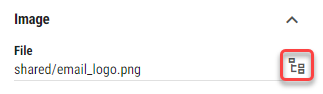
Clicking the button opens up the Content Files Manager dialog.
Figure 2: Content Files Manager
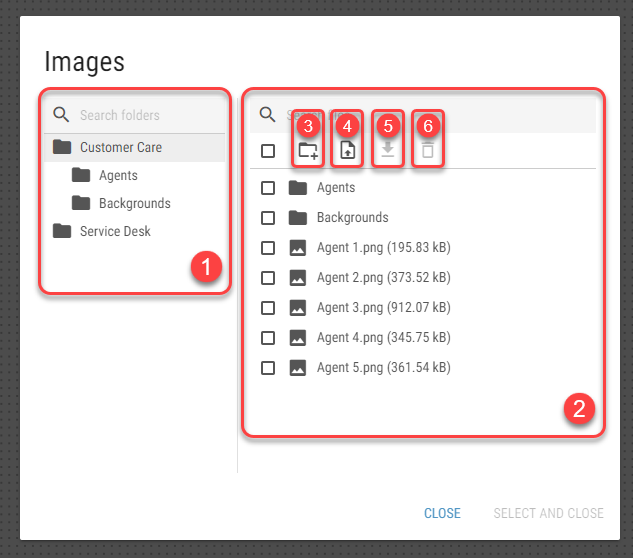
List of folders - List of folders within the Static Content folder. This section also contains a search bar for faster filtering in the list of folders.
List of files and folders - List of files and subfolders within the folder, selected in the section 1. Files and folders can also be filtered by using the search bar. Double-click on a file in this section automatically selects the file and closes the dialog. Double-click on a folder opens it in the list of folders.
Create Folder - A folder can be created by clicking this button.
Upload File - Clicking this button opens an upload dialog. The dialog allows the user to add files from his file system to the list. Added files won’t be uploaded until the button is clicked.
Figure 3: Upload dialog
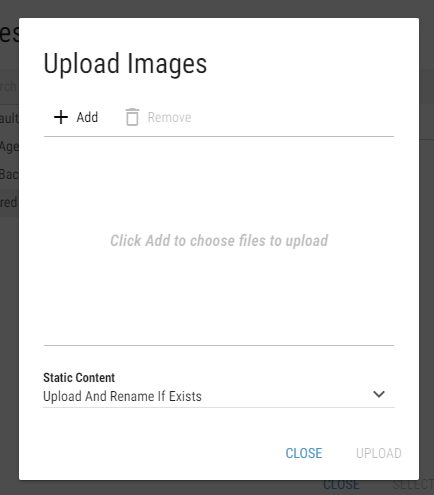
Locate the desired files by clicking the button and decide how the static content should be uploaded. Available options are:
Upload And Replace If Exists - static content files are uploaded. In case a file with the same name already exists, it is replaced by the uploaded file.
Upload And Rename If Exists - static content files are uploaded. In case a file with the same name already exists, the uploaded file is renamed.
Upload If Not Exists - static content files are only uploaded if they do not already exist.
Download File - Each file can be downloaded by selecting it in the list of files and clicking this button. Multiple files can be downloaded at once as a single .zip archive.
Delete selected files/folders - Selected files or folders can be deleted by clicking this button.
File/Folder Naming Rules
When uploading files or creating folders, it is important to follow the naming and format rules to ensure compatibility and avoid issues. The following rules apply:
Allowed Characters: Only alphanumeric characters (A-Z, a-z, 0-9), hyphens (-), underscores (_), and periods (.) are allowed in names.
Illegal Characters: Characters like
"\/:|<>*?are not allowed in names.Length Limit: Names must not exceed 100 characters.
Case Sensitivity: Names are case-preserving but case-insensitive. For example,
File.txtandfile.txtare considered the same.Special Names: Names such as
LPT1,COM1,PRN, and others likeCLOCK$are reserved and cannot be used.
For more information about the naming rules, see Microsoft documentation.
CSV – Supported Date Formats
When uploading CSV files, the following date formats are supported:
2003-02-01
2023-12-25T14:30:15
2023-12-25T14:30:15Z
2023-12-25T14:30:15+05:00
Anonymous Access and Public Folders
Each Business Unit folder contains a “public” subfolder. Files placed inside this “public” folder are accessible anonymously — provided that anonymous access is enabled in the environment.
This behavior applies to all static content types: images, PDFs, audio, CSV, and fonts.
Only files stored in a “public” folder (under BU or Shared BU) are exposed anonymously.
Fallback Resolution for Static Content
When a segment refers to a static content file and that file is not found at the expected path, the system attempts to resolve it using fallback logic. This applies to:
Image
PDF
Audio Files
The fallback resolution follows this order:
The Business Unit folder of the layout
The “public” subfolder of the same Business Unit
The Shared BU folder
The “public” subfolder of the Shared BU
This fallback behavior helps reduce broken references when content is moved or shared across layouts.
Allowed File Formats and Size Limits
Each type of static content supports a specific set of file formats and maximum file size. The current limits are:
Content Type |
Allowed Extensions |
Max File Size |
|---|---|---|
Images |
|
30 MB |
Audio |
|
30 MB |
|
30 MB |
|
Fonts |
|
30 MB |
CSV |
|
30 MB |