
Color field
A special type of a Value field containing a color in HEX, RGB or string format. List of all supported color names is available here. A specific color name such as “red” or “blue” can also be used. Value can be copied by clicking the copy button that appears when you hover over the color field. The copied value can then be pasted only in another color field or a border style control.
A color can be chosen also through a color picker by clicking on a button or a colored square on the left side of the text field.
Figure 1: Color field

The color picker consists of three panels. A list of colors (Figure 2), list of color palettes (Figure 3) and a color editor (Figure 4)
Figure 2: Color picker - List of colors
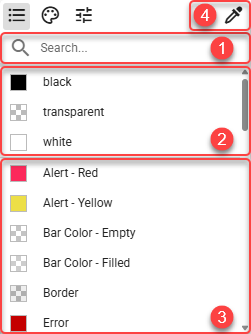
Search box - Colors can be filtered using the search box. When no search phrase is entered, all available colors are displayed. Otherwise, only colors containing the entered phrase are displayed.
Default colors - Default colors.
Theme colors - Colors defined on current theme.
Color pipette - By clicking this button, user can pick any color from the screen by simply clicking on the targeted pixel.
The Color pipette is browser-specific. If the browser does not support this feature, the Color pipette button is not displayed (for example, in Firefox).
Figure 3: Color picker - Color palettes
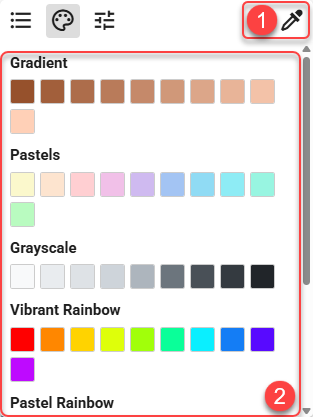
Color pipette - By clicking this button, user can pick any color from the screen by simply clicking on the targeted pixel.
The Color pipette is browser-specific. If the browser does not support this feature, the Color pipette button is not displayed (for example, in Firefox). Color palettes - List of color palettes with its colors. By clicking on a color, it is selected and displayed in the color editor.
Figure 4: Color picker - Color editor
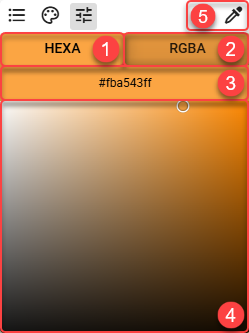
HEXA color type - The color can be defined in HEXA format. The first six characters define the color, while the last two characters define the transparency. The transparency is optional and if not defined, it is set to 100% (FF).
RGBA color type - The color can be defined in RGBA format. The first three numbers define the color, while the last number defines the transparency. The transparency is optional and if not defined, it is set to 100% (1).
Currently selected color - Value of the currently selected color is displayed in this field.
Color selection area - Simply click or drag and drop to choose a specific color.
Color pipette - By clicking this button, user can pick any color from the screen by simply clicking on the targeted pixel.
The Color pipette is browser-specific. If the browser does not support this feature, the Color pipette button is not displayed (for example, in Firefox).