
Account Management
User accounts are managed in two ways:
Administration Tool (users section) - administrators have the ability to manage and configure user accounts. This includes setting and adjusting permissions that dictate what users can do within DW. Administrators use the Administration Tool to ensure that users have the appropriate rights and access levels based on their roles and responsibilities. For more information, see Users chapter.
Account Management page - only logged-in users have access to manage their accounts on this platform. Users can edit account, password, add two-factor authentication or oversee active sessions associated with the user’s account.
Only local DW users with “Can change password” setting enabled have access to Account Management page. Users authenticated via external systems such as Microsoft Entra or Okta have to manage their account settings in the external system. Users logged in via device login flow have no access to their account settings.
To log out from the DW application, click the Sign out button located in the upper right corner of the screen.
Personal Info
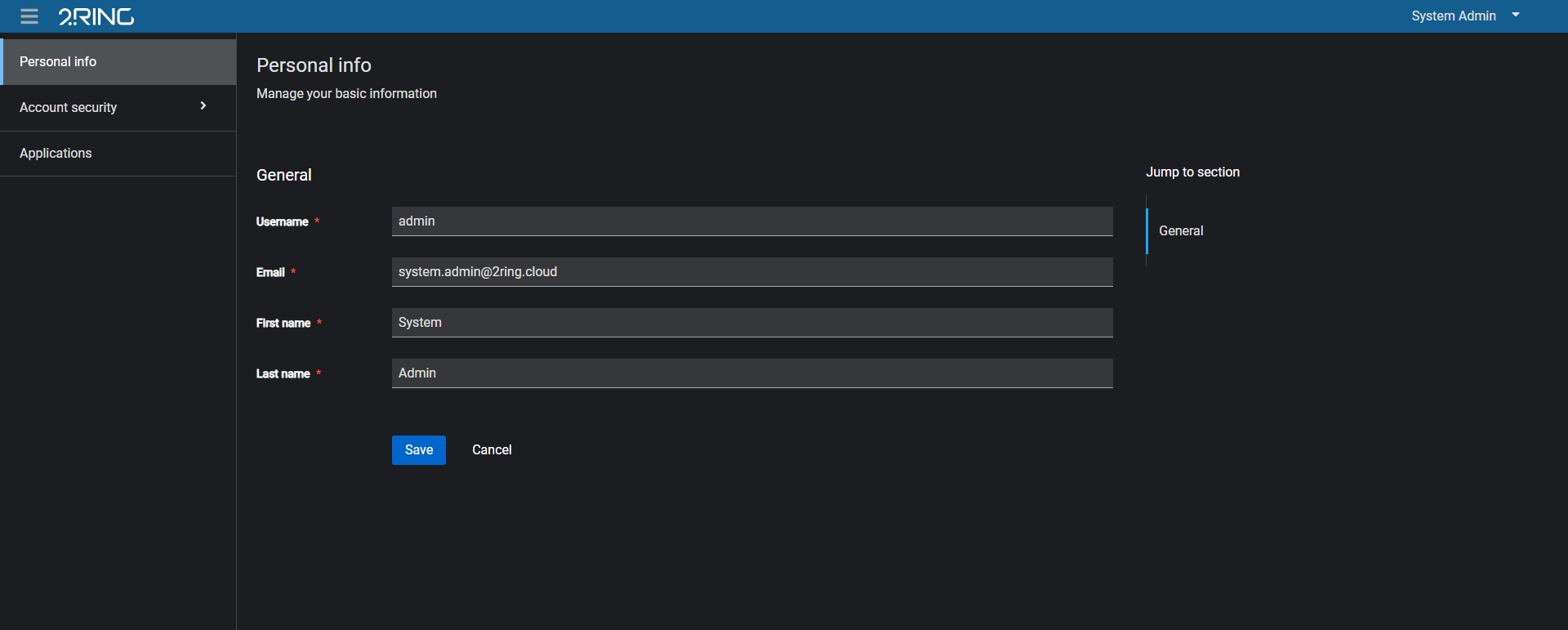
In the first tab, user can change their Name and Email address. The Username field is read-only.
Signing in and Authentication
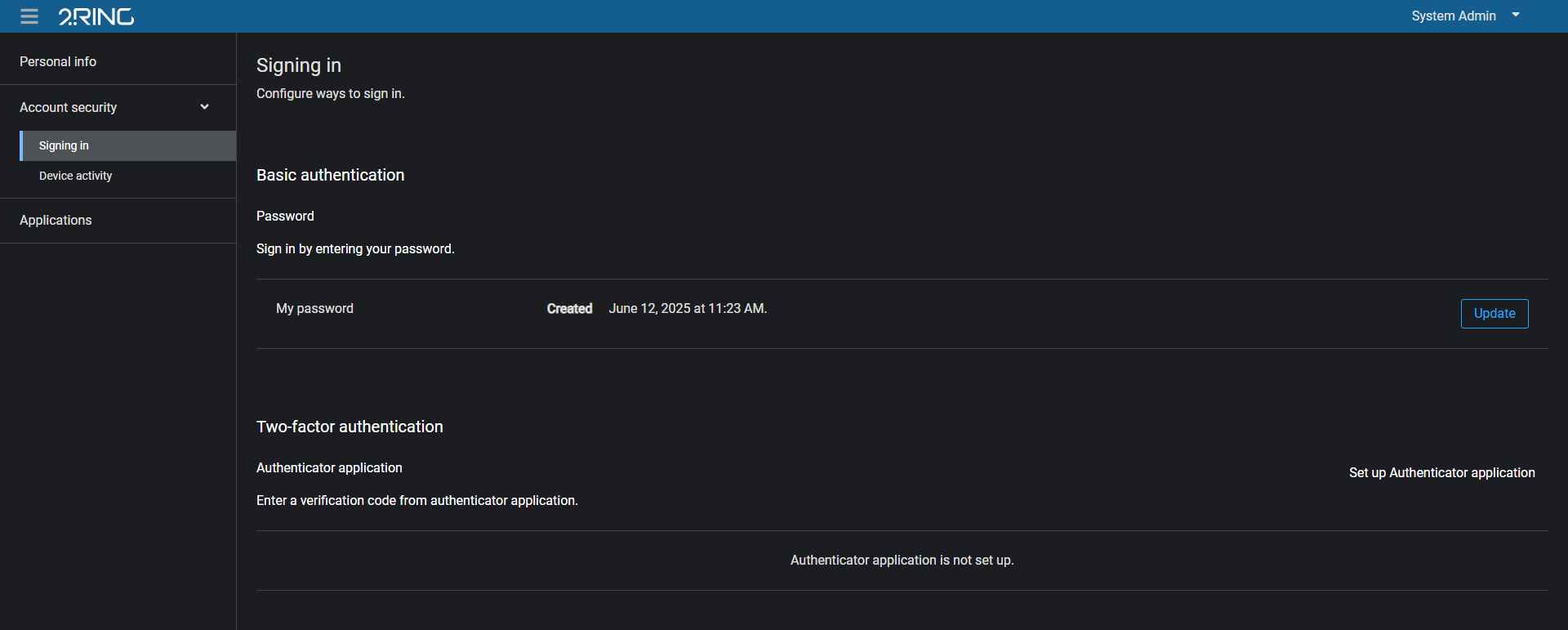
In this section, user can configure a way to sign in.
User can log in to DW using:
Basic authentication (username and password)
Two-factor authentication (optional)
For a basic authentication, user can change their password by clicking the button.
For two-factor authentication, the following applications are supported:
Microsoft Authenticator (iOS/Android)
To configure the two-factor authentication, click on the “Set up Authenticator Application” and follow the on-screen instructions.
Two-factor authentication can be configured as required for all users by default. For more information, contact 2Ring support.
If the two-factor authentication is configured as required for all users by default, every user has to follow these steps after filling the username and password on the login page:
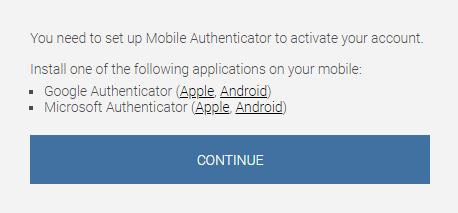
Set up Mobile Authenticator to activate your account. Use the links to download a desired authenticator according to your operating system. When the application is successfully installed on your mobile device, click Continue.
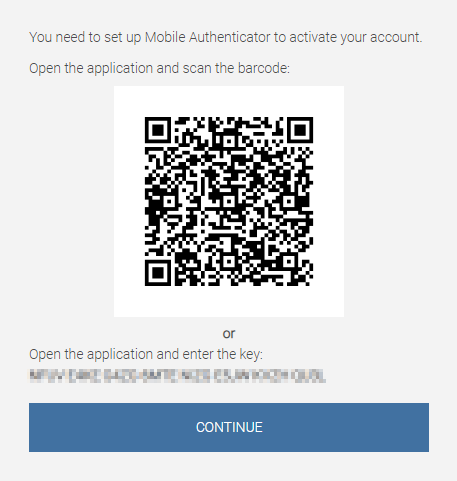
Open the application and scan the barcode. You can also use the provided key to continue with the authentication. Click Continue.
Enter the one-time code provided by the application and click Submit to finish the setup. Provide a Device Name to help you manage your OTP devices.
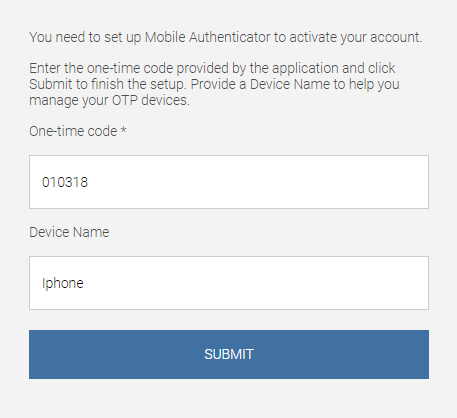
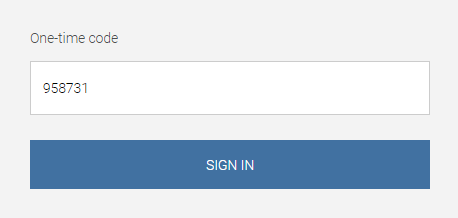
Two-factor authentication is successfully configured. Every time you log into your account, you will be asked to provide a one-time code from the authentication application on the mobile device. After filling the code, click SIGN IN to log into your account.
Device Activity
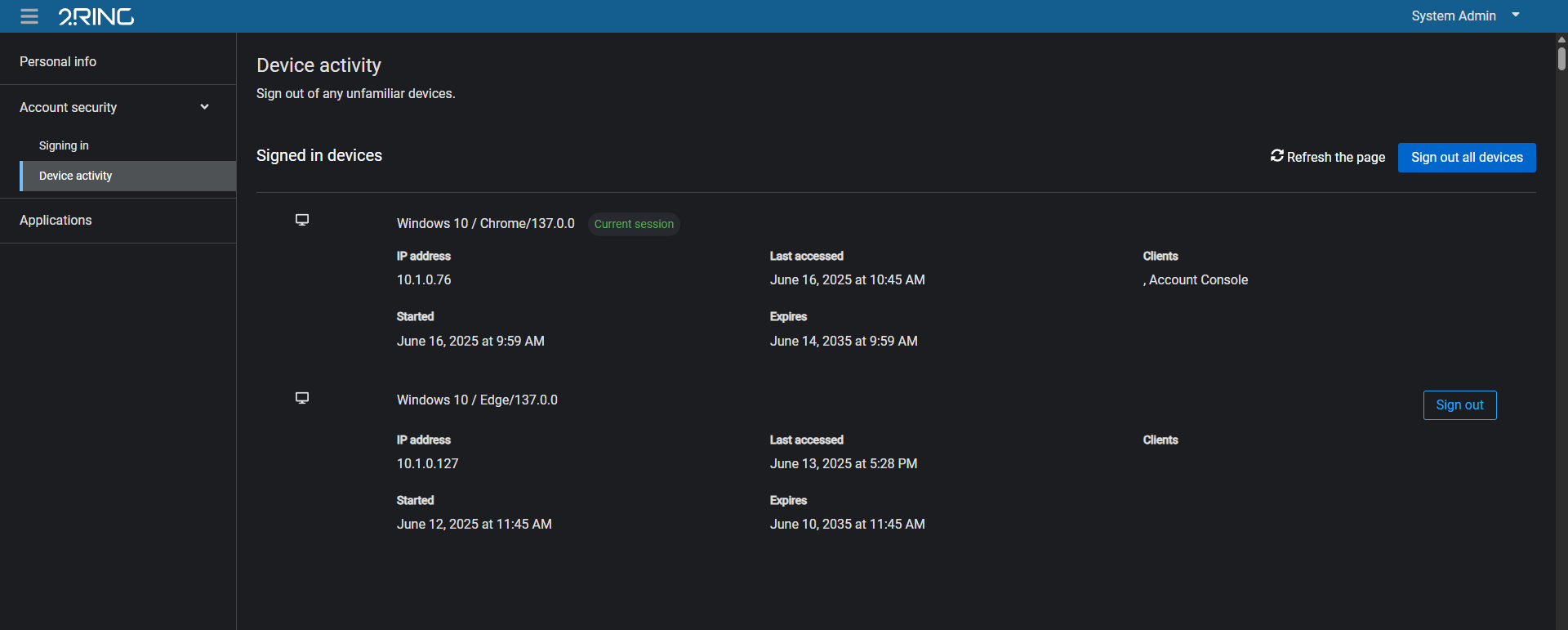
In this tab, you can review all active sessions associated with the user’s account and sign out all sessions if some record looks suspicious.
Application
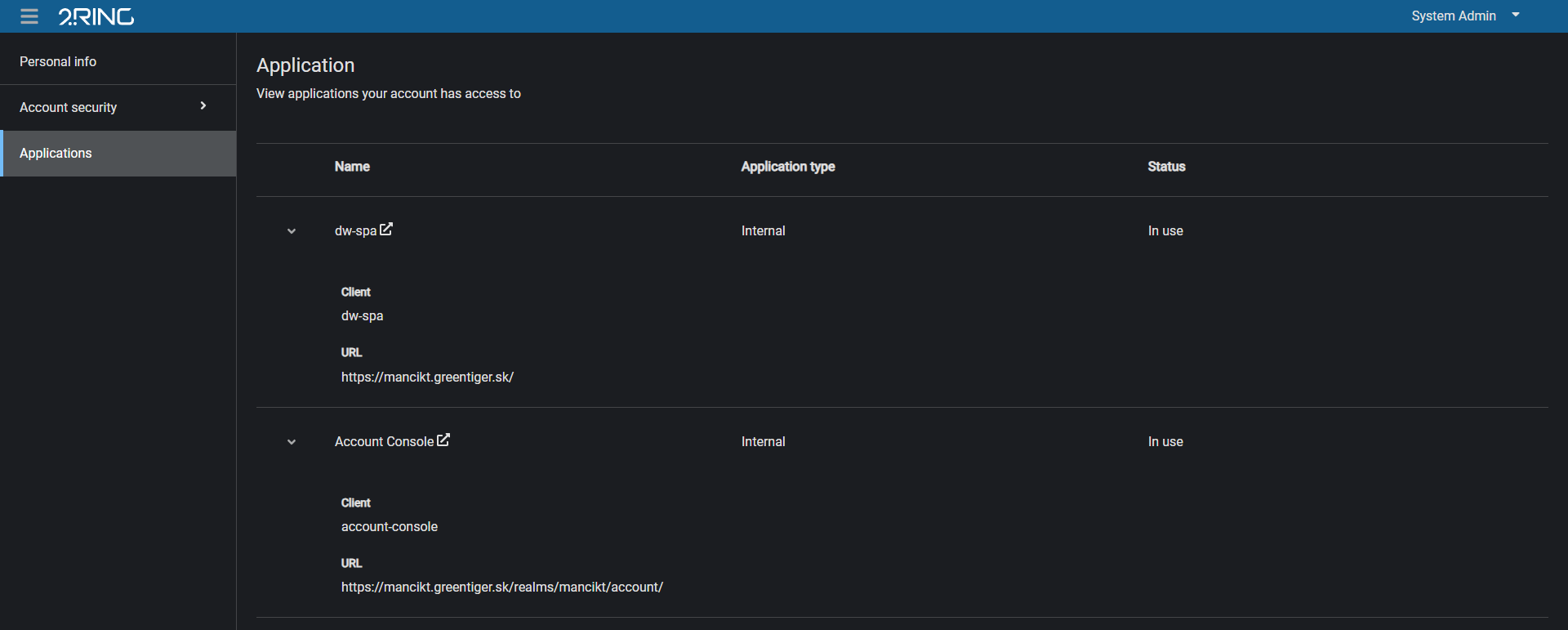
In this tab, you can view applications your account has access to.