Users
Users are able to log into DW application.
Accessing the Users panel
The Users panel is available in the Administration Tool. To open it, navigate to:
Business Units → Users and Roles → Users
Importing Users
If configured, users can be imported from Okta and Microsoft Entra Id tenants. For more information about tenant configuration see Entra or Okta chapter.
user can be imported only once within all Business Units
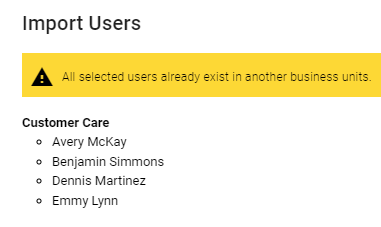
email is required for imported user. If user has no email configured in the Microsoft Entra Id or Okta, it is required to configure it in user detail after import
import button is hidden if no tenants are configured
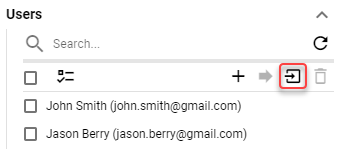
Users can be imported by clicking the import button.
Figure 1: Import button
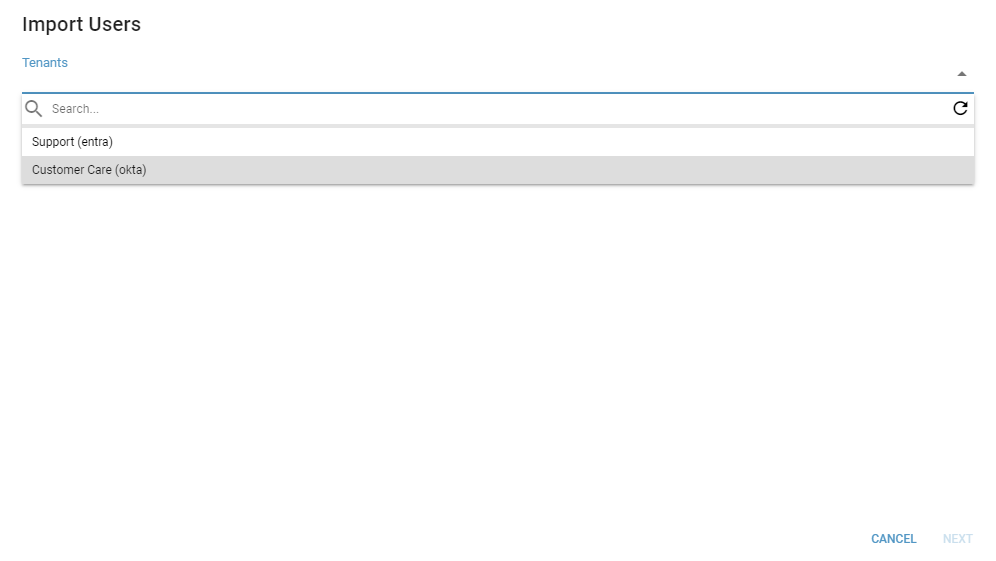
In the following dialog, select the tenant from which to import users.
Figure 2: Select a tenant
Select users which should be imported and click “IMPORT”.
Figure 3: Select users
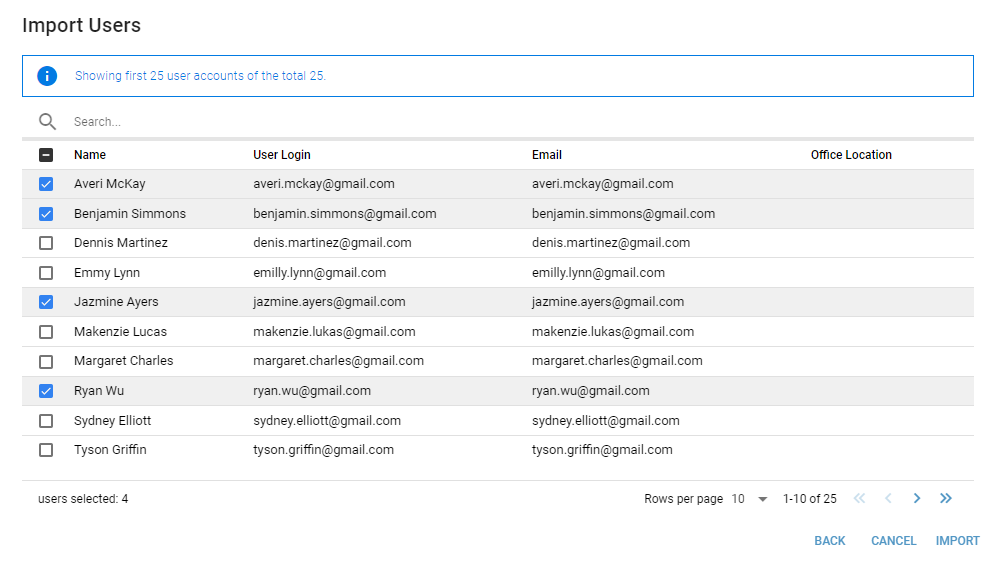
For example, if you want to search for user “Benjamin”:
“enjamin” or “jamin” will not match the desired user
“ben” or “benja” will match the user
Creating New User
When new user is being created panel contains:
Figure 1: Creating New User
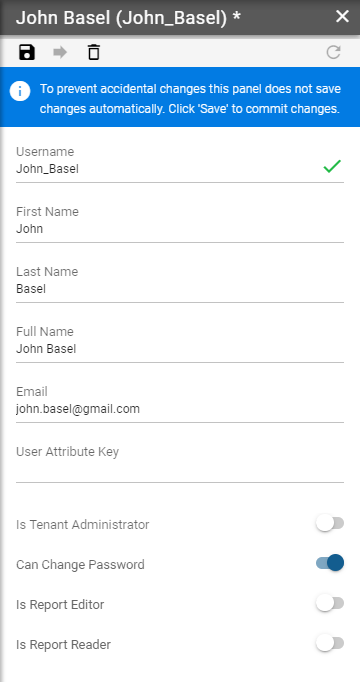
Username
Required
The username used for identification into the application.First Name
User’s first name.Last Name
User’s last name.Full Name
User’s full name displayed in DW.Email
Required if user is imported from Microsoft Entra ID or Okta
User’s Email address.User Attribute Key
User identity in an external system, that is used to map user attributes to this user.Is Tenant Administrator
Can be changed only by tenant administrators
Whether user has access to Business Unit administration in DW application. Tenant administrator has access to all Business Units except the “System” Business Unit.Can Change Password
Available only on local users
Can be changed only by tenant administrators
Can not be changed on user while being logged in DW with said user.
Whether user can change his password and manage account.Is Report Editor
Can be changed only by tenant administrators
Whether user has access to Report Editor in DW application.Is Report Reader
Can be changed only by tenant administrators
Whether user has access to Report Viewer in DW application.
Setting User’s Password
User’s password can be set by clicking button located in user panel toolbar. This button is visible only after user has been created on server (after first save).
Figure 4: SET PASSWORD button

After clicking this button Set Password dialog is opened containing:
Figure 5: Set password dialog
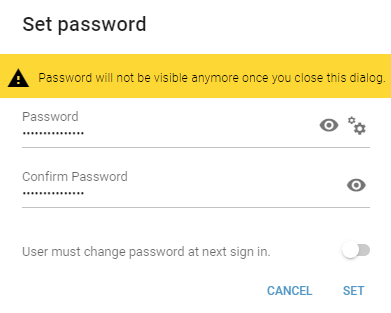
Password
Required
User’s password.Make sure to copy the password before setting since dialog will be automatically closed upon successful set. The password will not be available afterwards. Confirm Password
Required
Confirm the set password.User must change password at next sign in
Required
If enabled, next time a user logs in, he will be prompted to set a new password.
Figure 6: New password
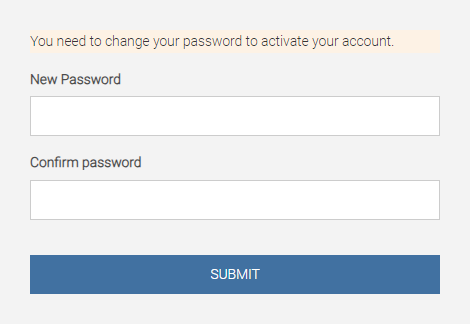
New Password
Required
User’s new password.Confirm Password
Required
Confirm the new password.