
Logging In
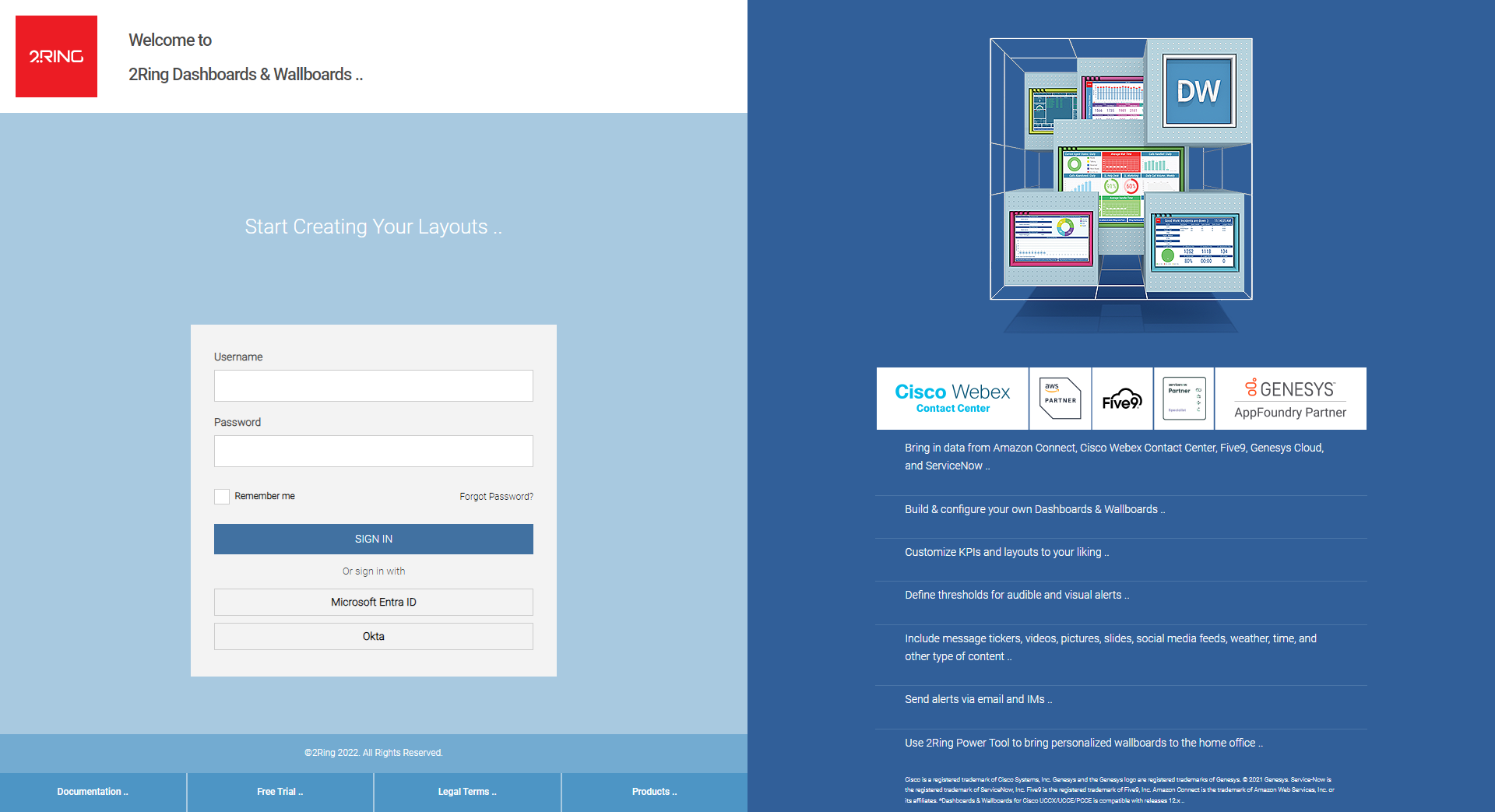
Every new application user is assigned a user name and a password. on this screen, you can log in using those credentials.
Figure 1: User name and password screen
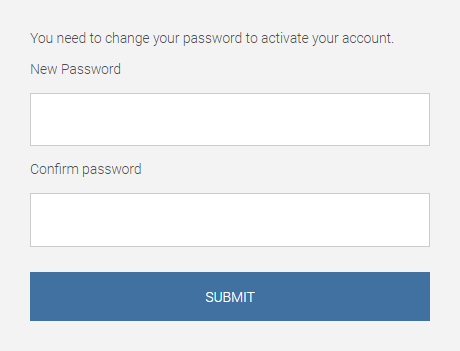
Password assigned to a user may be permanent or temporary. Once the user logs in for the first time using the temporary password, a real password must be created that is used for all subsequent logins.
Figure 2: Creating a new password
2Ring Cloud Agreement
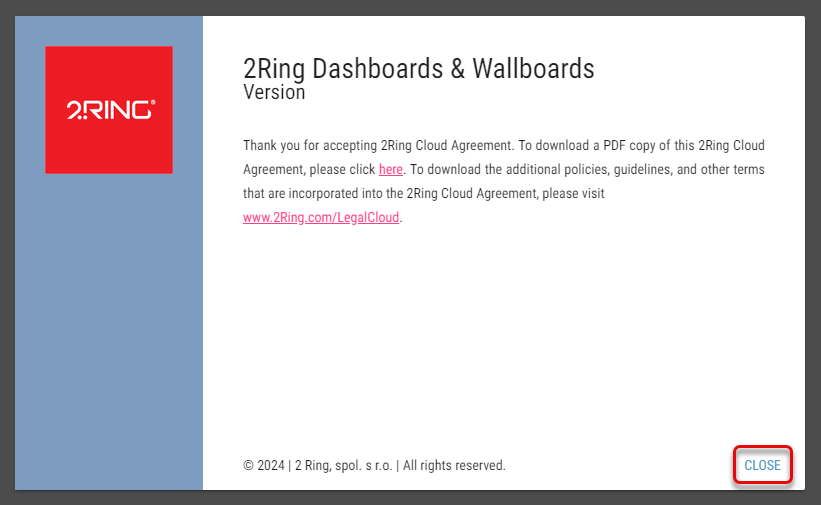
To view or edit layouts 2Ring Cloud Agreement must be first accepted. This agreement have to be accepted only once and can only be accepted by the tenant admin through a dialog that appears after logging in.
Figure 3: Accepting the 2Ring Cloud Agreement
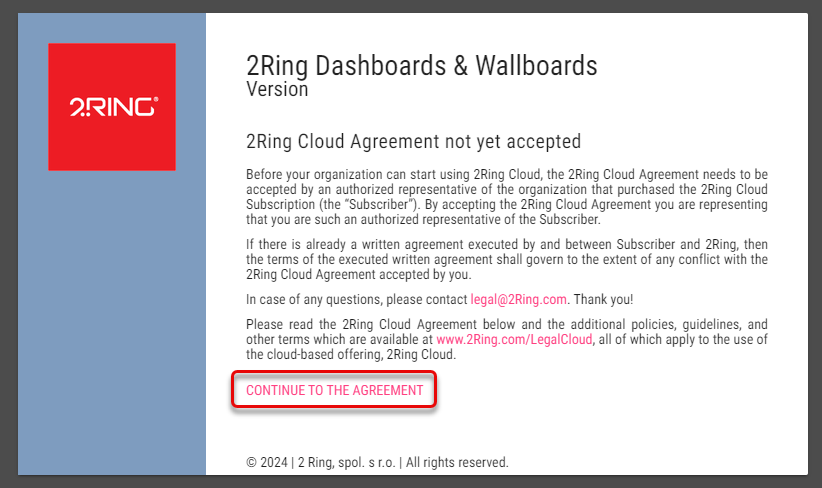
Read the terms, and continue by clikcing on .
Figure 4: Accepting the 2Ring Cloud Agreement
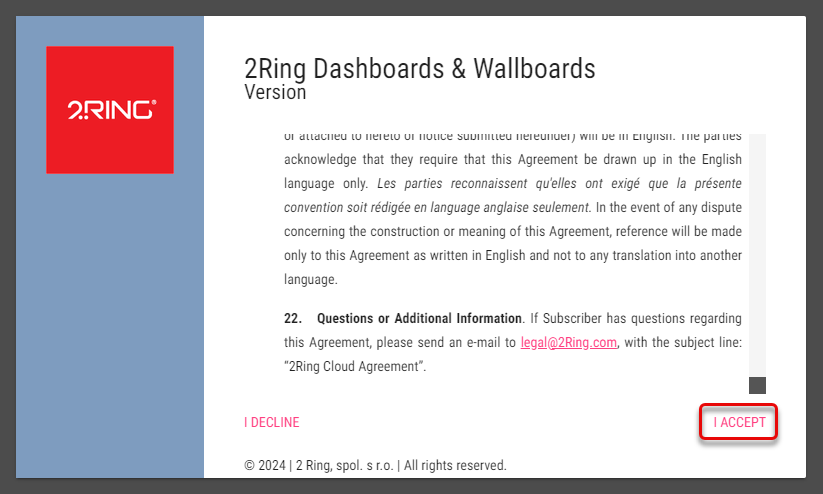
Click .
Figure 5: Accepting the 2Ring Cloud Agreement
Resetting password
In case of a forgotten password, user can create a new one by following these steps:
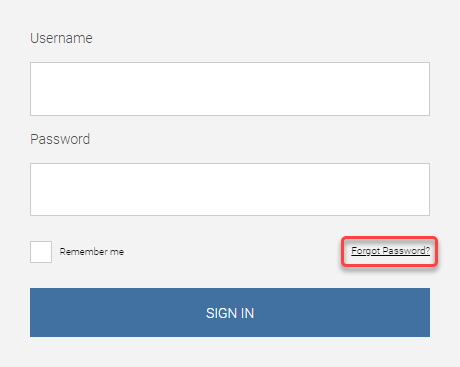
Click on the Forgot Password button.
Figure 6: Forgotten password
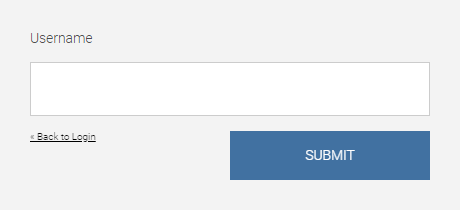
Provide an username used for logging in to the DW application and click on Submit.
Figure 7: Username
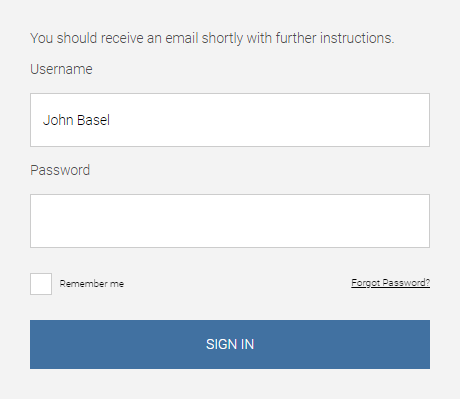
Email with a password reset link will be sent to an email address associated with the username.
Figure 8: Email address
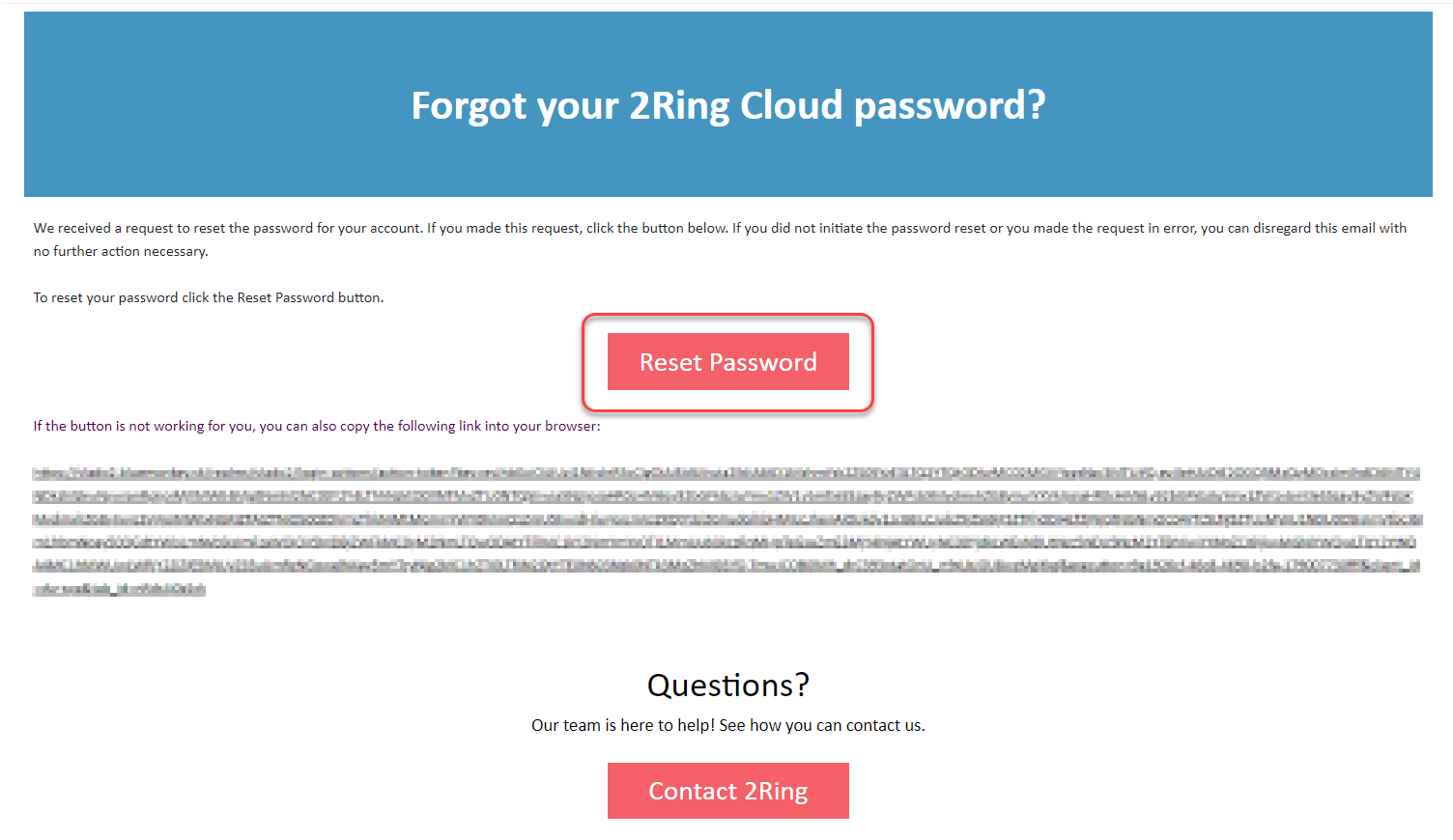
In the received email, click on Reset Password button or copy the link into your browser.
Figure 9: Reset password button
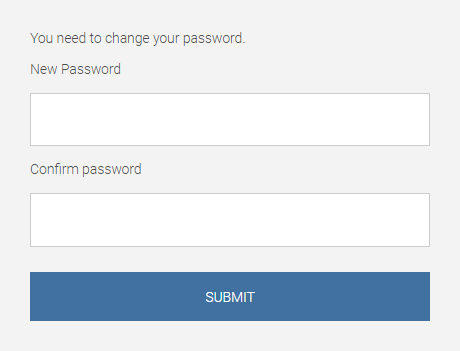
Fill the new password twice for a confirmation. Click Submit to set a new password and log into the DW application.
Figure 10: New password
Changing password
After logging in, user can change his password by following these steps:
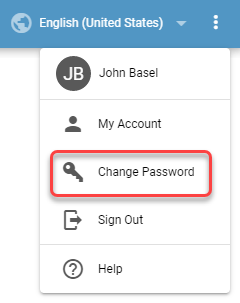
Click Change Password option in the application menu.
Figure 11: Change a password
Fill the new password twice for confirmation. Click Submit to set a new password.
Figure 12: Password confirmation
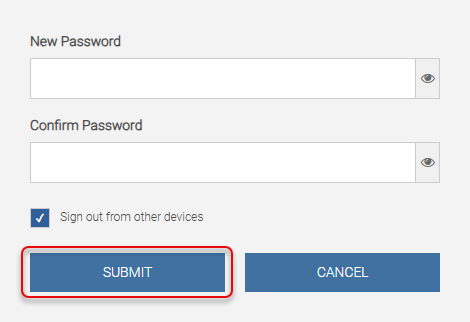
You may be prompted to reauthenticate during the password change process. The “Sign out from other devices” checkbox allows you to terminate all active sessions on other devices when changing your password. This ensures that your account is secure and prevents unauthorized access from previously logged-in devices. Your password has been updated.