Message Templates
Message Template is a predefined content of a notification message.
Format Template
Required
For more information about format templates see Format Templates chapter.
A format template that will be used to format the content of a notification message.Name
Required
The name of a message template.Escalation
Content of the notification that is sent when condition is met.Subject
Some notification channels may have limitations regarding the maximum number of characters for subject. For more information see the specific notification channel type chapter in 2Ring DW Administration guide
A subject of the notification message. Subject is often used in channel notification popups instead of whole text.
Placeholders can be used in message subject which will be replaced with corresponding value or text at the time of the notification. List of all placeholders is available here.Body
Some notification channels may have limitations regarding the maximum number of characters for body. For more information see the specific notification channel type chapter in 2Ring DW Administration guide
A text of the notification message.
Placeholders can be used in message body which will be replaced with corresponding value or text at the time of the notification. List of all placeholders is available here. In addition to listed placeholders, also {{MessageTemplateSubject}} placeholder can be used here.Footer
Some notification channels may have limitations regarding the maximum number of characters for footer. For more information see the specific notification channel type chapter in 2Ring DW Administration guide
A footer of the notification message.
Placeholders can be used in message footer which will be replaced with corresponding value or text at the time of the notification. List of all placeholders is available here.Additional Fields
Manually orderable
Some notification channels may have limitations regarding the maximum number of additional fields. For more information see the specific notification channel type chapter in 2Ring DW Administration guide
Additional fields that will be sent with the notification message in a structured (formatted) manner. The data will be visually organized into two columns: the first column represents the “name” of the field, and the second column represents its corresponding “value”. This format can be used to provide additional information to the notification channel in a clear and organized way.
Additional fields are configured as a JSON object containing an array of items. Each item in the array consists of a “name” and a “value” pair, representing the field’s label and its corresponding content. The order in the array reflects the order in which the fields appear in the notification itself.Example :
{
  [
    {
      "name": "Condition",
      "value": "{{Title}} {{Operator}} {{CompareValue}}"
    },
    {
      "name": "Current value",
      "value": "{{CurrentValue}}"
    }
  ]
}
Deescalation
Content of the notification that is sent when values no longer meet the condition.Subject
Some notification channels may have limitations regarding the maximum number of characters for subject. For more information see the specific notification channel type chapter in 2Ring DW Administration guide
A subject of the notification message. Subject is often used in channel notification popups instead of whole text.
Placeholders can be used in message subject which will be replaced with corresponding value or text at the time of the notification. List of all placeholders is available here.Body
Some notification channels may have limitations regarding the maximum number of characters for body. For more information see the specific notification channel type chapter in 2Ring DW Administration guide
A text of the notification message.
Placeholders can be used in message body which will be replaced with corresponding value or text at the time of the notification. List of all placeholders is available here. In addition to listed placeholders, also {{MessageTemplateSubject}} placeholder can be used here.Footer
Some notification channels may have limitations regarding the maximum number of characters for footer. For more information see the specific notification channel type chapter in 2Ring DW Administration guide
A footer of the notification message.
Placeholders can be used in message footer which will be replaced with corresponding value or text at the time of the notification. List of all placeholders is available here.Additional Fields
Manually orderable
Some notification channels may have limitations regarding the maximum number of additional fields. For more information see the specific notification channel type chapter in 2Ring DW Administration guide
Additional fields that will be sent with the notification message in a structured (formatted) manner. The data will be visually organized into two columns: the first column represents the “name” of the field, and the second column represents its corresponding “value”. This format can be used to provide additional information to the notification channel in a clear and organized way.
Additional fields are configured as a JSON object containing an array of items. Each item in the array consists of a “name” and a “value” pair, representing the field’s label and its corresponding content. The order in the array reflects the order in which the fields appear in the notification itself.Example :
{
  [
    {
      "name": "Condition",
      "value": "{{Title}} {{Operator}} {{CompareValue}}"
    },
    {
      "name": "Current value",
      "value": "{{CurrentValue}}"
    }
  ]
}
Testing Message Template
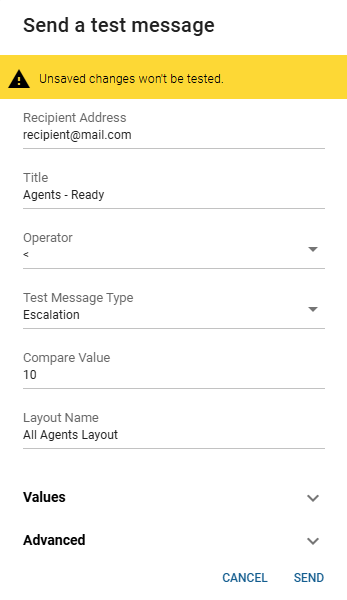
Message Template can be tested by clicking button. Some notification placeholders are being generated from items which are not available during test. These placeholders are displayed and editable in opened dialog with meaningful prefilled values. Only Recipient Address must be provided. For description of each placeholder see this chapter.
Figure 1: Message Template testing dialog
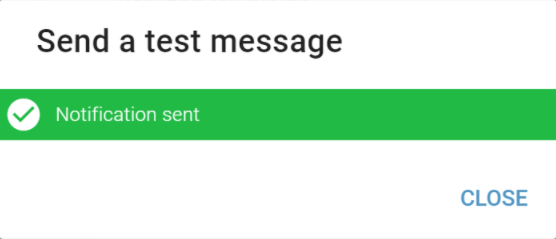
After sending a test message, a notification dialog will appear.
Figure 2: Notification dialog