Exporting/Importing Layouts
Layouts and Widgets can be easily moved between DW deployments using the export/import functionality.
When using this functionality keep in mind that:
Content files such as images, audio files, pdfs are also not exported. Even though the URL of the file is visible in the editor after the import, the file has to be uploaded or changed in targeted DW deployment.
Themes are also not included in the exported layout. Theme has to be exported and imported into the desired DW instance separately before the layout/widget. Otherwise, default BU theme is used.
Entities which are managed in administration tool and which are used in the exported layout are also imported.
Business unit associated entities (enums and notification message templates) are set as a custom property on the layout entity, unless there is already an entity with the same name/format. In that case, found entity is used in the layout or/and its sources.
Connector associated entities (kpi calculation functions, grid calculation functions, grid calculation function columns etc.) are re-associated based on their name. If entity with the same name is not found in the target DW deployment, assignment is cleared.
Export
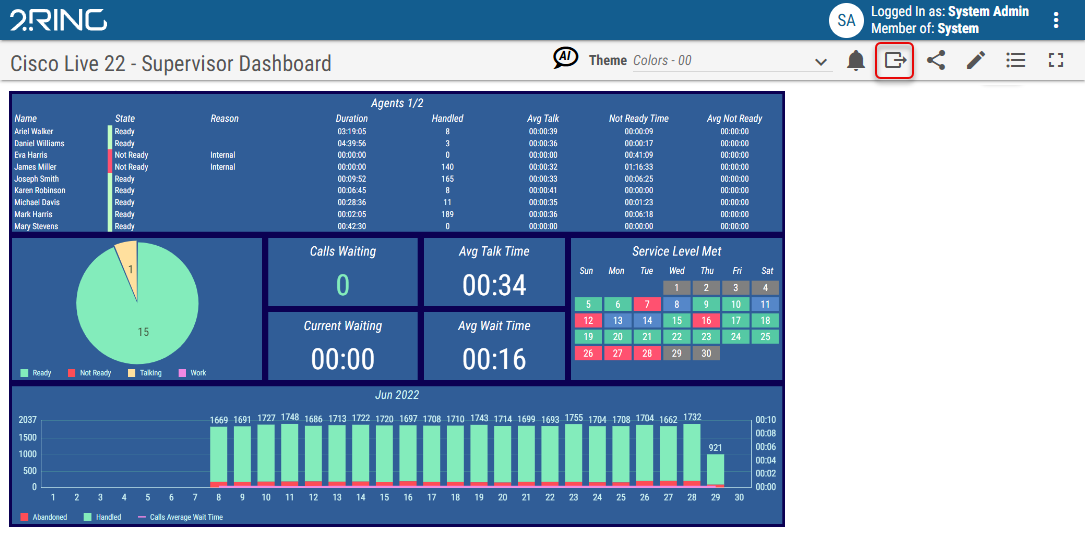
Selected layouts/widgets can be exported by clicking on the Export button. When multiple layouts/widgets are selected, they are exported as a single json file.
Figure 1: Export Button

In the following dialog choose, whether the exported layouts will be imported in the same business unit as originals or in different business unit or different DW deployment. Layout entities and properties that will be exported with the layout are dependent on this choice. This can be customized in Advanced Options group.
To export layout/widget, click Export button.
Figure 2: Export Dialog
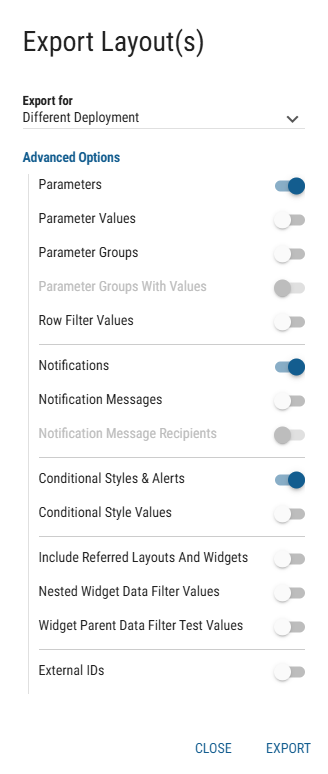
Parameter Groups
Disabled: Parameter groups configured on the layout entities are cleared.
Enabled: Parameter groups are either matched with existing ones in targeted BU or they are created anew in targeted BU.
Parameter Groups with Values (available only when Parameter Groups property is enabled)
Disabled: Newly created groups are empty.
Enabled: Newly created groups contain same values as groups in original BU.
Include Referred Layouts And Widgets
Disabled: Only explicitly selected Layouts and widgets are exported. Layouts and Widgets that are associated with the selected ones are NOT exported.
Enabled: Associated Layouts and Widgets are exported together with explicitly selected ones.
Currently opened layout can be exported by clicking on the export button in:
layout viewer (published version is exported)
layout editor (current draft version is exported)
Figure 3: Export Button
Import
Exported layout/widget can be imported by clicking on the Import button.
Figure 4: Import Button

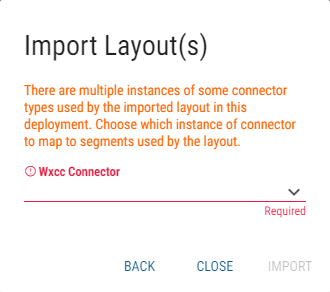
In the following dialog, choose exported file containing layout(s)/widgets(s) and choose, if they should be imported as drafts.
In the Advanced Options group, entities, that should be imported with the layout/widgets, can be configured.
To import layout/widget, click Import button.
Figure 5: Import Dialog
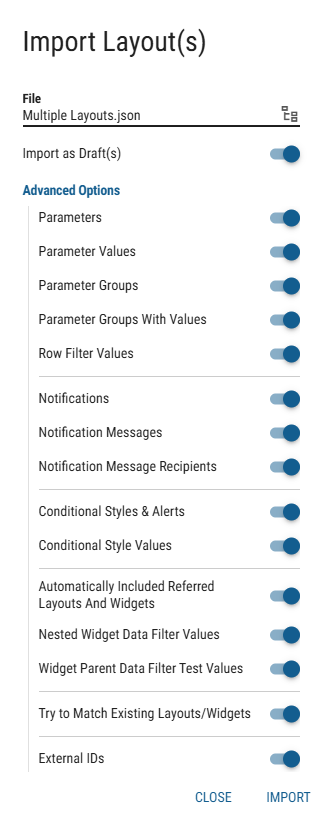
Parameter Groups
Disabled: Parameter groups configured on the layout entities are cleared.
Enabled: Parameter groups are either matched with existing ones in targeted BU or they are created anew in targeted BU.
Parameter Groups with Values (available only when Parameter Groups property is enabled)
Disabled: Newly created groups are empty.
Enabled: Newly created groups contain same values as groups in original BU.
Automatically Included Referred Layouts And Widgets
Disabled: Only Layouts and widgets that were explicitly selected when exporting are imported. Layouts and Widgets that are associated with the selected ones are NOT imported.
Enabled: All layouts and widgets, including the associated ones are imported.
Try to Match Existing Layouts/Widgets
Disabled: Layouts and widgets are imported as new entities.
Enabled: Layouts and widgets, explicitly selected for export are searched only in the target BU. Other Layouts and Widgets associated with the selected ones are also searched in the Shared BU if they are not found in the target BU. When layout is matched the already existing one is used instead of exported version.
Matching is performed based on the following criteria:
Layouts - Matched solely by name.
Widgets - Matched by both name and the list of data sources contained within the widget. To match successfully, the existing widget must contain a compatible data source for each data source present in the original exported widget. The existing widget may contain additional data sources beyond those in the original.