
AI Assistant
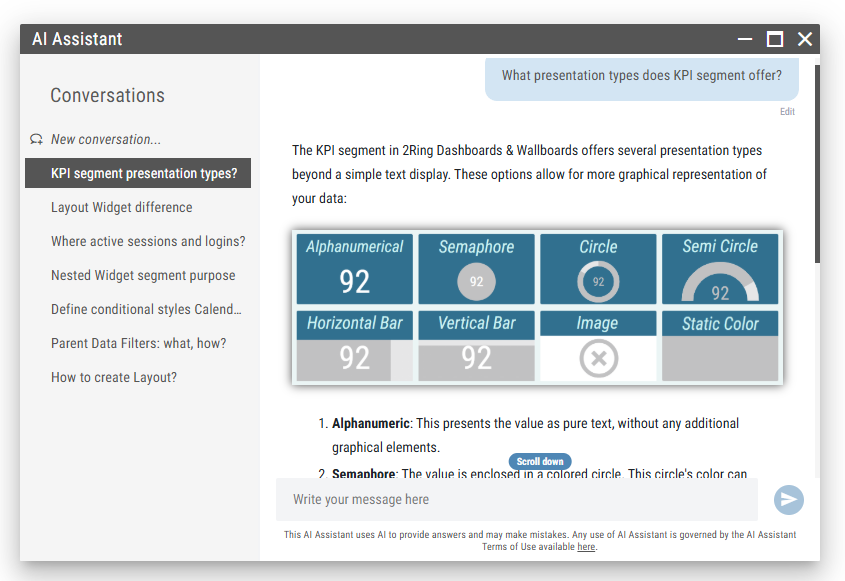
The AI Assistant is an integrated help and support feature available in the 2Ring Layout Viewer and Editor. It provides instant answers to user questions related to the configuration and usage of the 2Ring Dashboards & Wallboards solution — including Layouts, Widgets, Administration Tool, and installed Connectors.
The assistant is designed to improve productivity and user autonomy by delivering quick contextual help without the need to consult external documentation. It uses AI to answer questions in natural language and can guide both new and experienced users through the platform’s capabilities.
Figure 1: AI Assistant
Security and Safety
In 2605 our AI Assistants no longer use Google Gemini. They now run on the Gemini Enterprise Agent Platform, previously known as Vertex AI. AI conversations are now region locked, which means all data processing stays within your tenant region. 2Ring uses regional endpoints so your data meets local residency requirements.
As before, your data is never used to train Google global models. Your business input and the results stay private to your organization, and your data is protected at every stage with industry standard encryption in transit and at rest. The platform also adds an advanced agentic defense layer that protects against prompt injection and sensitive data leakage.
No action is required from you for this change. To learn more, see the Security and Safety chapter. Please note that this platform change comes with an update to the terms governing the use of 2Ring Cloud.
2Ring AI Prompt Reference Guide
For users looking to get the most out of the AI Assistant, we have created a Prompt Reference Guide with example questions and prompts that can be used to elicit specific types of information from the assistant.
Launching and Using the Assistant
The AI Assistant remains hidden by default. To open it, click the Chat button located on the left side of the toolbar.
Figure 2: Chat button
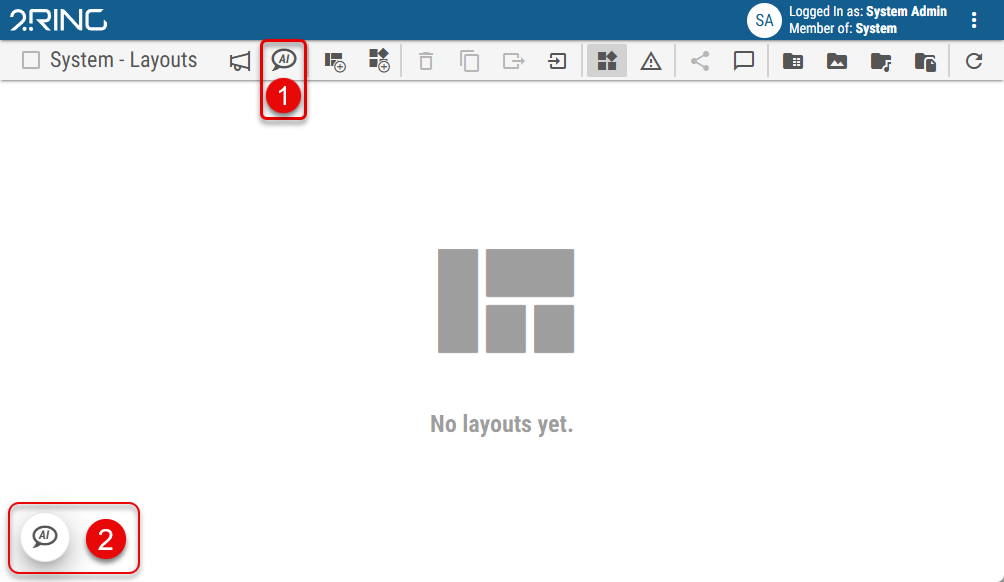
Chat button - This button is always visible in the toolbar. Clicking it opens the AI Assistant window. The button only opens the assistant, it does not toggle it.
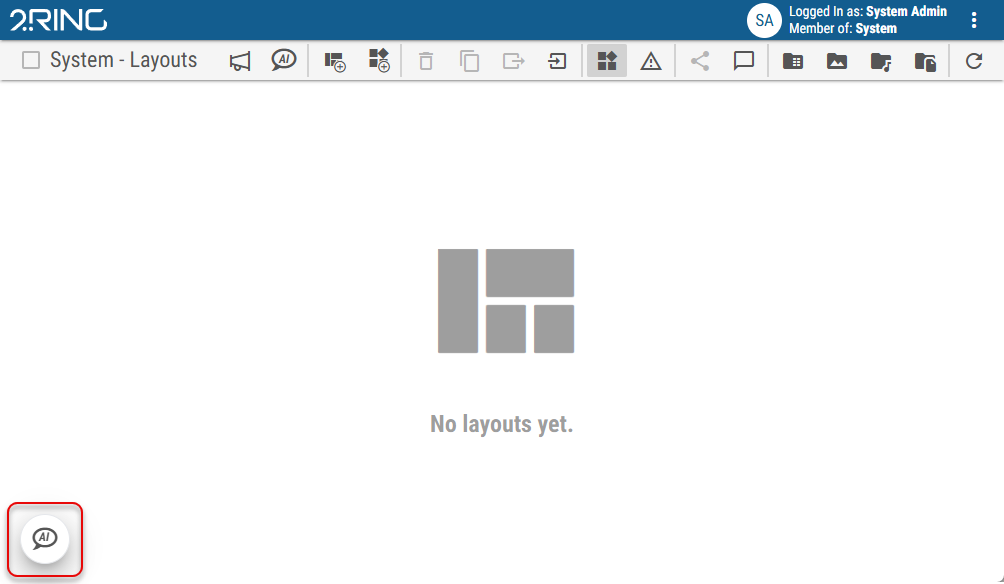
Chat bubble - When the assistant is minimized, a small chat bubble appears in the bottom-left corner of the screen. Clicking this bubble restores the assistant window.
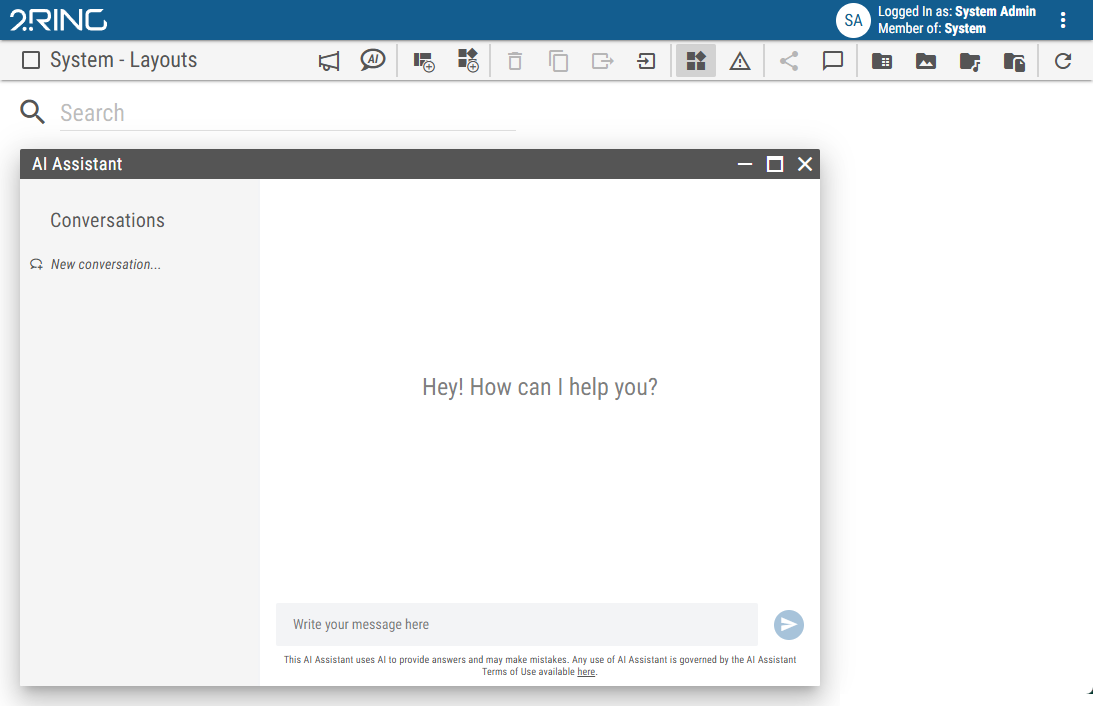
Once the window is open, users can type a question directly into the input field and receive a response.
Figure 3: AI Assistant
Window Controls
The AI Assistant window offers the following control buttons:
🗕 (Minimize) - Minimizes the assistant into a small chat bubble in the bottom-left corner. Clicking the bubble restores the window.
🗖 (Maximize) - Expands the assistant to its maximum available size.
✖ (Close) - Closes the assistant completely. No chat bubble will remain visible on the screen. AI Assistant can be reopened at any time by clicking the Chat button in the toolbar.
Figure 4: Minimized AI Assistant
Conversation Management
On the left side of the AI Assistant window is a list of conversations.
New Conversation: Click the “New conversation…” option at the top of the list to start a new session. This new conversation will appear at the top. Conversations are automatically named based on the initial question
Delete Conversation: When hovering over an existing conversation, an
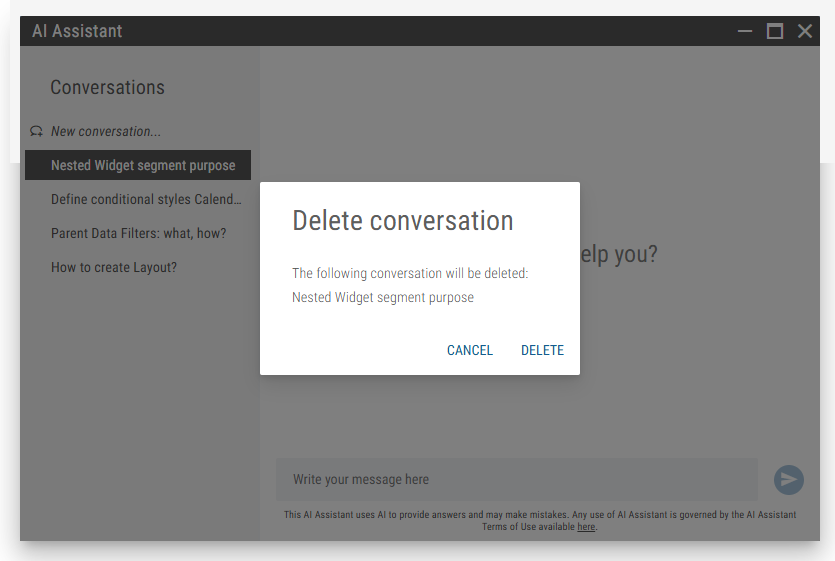
Xbutton appears on the right side. Clicking this opens a confirmation dialog:Figure 5: Conversation delete button
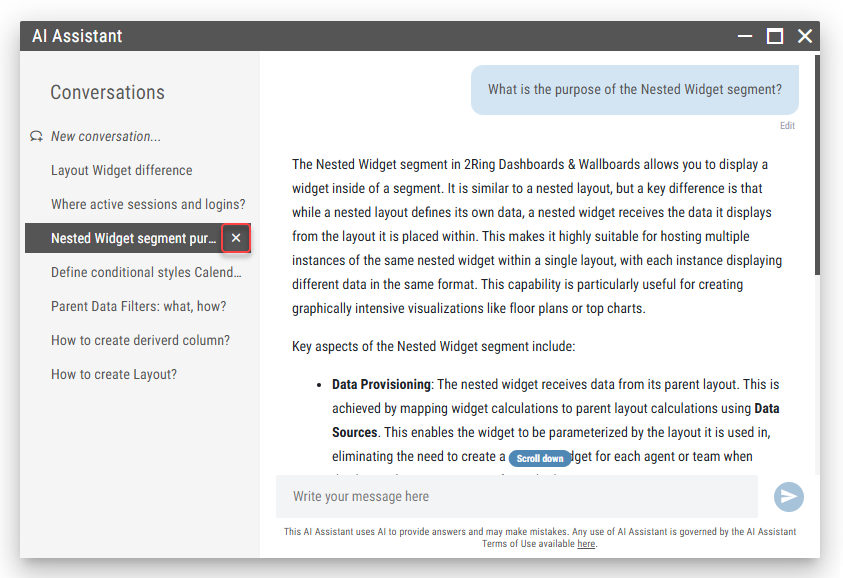
Figure 6: Conversation delete confirmation
Conversations are persistent — they remain available even after page reloads and re-authentication.
Response Details
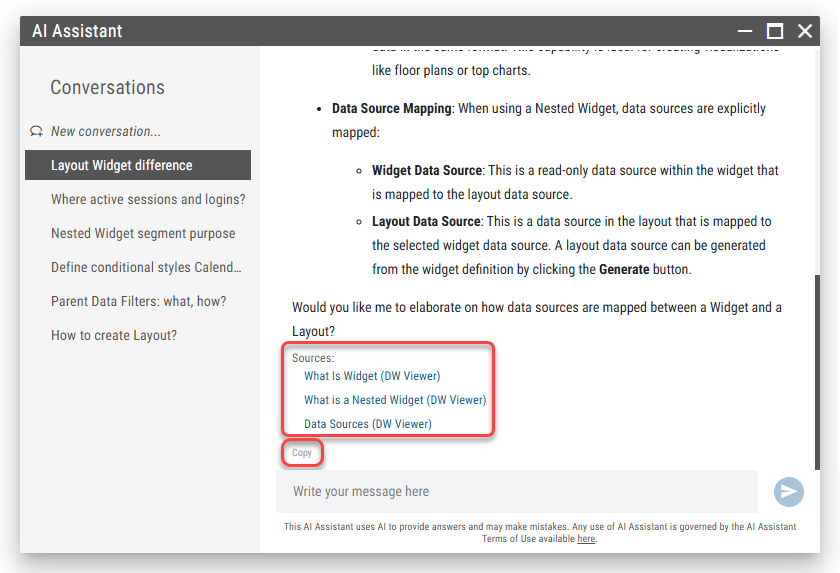
Each answer provided by the AI Assistant includes a list of sources at the bottom. These are direct links (URLs) to relevant chapters or subchapters from the official DW documentation that were used to generate the response.
This enables users to verify the information and read further context if needed.
Beneath the source list is a “Copy” button that allows users to copy the entire content of the answer — including the question, response, and source links — directly to the clipboard for easy sharing or reference.
Figure 7: Sources and Copy button
Example Use Cases
Some examples of what users can ask the AI Assistant:
“What is the difference between a Layout and a Widget?”
“Where do I find my active sessions and logins?”
“What is the purpose of the Nested Widget segment?”
“How can I define conditional styles for a Calendar segment?”
“What are Parent Data Filters and how do they work?”
“How can I switch Business Unit in the layout editor?”
“How do I add a new data source to a layout?”
Limitations
AI Assistant does not currently support voice input.
Only content included in official documentation is available for reference.
The AI Assistant can only access documentation for connectors that are currently installed.