
What’s New in Release 2605
Welcome to the 2605 release of 2Ring Dashboards & Wallboards. This document provides an overview of all new features and improvements included in this update, along with guidance on how to locate, enable, and use each one. Read on to discover what’s new.
All features in the 2605 release are also available on our public demo platform. To explore them, request instant access through our free trial form.
In This Release:
AI moving from Google Gemini to the Gemini Enterprise Agent Platform
A simplified Webex Contact Center onboarding flow
A Webex Contact Center connector blacklist for sensitive data elements
Manual paging and pausing for sequences and PDF documents
Custom short URLs that BU admins can set for each layout
A brand-new self-service admin portal for Tenant Admins
Support for Webex SSO
Switching the AI Model to the Gemini Enterprise Agent Platform
In 2605 our AI Assistants no longer use Google Gemini. They now run on the Gemini Enterprise Agent Platform, previously known as Vertex AI. AI conversations are now region locked, which means all data processing stays within your tenant region. 2Ring uses regional endpoints so your data meets local residency requirements.
As before, your data is never used to train Google global models. Your business input and the results stay private to your organization, and your data is protected at every stage with industry standard encryption in transit and at rest. The platform also adds an advanced agentic defense layer that protects against prompt injection and sensitive data leakage.
No action is required from you for this change. To learn more, read our blog on our approach to AI trust and security. Please note that this platform change comes with an update to the terms governing the use of 2Ring Cloud.
Simplified Webex Contact Center Onboarding
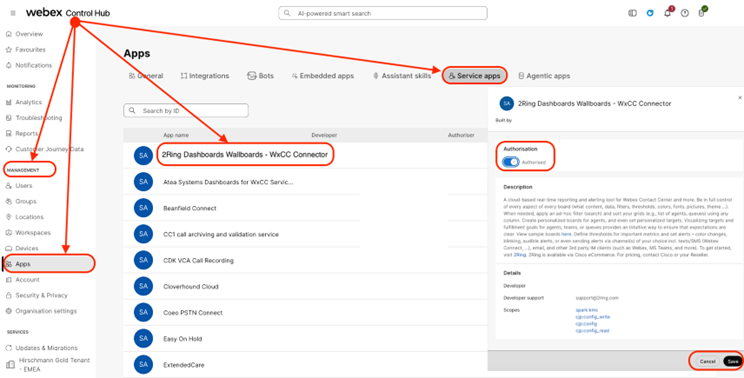
Onboarding for Webex Contact Center customers is now much simpler. Subscribers can approve the 2Ring connector directly inside Cisco Control Hub, with no separate manual exchange of credentials needed.
Only Control Hub admins can configure Service Apps.
Sign in to Cisco Control Hub
Go to Management > Apps.
Select the Service Apps tab.
Find the 2Ring service app and open it.
Enable the Authorization toggle.
Click Save to apply the change.
This tab is where you view and manage your service integrations, including the 2Ring connector. Once the 2Ring service app is authorized, the Webex Contact Center connector is ready to use in 2Ring Cloud.
Where to find it
Cisco Control Hub, connected apps area.
Webex Contact Center Connector Blacklist
The Webex Contact Center API does not offer a way to remove access to specific data. To help you keep certain data elements out of your 2Ring tenant, for example an originator phone number or a satisfaction score, we are introducing a blacklist feature. Once a blacklist is configured, users can still open grids that would normally contain that information, such as abandoned calls, callback requests, or active calls waiting in queue, but the affected columns appear blank.
How to set it up
Blacklist configuration is handled by 2Ring so it is applied consistently across your tenant. To request it, open a ticket through our support portal and list the data elements you want to hide.
Where to find it
Request through 2Ring Support.
Manual Paging Mode in Sequences and PDF Documents
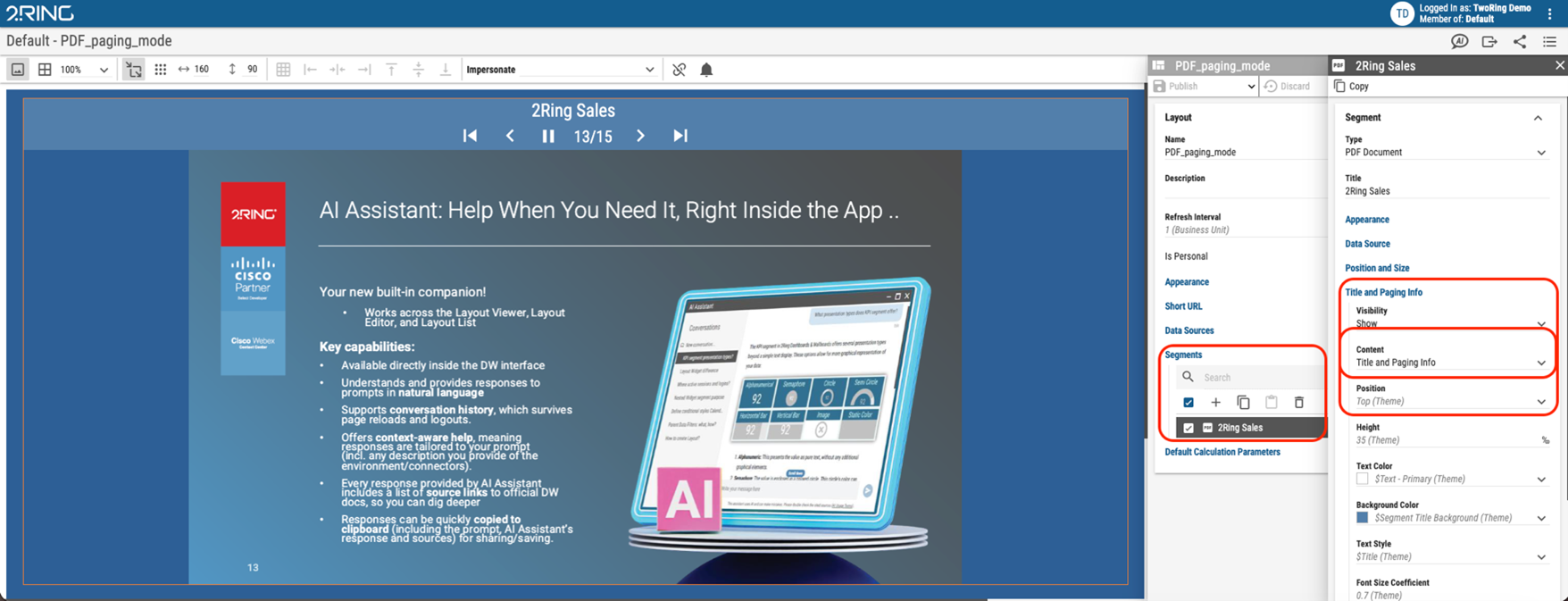
After adding manual paging to grids in the 2602 update, the same control is now available for sequences and auto paging PDF files. Users can stop or resume a running sequence or PDF and move to the previous or next page, or jump straight to the first or last page.
How to enable it:
In the layout client, switch to editing mode.
Select the sequence or PDF element where manual paging should be available.
Turn on the manual paging option in the element settings, then save the layout.
In view mode, use the paging controls to pause, resume, and navigate pages.
Where to find it
Editing mode, element settings for the sequence or PDF.
Custom Short URLs
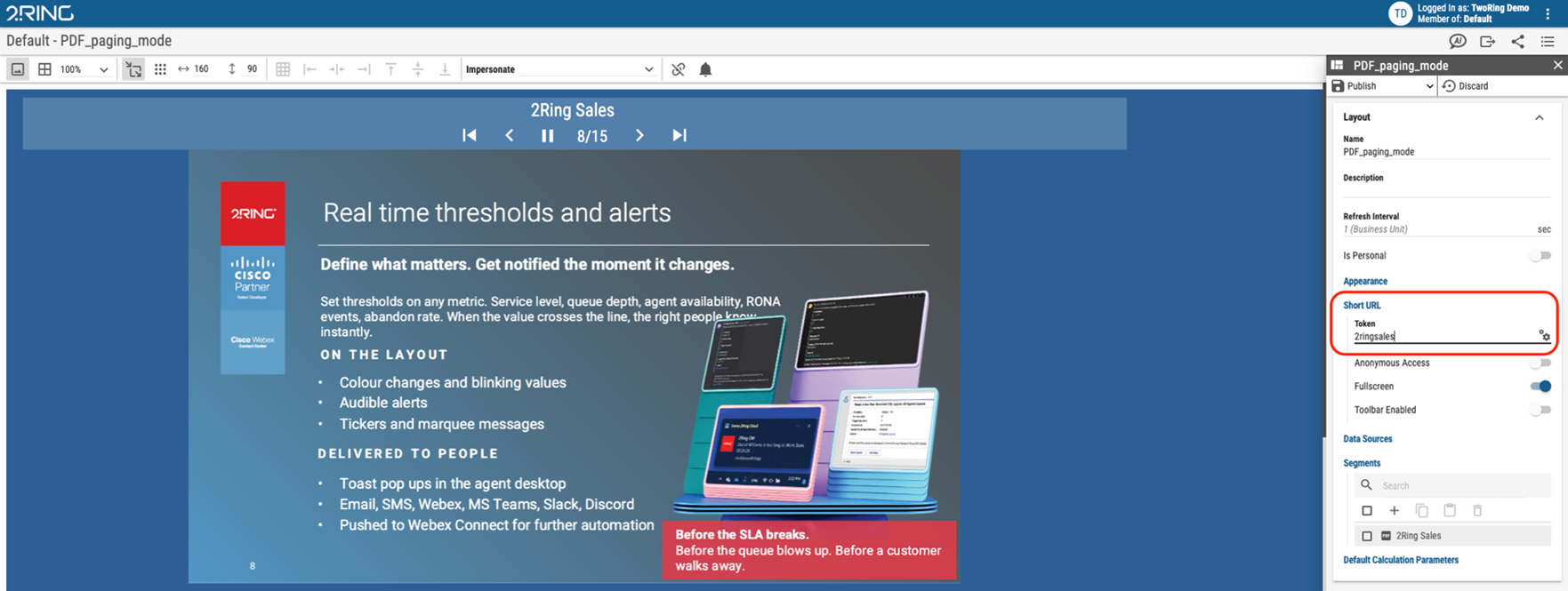
BU admins can now choose an easy to remember name for the short URL of each layout, as long as the chosen text is unique. For example:
yourtenant.2ring.cloud/usage
yourtenant.2ring.cloud/servicedeskagent
yourtenant.2ring.cloud/whateverYouChooseHere
How to set it:
Open the layout you want to share and go to its short URL setting.
Enter the custom text you want to use after your tenant address.
Save. If the text is already taken, choose a different unique name.
Once a short URL is created, you can reach it quickly anytime using the share button, which is available directly in the layout list, the layout view, and the layout editor.
Where to find it
Layout settings, short URL field.
Brand New Admin User Interface
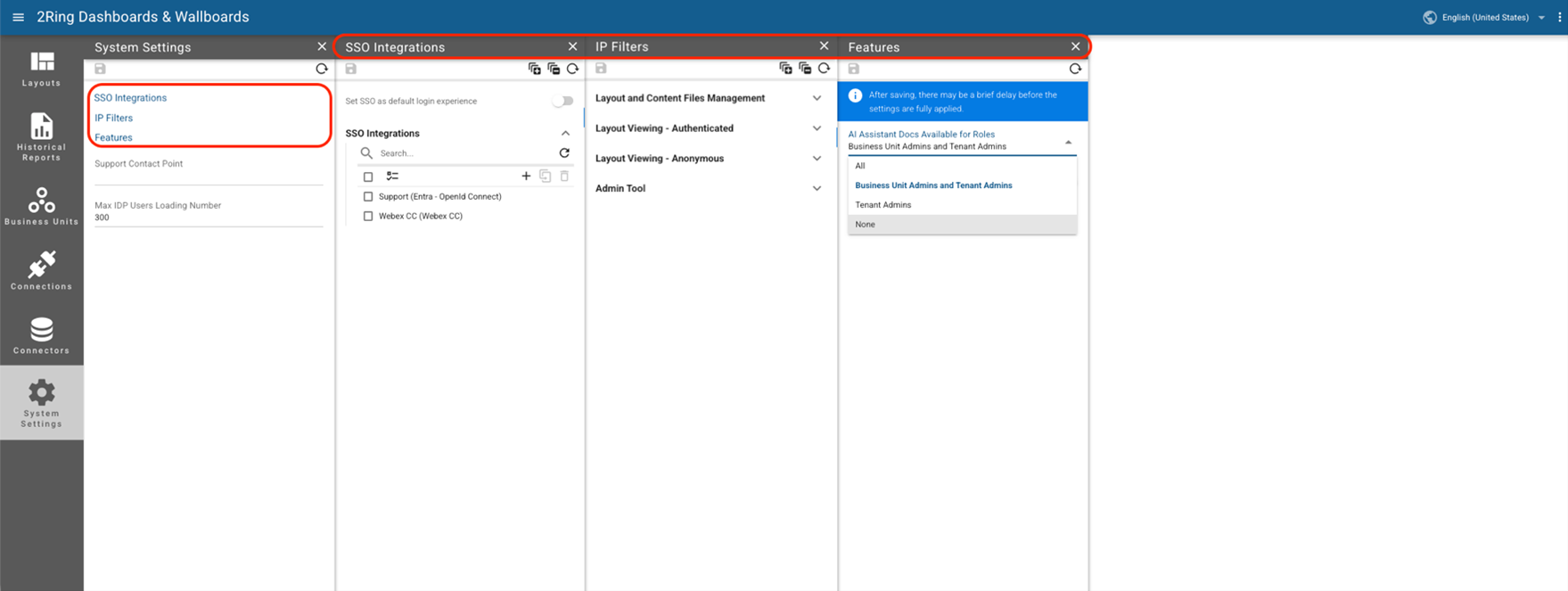
The admin portal has been completely rewritten. Tenant Administrators can now adjust many more tenant settings on their own, without contacting the 2Ring support team. The new self-service portal lets admins:
Manage or update Okta, Entra, and Webex SSO client secrets
Manage security tokens or credentials for the 2Ring Webex connector, with Five9 arriving in 2606 and more connectors added over time
Manage 2Ring license filters
Manage IP filters for the clients
Manage license expiration warnings
Manage IP filters for remote connectors
Turn AI Assistant Docs and AI Assistant Data on or off
Turn history tracking for the AI Assistant on or off, so only a single conversation per user stays active
Where to find it
Sign in with your Tenant Administrator account.
Open the admin portal to access the redesigned settings dashboard.
Webex SSO
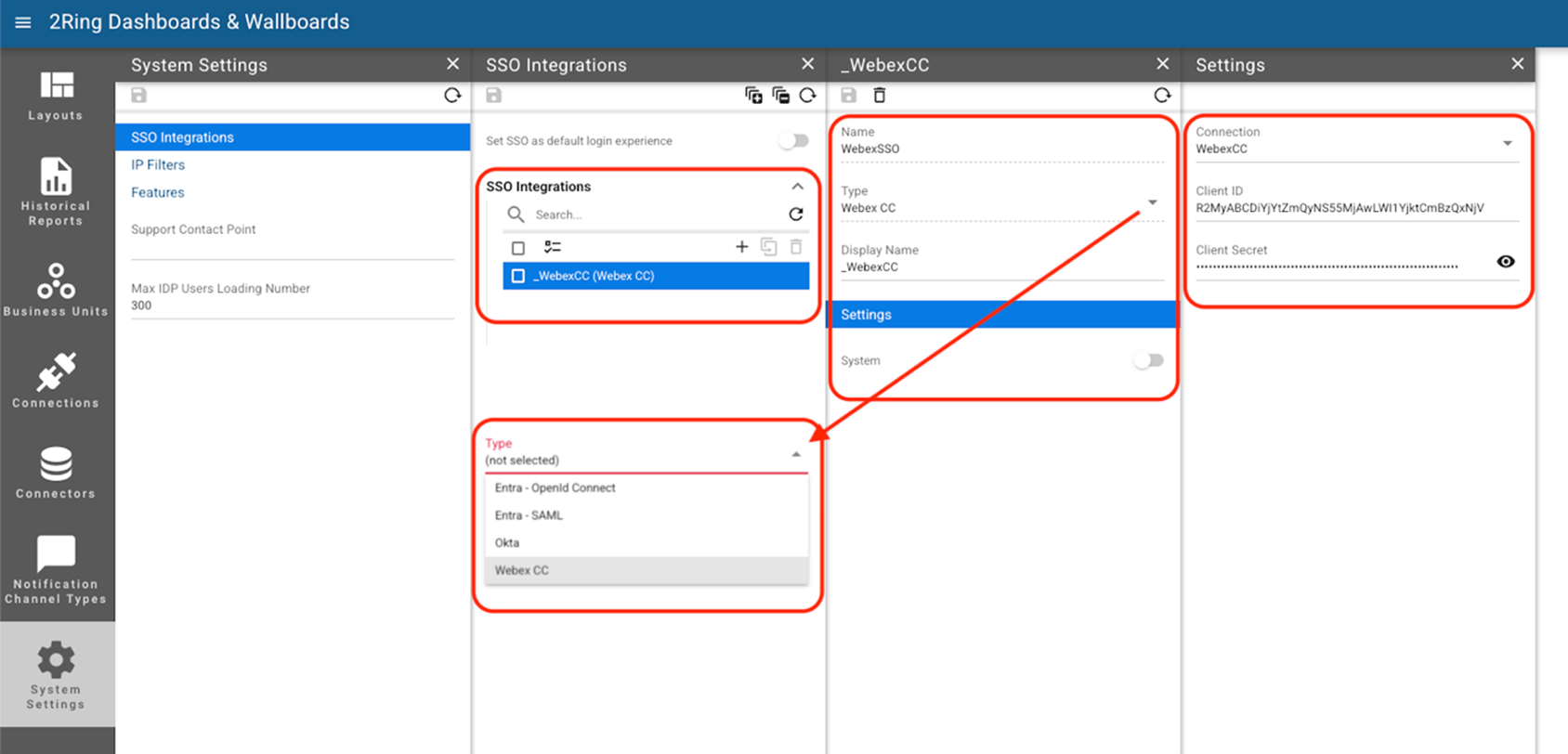
Webex SSO joins the two single sign on options already available, Entra ID (Azure) and Okta. Once enabled, users can sign in to 2Ring Dashboards & Wallboards, including the Historical Reporting Module, with their existing Webex credentials, so there is one less identity to remember.
How to enable it
Open the new admin portal and go to the single sign on settings.
Add Webex as a provider and enter the client details supplied during onboarding.
Save the configuration. The Webex option then appears on the login screen for your users.
Where to find it
Admin portal, single sign on section.
Pro Tips
Our AI Assistant Docs is available 24/7 and can answer common questions or guide you through layout and alert adjustments instantly.
Active Subscribers with the Webex Contact Center platform, to enable even more powerful drill downs, ask us (or ask AI Assistant Docs) how to connect DW layouts to reports built in the Historical Reporting Module.
Some example questions you can ask AI Assistant Docs:
What type of alerts can I choose from?
How do I create an alert when average handle time exceeds 5 minutes?
How do I create an alert when service level drops below 80 percent?
How do I create an alert when the average wait time across all queues exceeds 2 minutes?
How do I create an alert when a RONA event occurs more than 3 times in an hour?
How do I limit an alert to trigger only during business hours?
How do I scope an alert to a specific queue?
How do I change the threshold value of an alert?
How do I exclude weekends from an alert?