
Local Notification Permissions
After logging in to the DW Application, the browser will ask for permission to send Windows notifications.
Below are the steps to add or remove notification permissions in the most common browsers:
Google Chrome
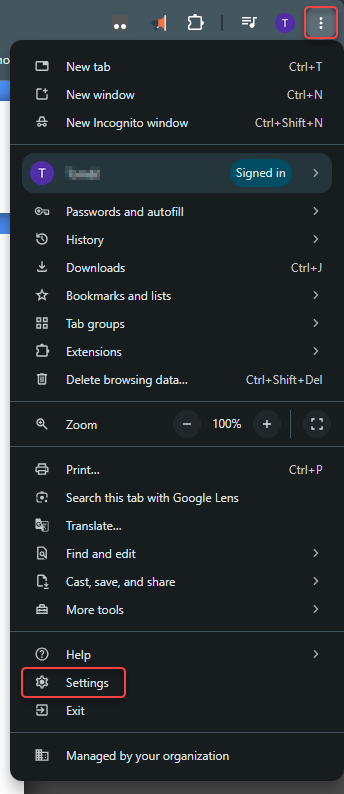
Click the three vertical dots in the upper-right corner of Chrome and select Settings from the dropdown menu.
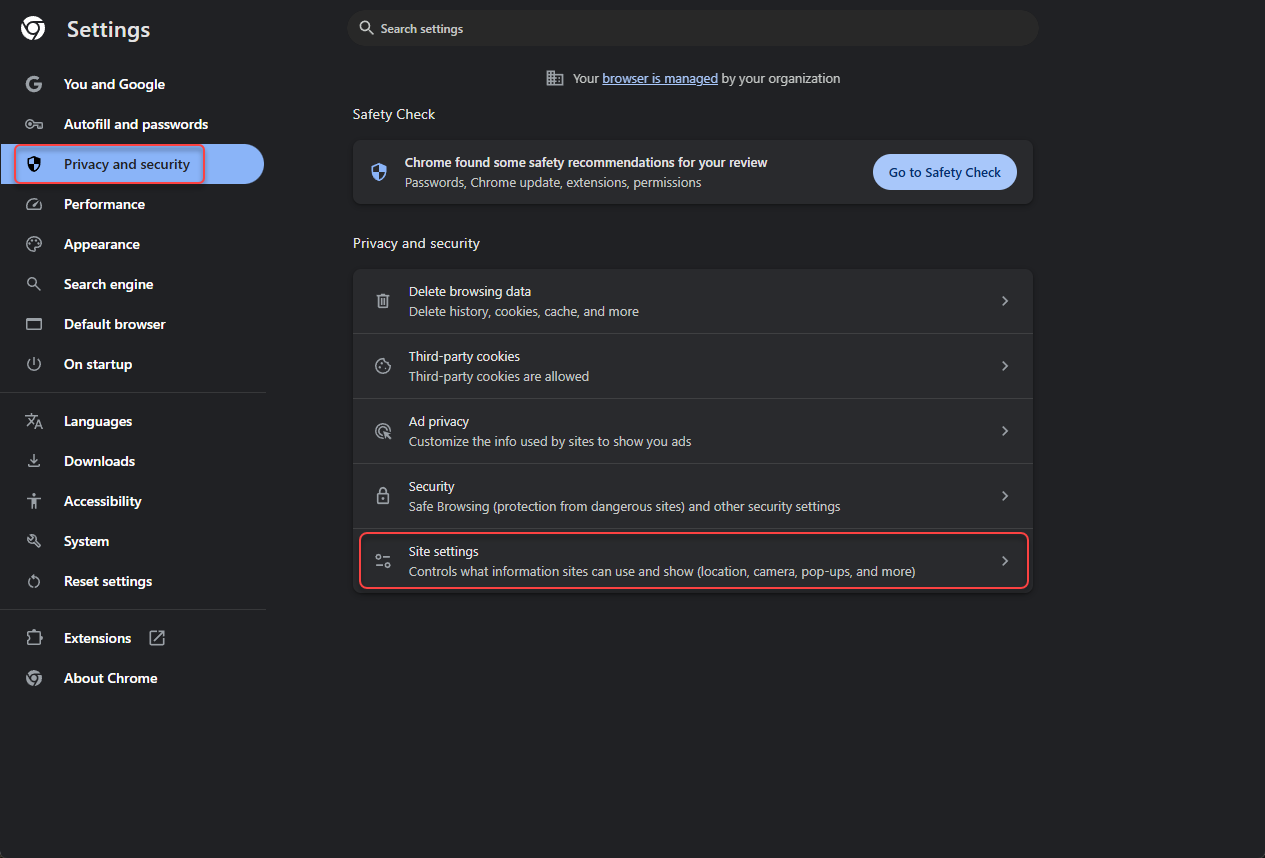
In the left-hand menu, click on Privacy and security and select Site Settings.
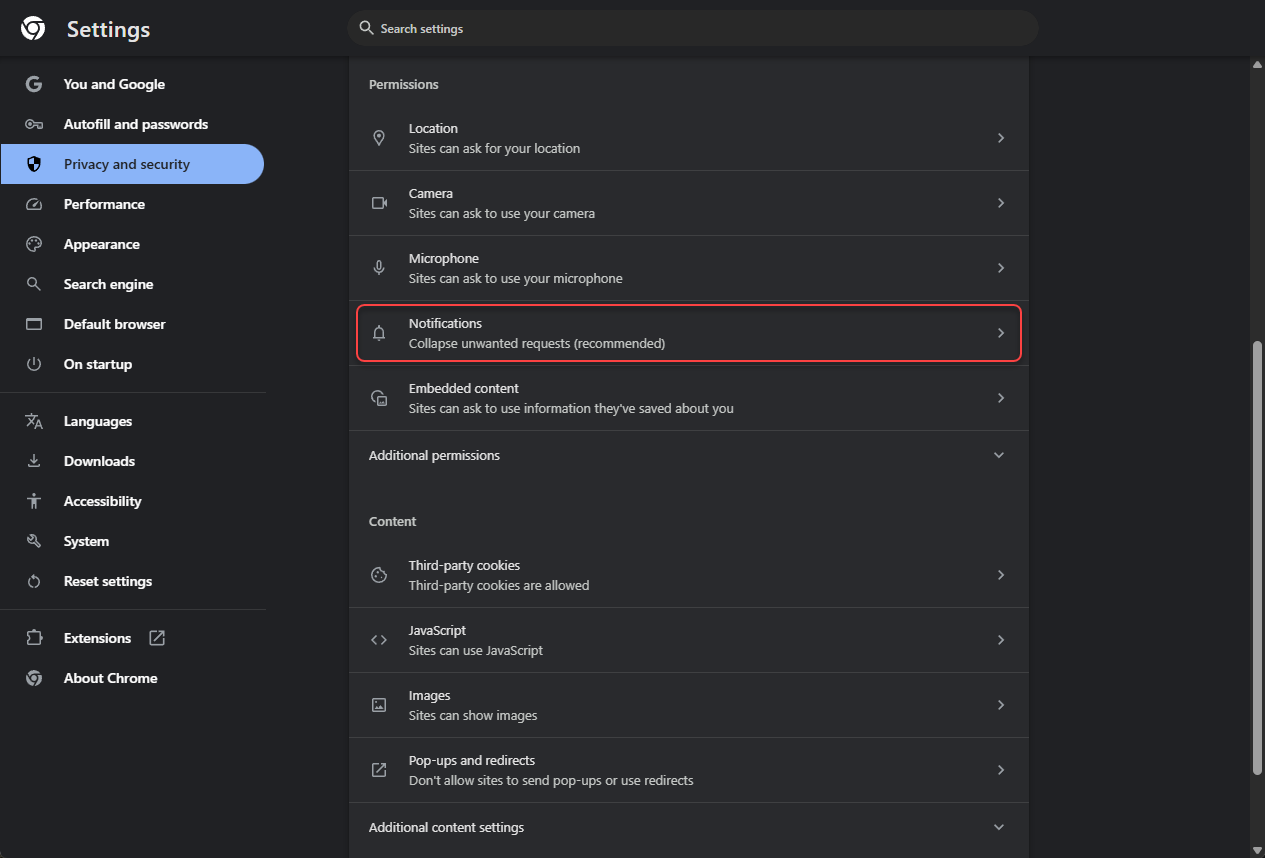
Scroll down and click on Notifications.
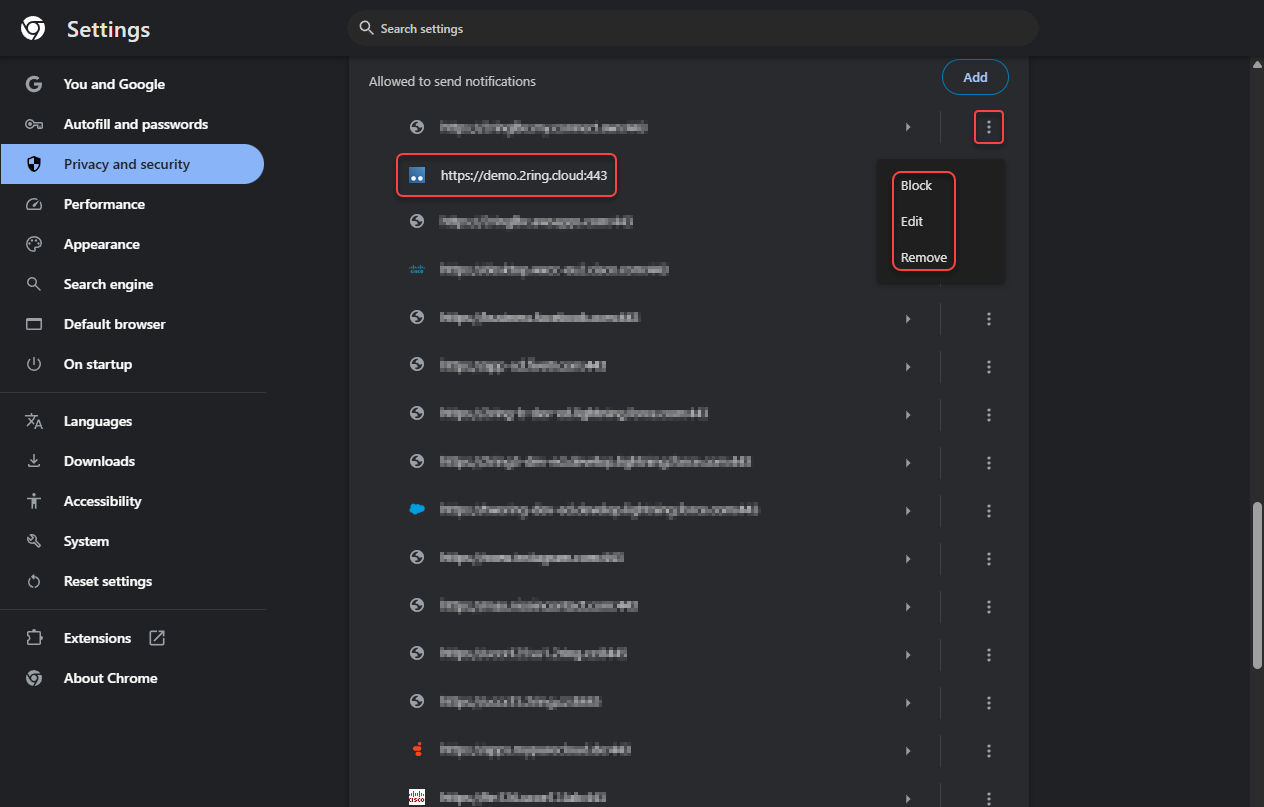
Find the application in the list of sites, click the three vertical dots next to the application and select an action.
Mozilla Firefox
Click the three horizontal lines in the upper-right corner of Firefox and select Settings from the dropdown menu.
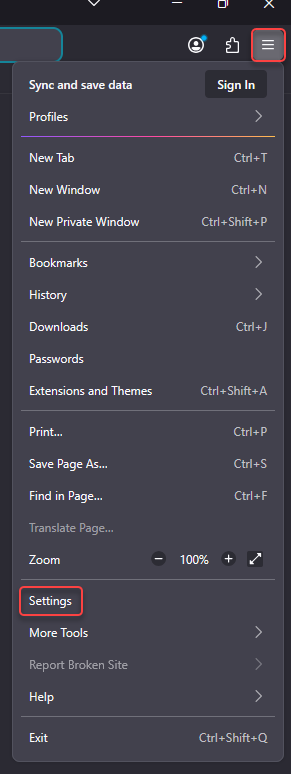
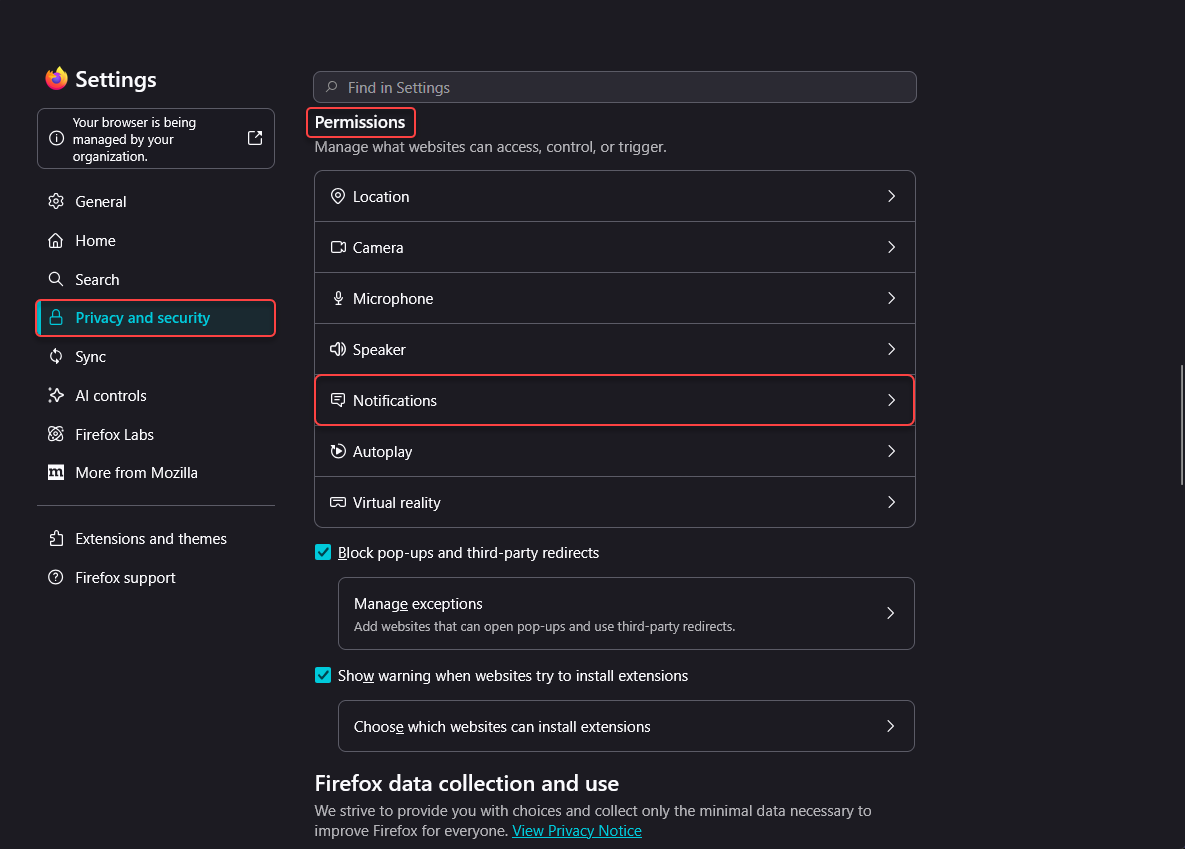
In the left-hand menu, select Privacy & Security, scroll down to the Permissions section and click on the Notifications.
Select the website and select an action from the Status dropdown . You can also remove selected websites so that the browser will ask for permission again when you visit the site.
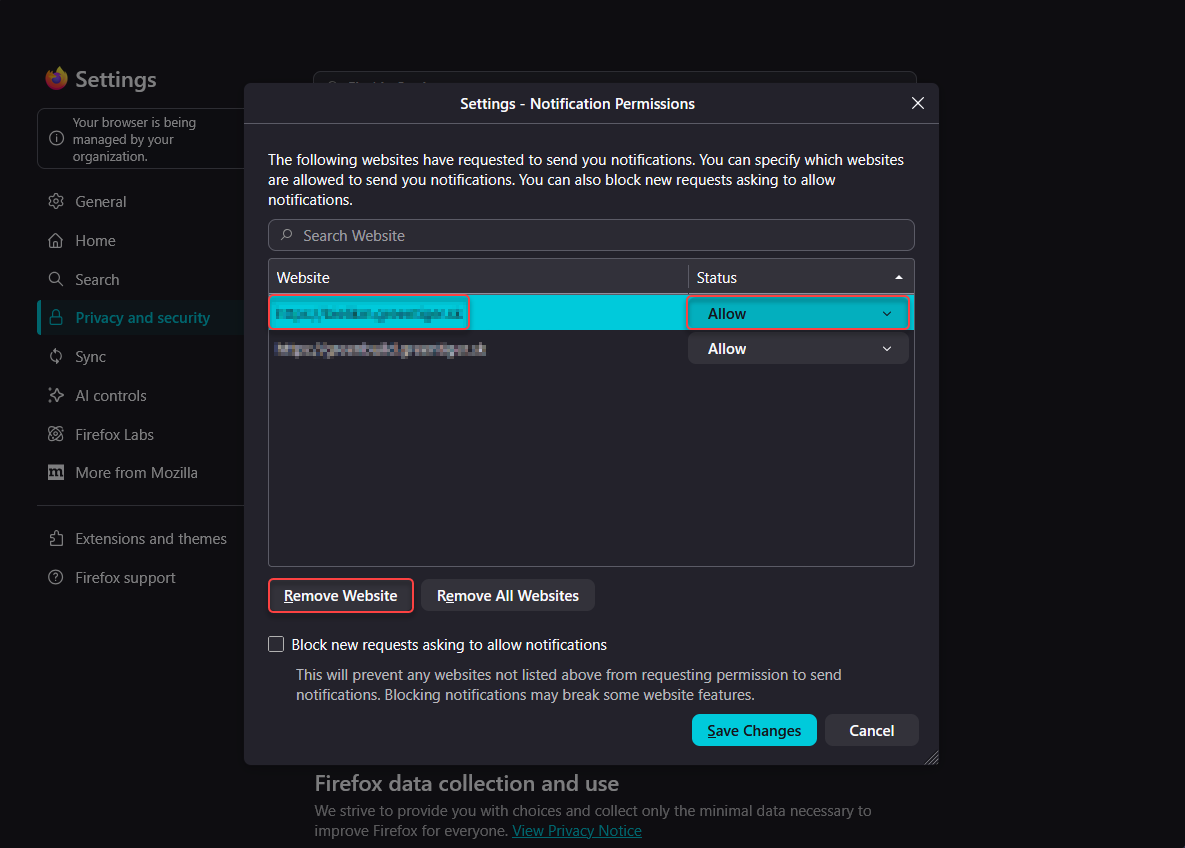
Click Save Changes to apply the new settings.
Microsoft Edge
Click the three horizontal dots in the upper-right corner of the browser and select Settings from the dropdown menu.
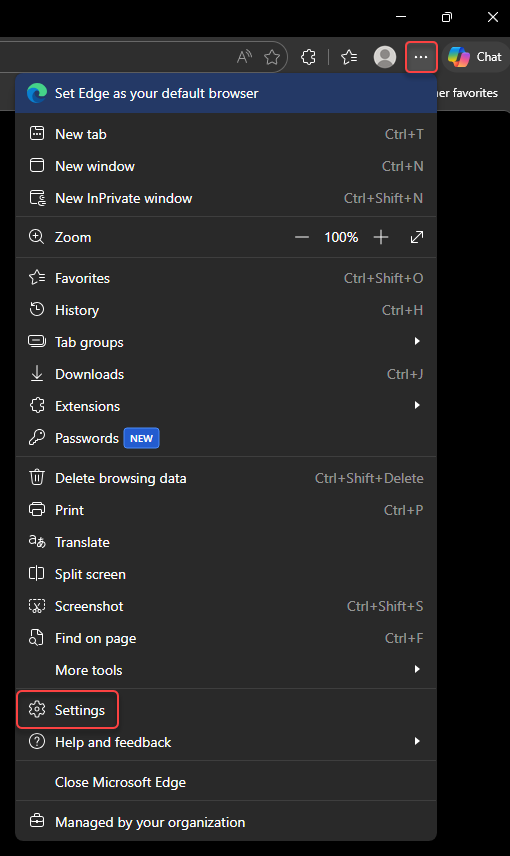
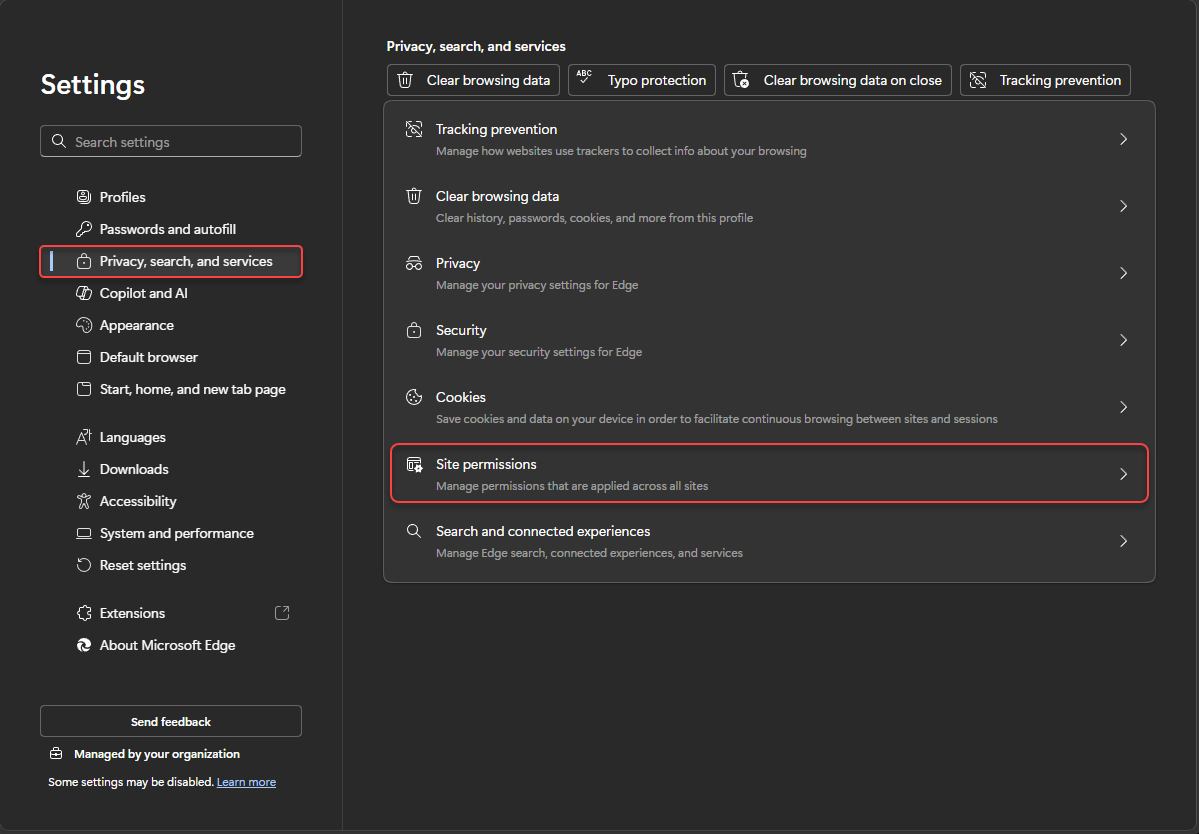
In the left-hand menu, click on Privacy, search, and services and select Site permissions.
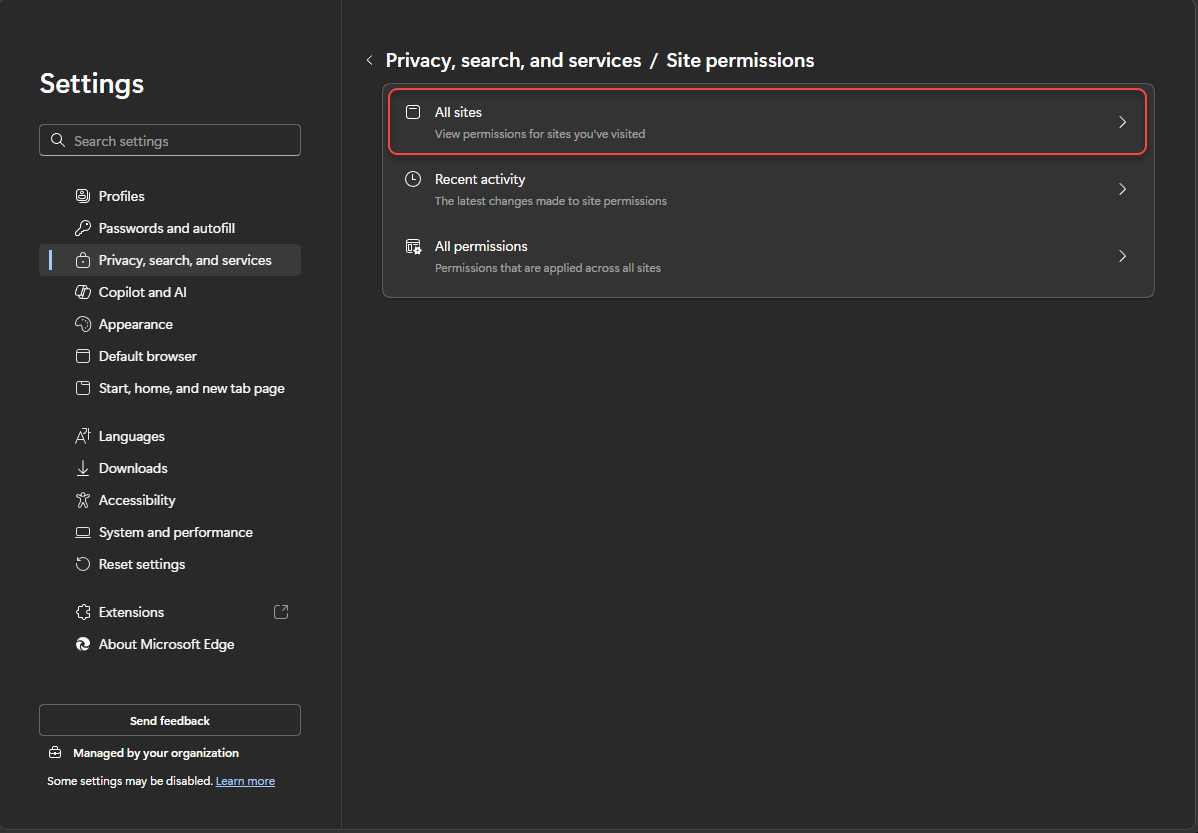
Click on All sites.
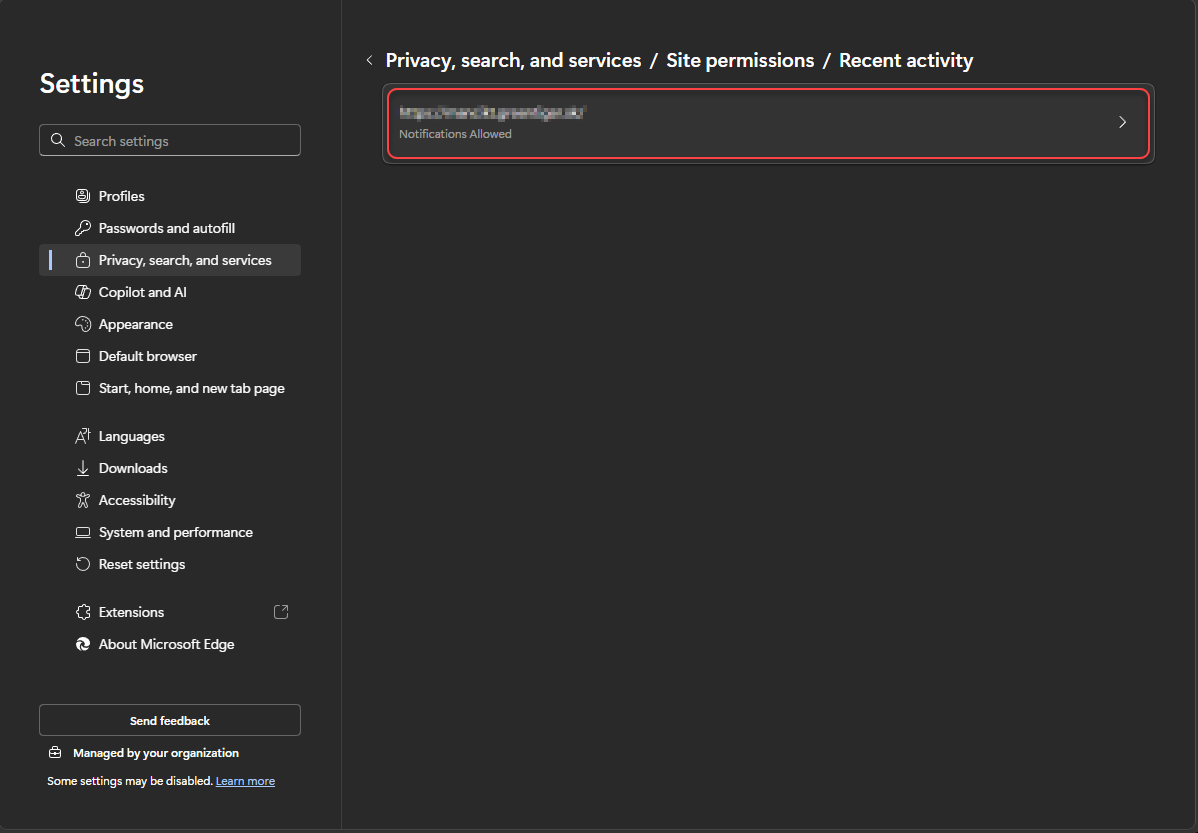
Find the application in the list of websites.
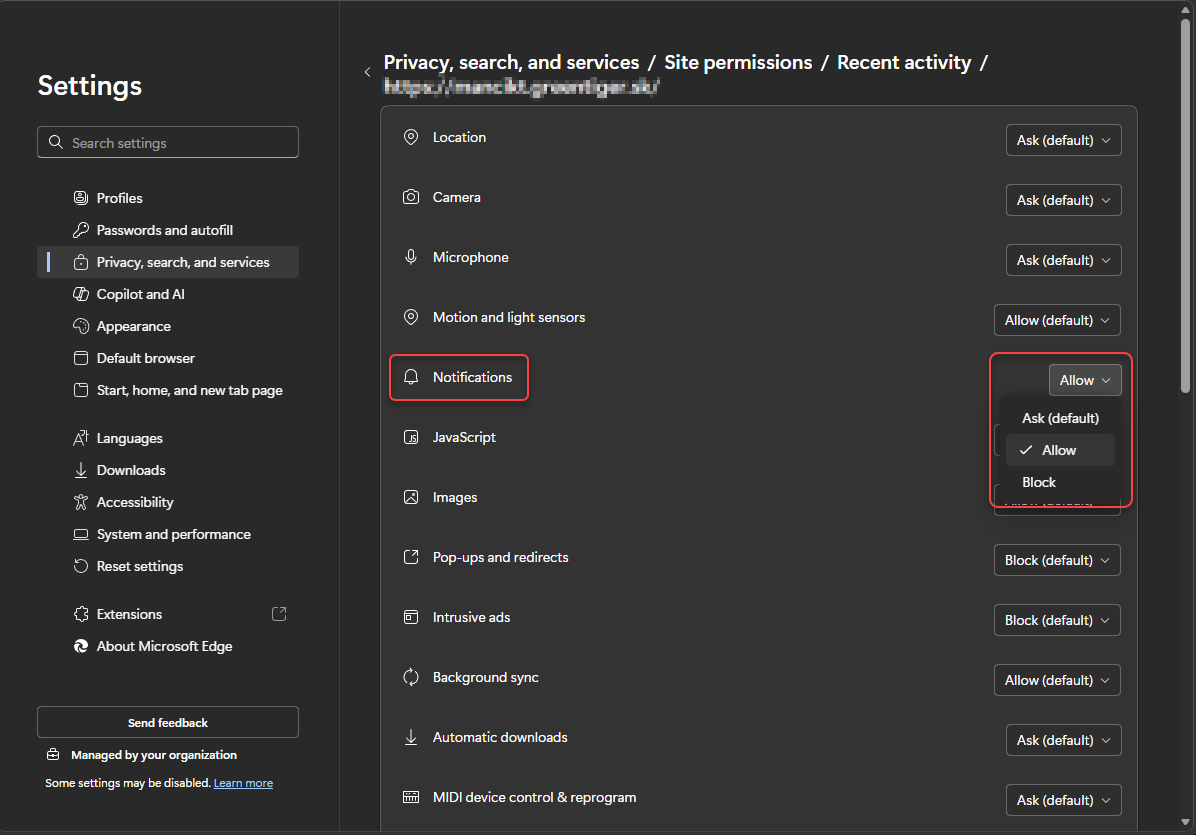
Locate the Notification section for the application, and select the desired action from the dropdown menu.
Safari (macOS)
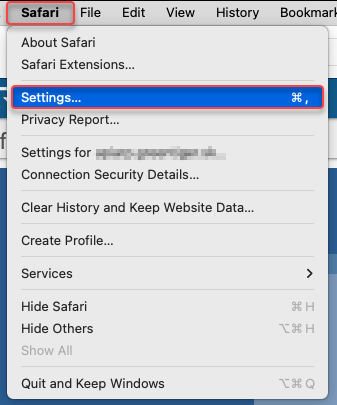
Click Safari in the top menu bar and select Settings.
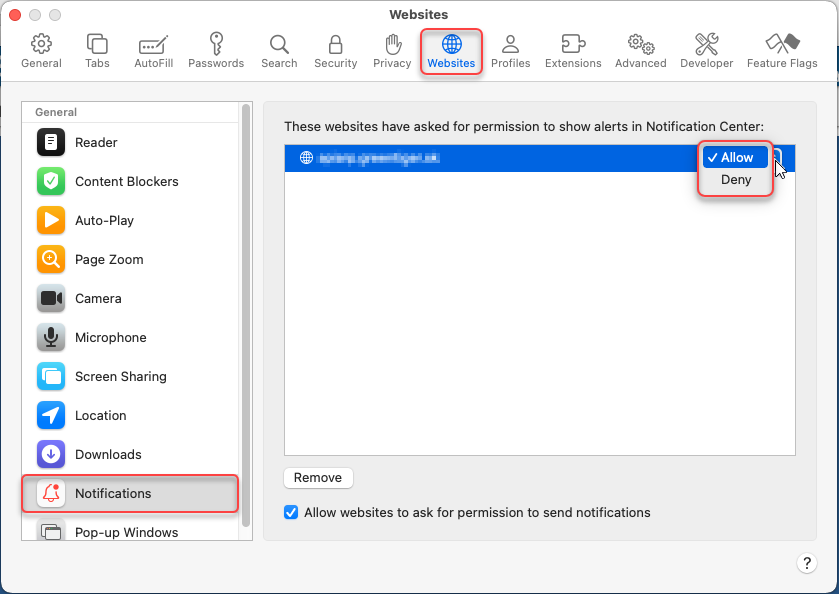
Go to the Websites tab. In the left-hand menu, select Notifications, find the application in the list of websites and click Allow or Deny.
For more information about Local notifications on a MAC, see the Apple Support page.