Lists
Lists display any collection of items. These items can be managed using the following controls:
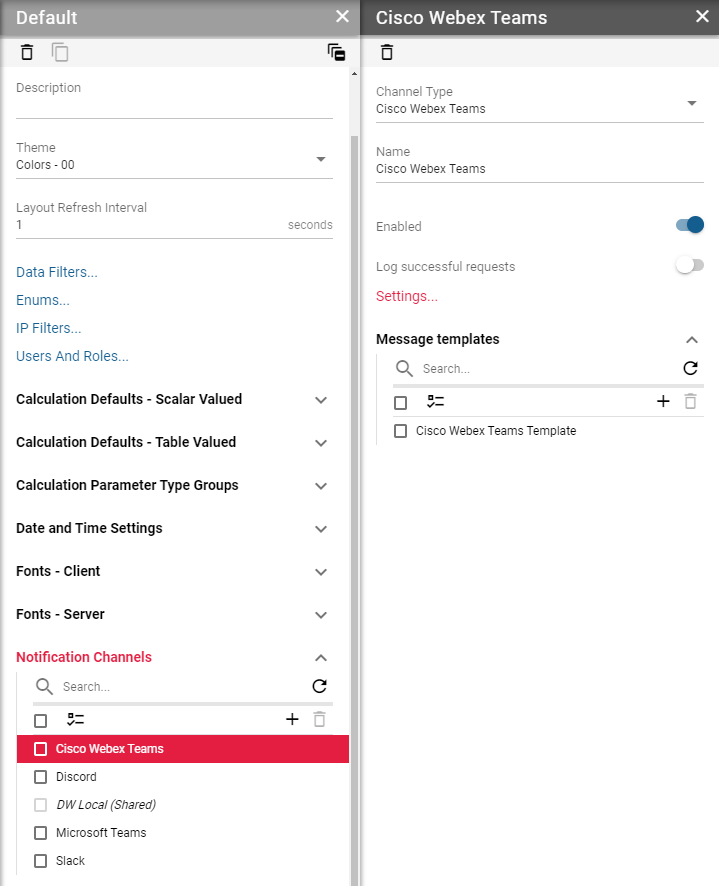
Figure 1: List
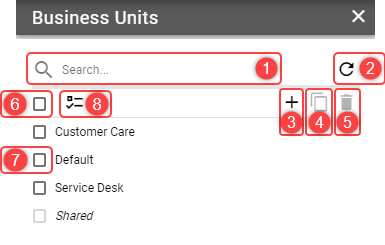
Search field Enter search criteria to filter displayed items.
Refresh button Click to refresh list items. If any items (or their children) have unsaved changes user is asked for confirmation before refreshing list items.
Add button
Click to add new item.Copy button
Available only when at least one item is selected.
Click to copy selected items.Delete button
Available only when at least one item is selected.
Click to delete selected items. User is asked for confirmation before deleting items.Select/deselect all items checkbox
Click to select or deselect all items.Item selection checkbox
Click to select a single item.Show only selected items toggle
Toggles between displaying all items or only selected ones.
Clicking an item or adding a new item opens up a new panel containing all related configuration options. When the name of the item is not set ‘(untitled)’ is displayed in list item. In most cases, the list items are sorted alphabetically in ascending order.
Items marked with red text or background signalize that one or more errors exist on the item itself or on its child items.
Figure 2: List with invalid item
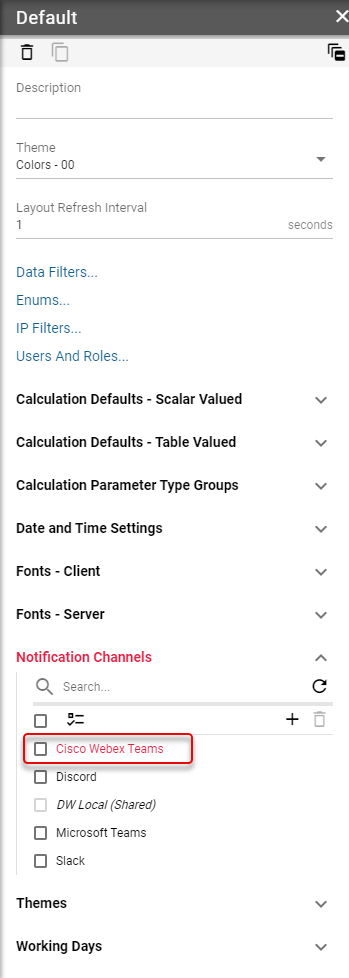
Figure 3: List with invalid item detail