
Dynamic Filter
Dynamic filters allow the user to filter displayed grid based values using user attributes or/and URL parameters. Filter is represented by expression with placeholders which are replaced with value from user attributes or received from the URL parameters at runtime. Specific grid columns and user attributes can be selected from the list of columns/user attributes, located at the bottom of the dialog.
Figure 1: Dynamic Filter dialog
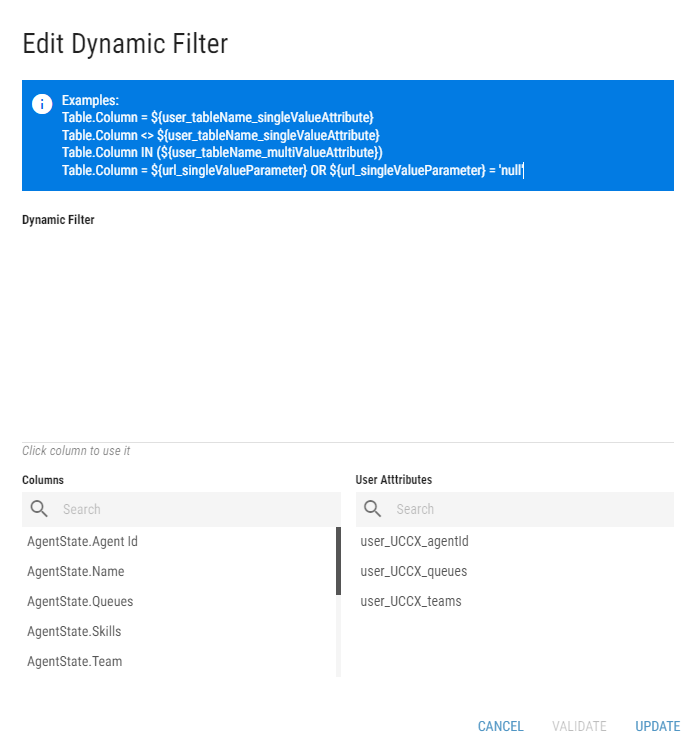
In case of using a specific grid column in the dynamic filter, the placeholder is defined in format: SourceTableAlias.Column.
SourceTableAliashas to be replaced with the alias of the targeted source table.Columnhas to be replaced with the specific column from the source table.
Filtering using User Attributes
Value placeholders are defined in filter in format: ${user_attributeName}.
attributeNamehas to be replaced with a specific user attribute.
When using connector associated user attribute, value placeholders are defined in filter in format: ${user_connectorName_attributeName}.
connectorNamehas to be replaced with the name of the connector, the user attribute is associated with.attributeNamehas to be replaced with a specific user attribute.
Dynamic filter with one value placeholder
Agents.Agent = ${user_uccx_agentName}
Agents.Agent = '${url_agentName}'
Dynamic filter with one value placeholder with multiple values
Agents.Agent IN (${user_uccx_agentNames})
Dynamic filter with multiple value placeholders
In the following example, only agents that belong to the same team and with the same skill assigned as the logged in user will be selected.
Agents.Team = ${user_uccx_team} AND Agents.Skill = ${user_uccx_skill}
Filtering using URL parameters
Value placeholders are defined in filter in format: ${url_placeholderName}
Value placeholders are defined in URL in format: filter_placeholderName
Dynamic filter with one value placeholder
Agents.Agent = ${url_agentName}
This filter allows the user to specify a name of a single agent. Only rows that contain said agent in their Agent column will be displayed.
URL
To apply the filter, the following attribute needs to be added to the URL of the Layout:
?filter_agentName='Lara%20Croft'
When applied, only columns with Agent Lara Croft will be displayed.
?filter_agentName='Lara%20Croft'
or in dynamic filter expression:
Agents.Agent = '${url_agentName}'
Dynamic filter with one value placeholder with multiple values
In case of filtering using URL parameters:
Agents.Agent IN ( ${url_agentNames} )
This filter allows the user to specify a name of any number of agents. Only rows that contain said agents in their Agent column will be displayed.
URL
?filter_agentNames='Lara%20Croft','Sarrah%20Connor'
Dynamic filter with multiple value placeholders
In case of filtering using URL parameters:
In the following example, only agents that are in state defined in the URL, for a longer time than it is defined in the URL, will be selected.
Agents.State = ${url_state} AND Agents.Duration > ${url_duration}
Multiple expressions can be configured for the same grid. Each expression needs to be separated by AND.
URL
?filter_state='Not%20Ready'&filter_duration=60
Only agents, that are in the Not Ready state for more than 60 seconds, are displayed.