
Borders Style
The style, width and color settings for the borders in a values area. The style of the border can be set by clicking on one of the available styles from the list on the left side of the panel. Width of the border, defined in per mille of the layouts height, can be set by editing the width field. Color can be set in HEX or RGB format by editing a text field or through a color picker that can be opened by clicking on a colored square or a icon.
Value can be copied by clicking the copy button that appears when you hover over the dropdown. The copied value can then be pasted only in another borders style field.
Figure 1: Borders Style
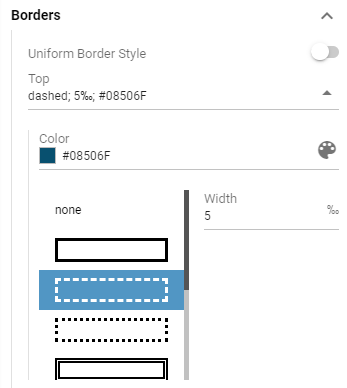
Uniform Border Style
Whether border should be applied as a single border around the entire segment.Border
Available only when “Uniform Border Style” is enabled.
The style, width and color of the border.Top
Available only when “Uniform Border Style” is disabled.
The style, width and color of the values top border.Bottom
Available only when “Uniform Border Style” is disabled.
The style, width and color of the values bottom border.Left
Available only when “Uniform Border Style” is disabled.
The style, width and color of the values left border.Right
Available only when “Uniform Border Style” is disabled.
The style, width and color of the values right border.